



ODOO'S FUNCTION
In the Odoo Barcode app, generating multiple lots for a single product can feel like a marathon. If you receive 10 units of a product and need 10 unique lots, you have to manually scan or enter them one by one. There is no quick way to bulk-generate lots directly from the barcode screen, turning a simple receiving task into a tedious, manual process.
CLUEDOO'S FUNCTION
CLuedoo brings the power of bulk generation directly to your Barcode app! Instead of scanning items one by one, you get a convenient Generate Serials/Lots button right on your screen. Need 10 unique lots for 10 products? Just click the button, and the system automatically generates and assigns them all instantly - exactly like it does in the standard transfer view. Say goodbye to manual scanning and hello to instant, automated lot creation!
CONFIGURATION | |
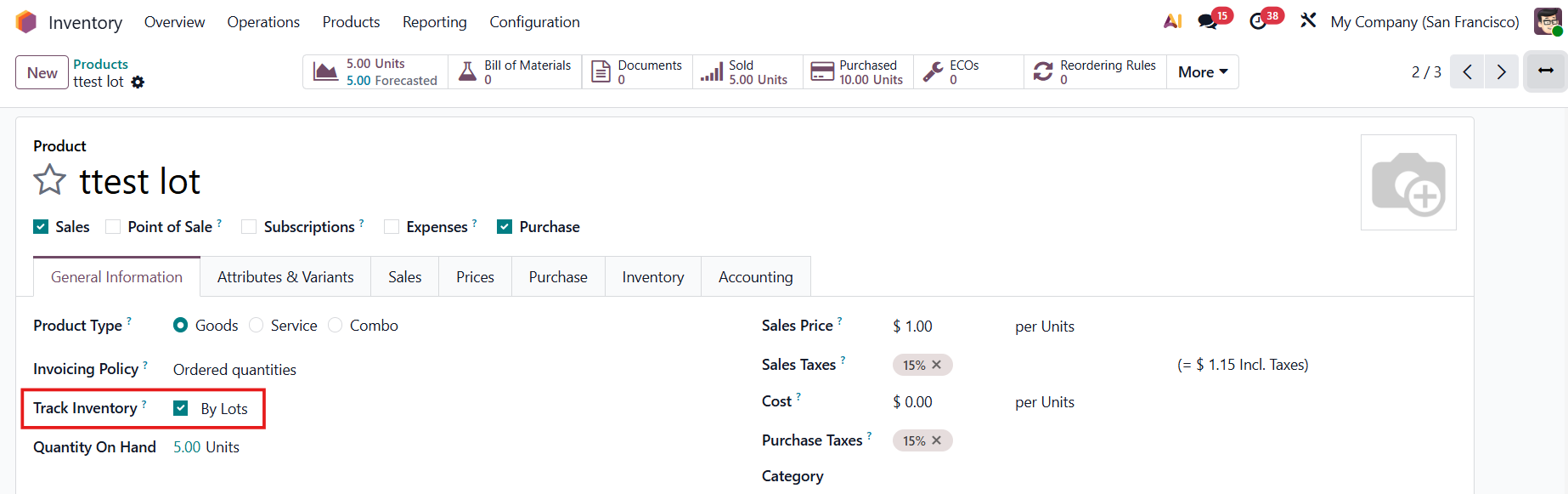
Create a product tracked by Lots/Unique Serial Number. |
|
USAGE | |
1. Go to Inventory > Operations Create a transfer, select the lot product and add the demand quantity. Mark as ToDo. | 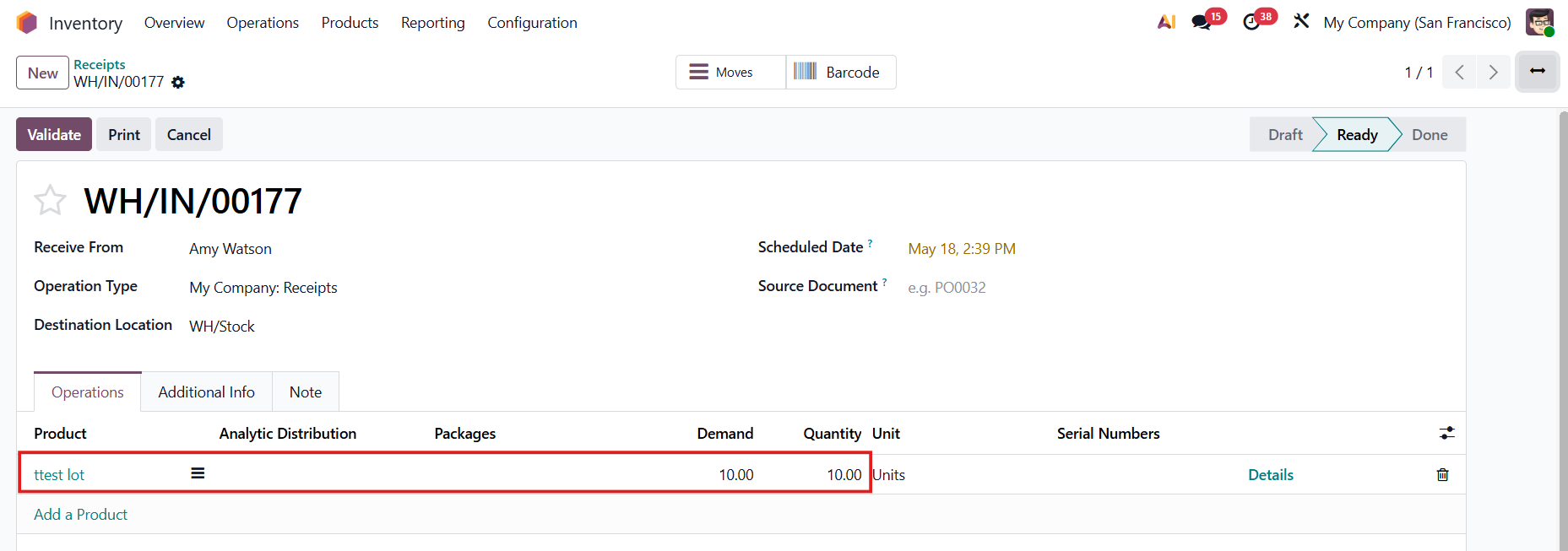 |
2. Go to Barcode > Operations > Choose the correct operation type and select the transfer created in step 1. Click the Edit button. | 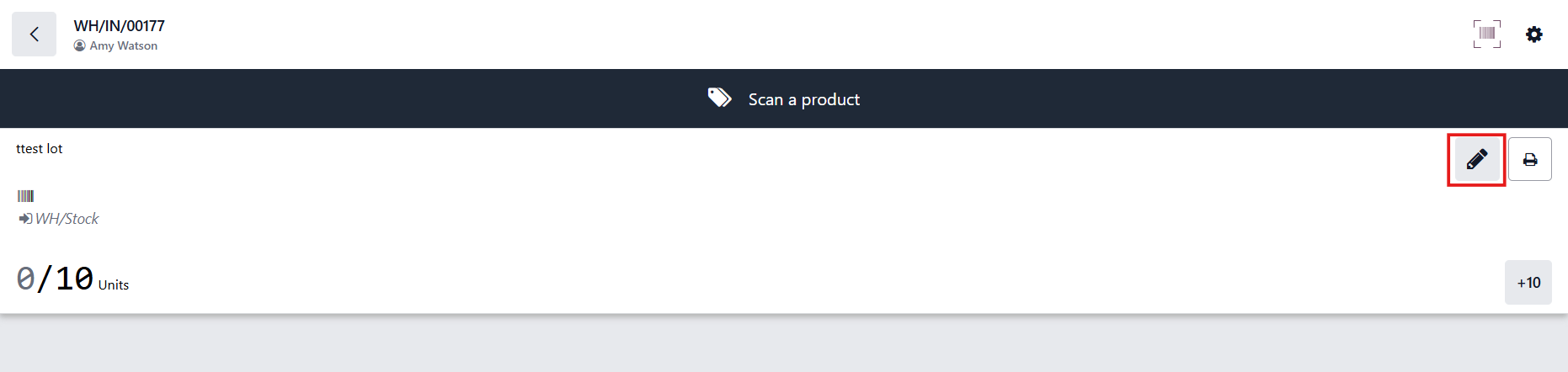 |
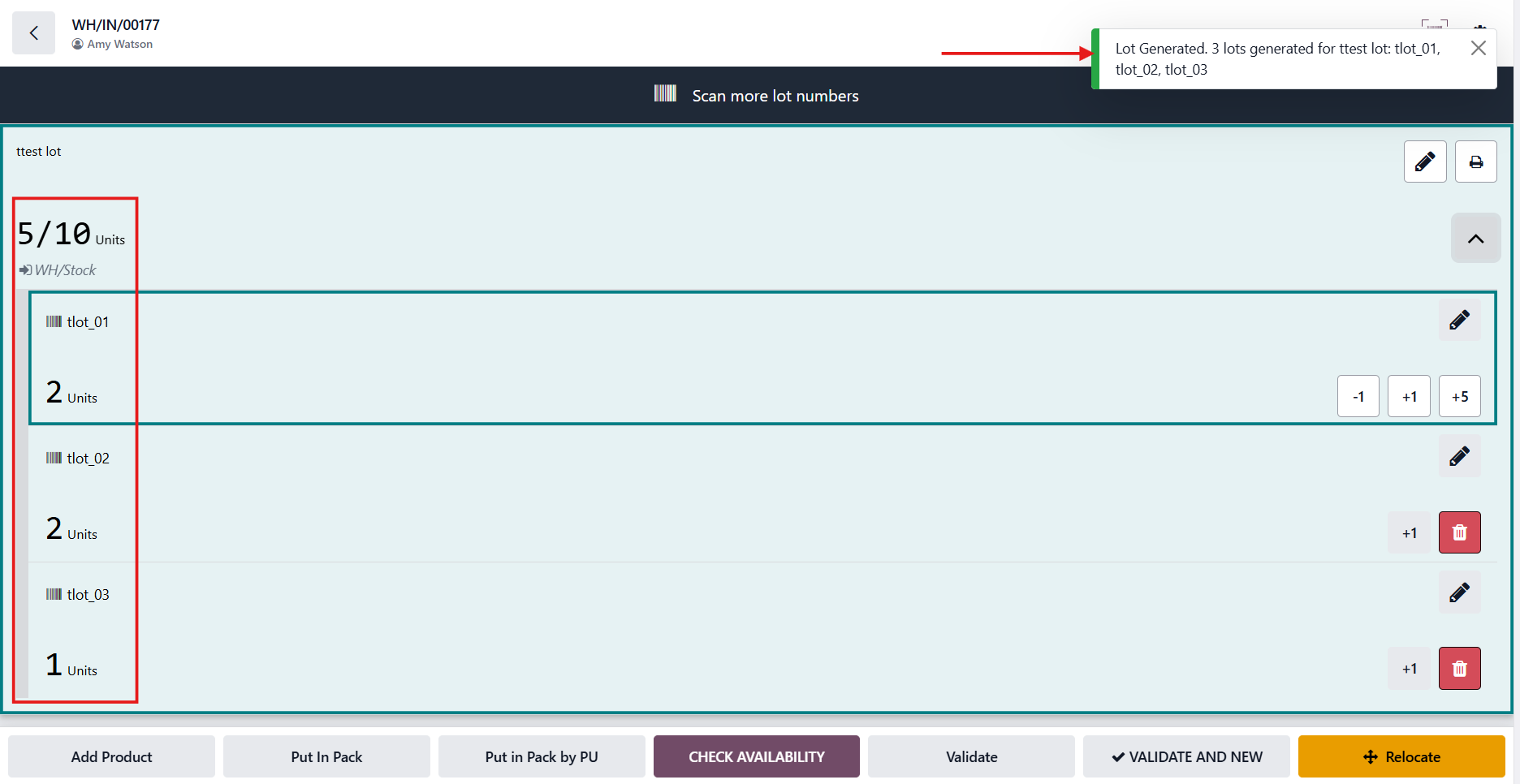
3. Click the Generate Serials/Lot button. | 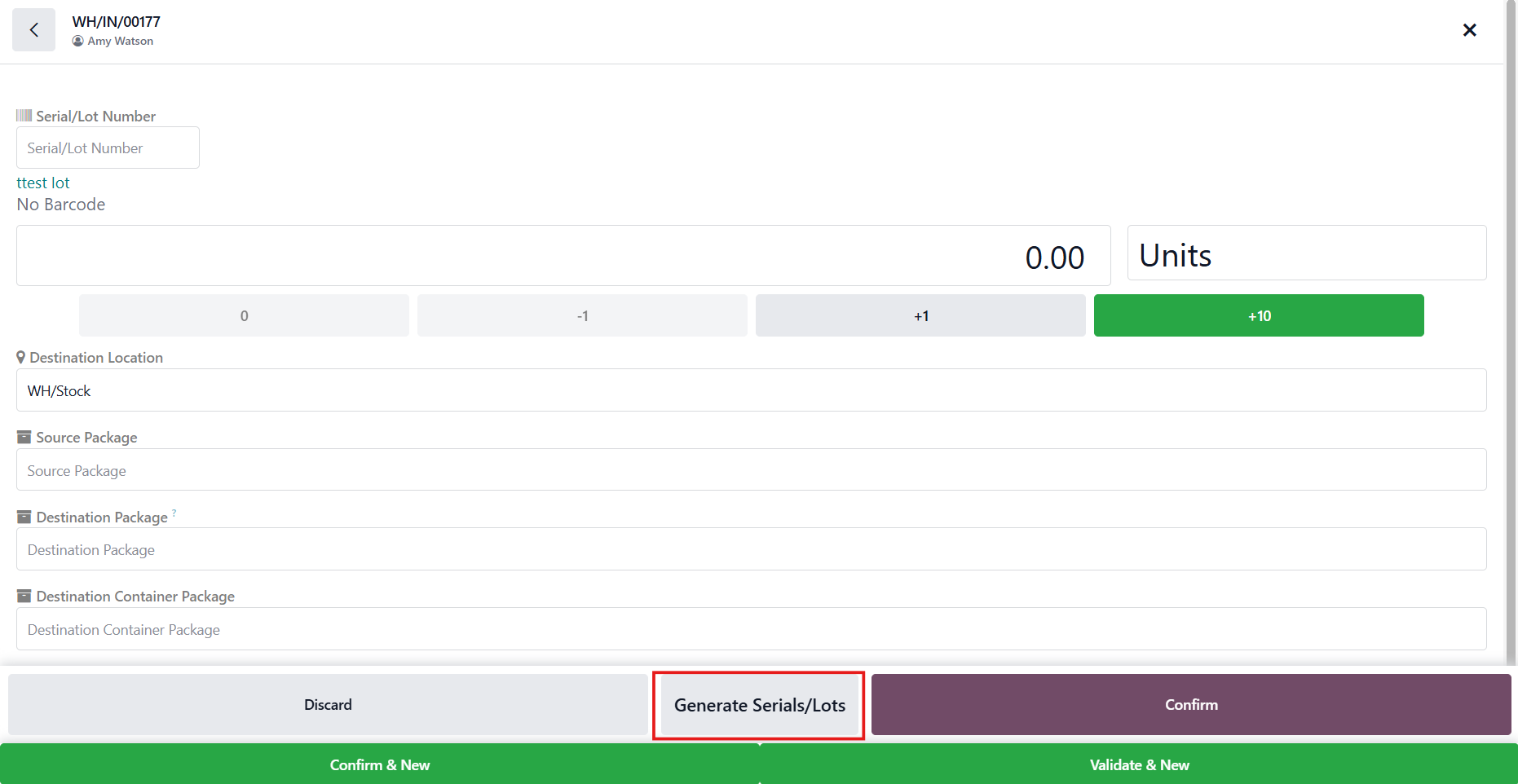 |
Fill in the information > Generate. | 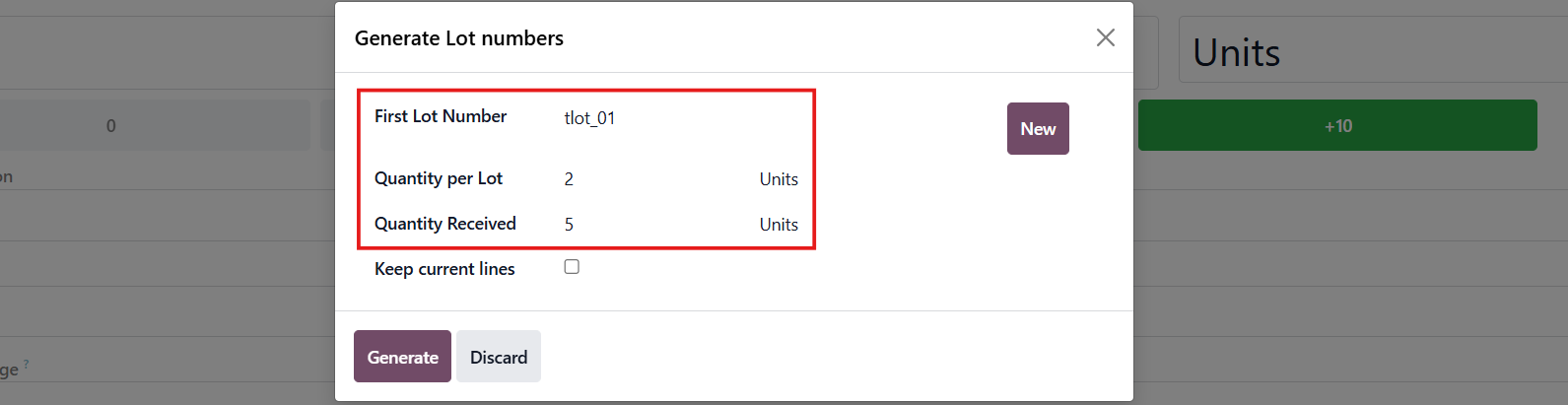 |
The lots will be automatically generated with the correct quantity. |
|
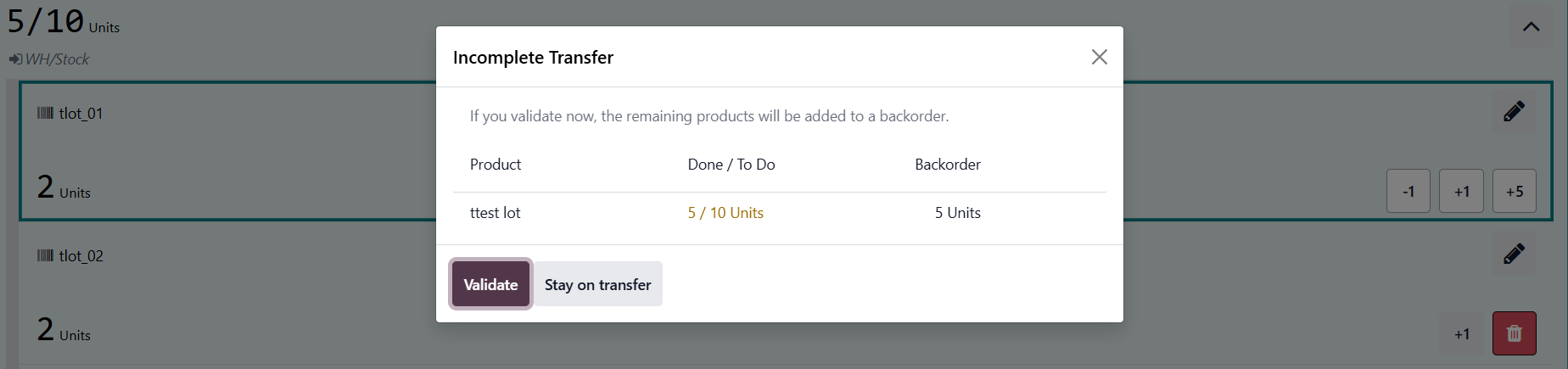
4. Click Validate |
|
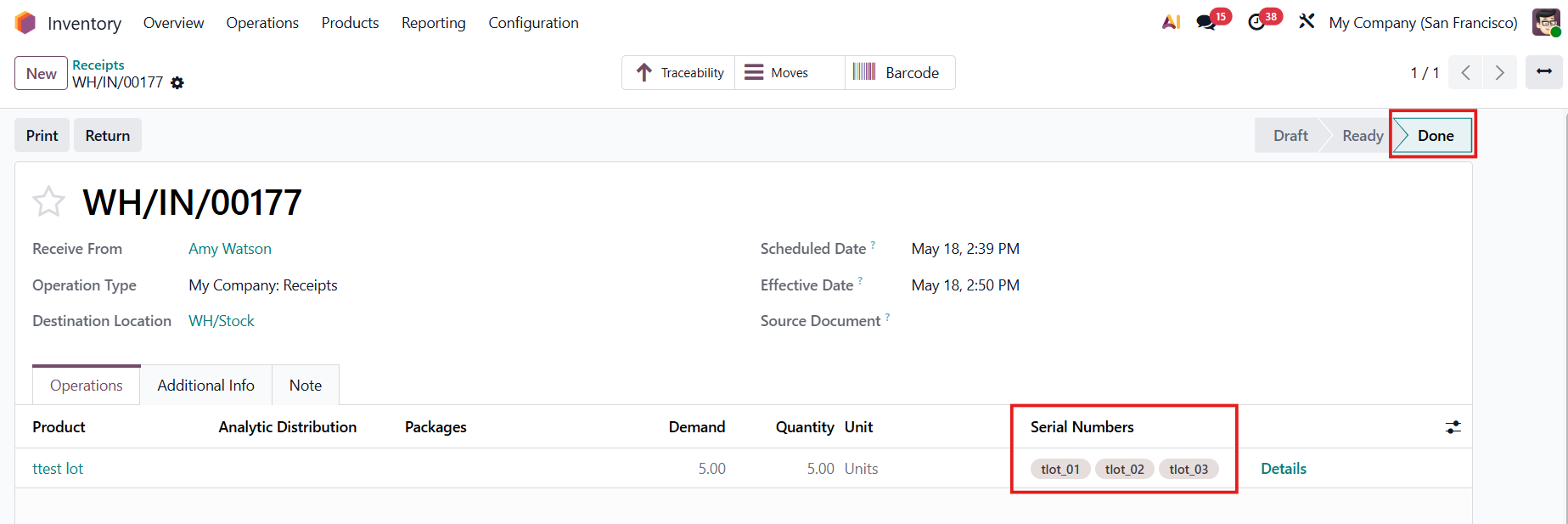
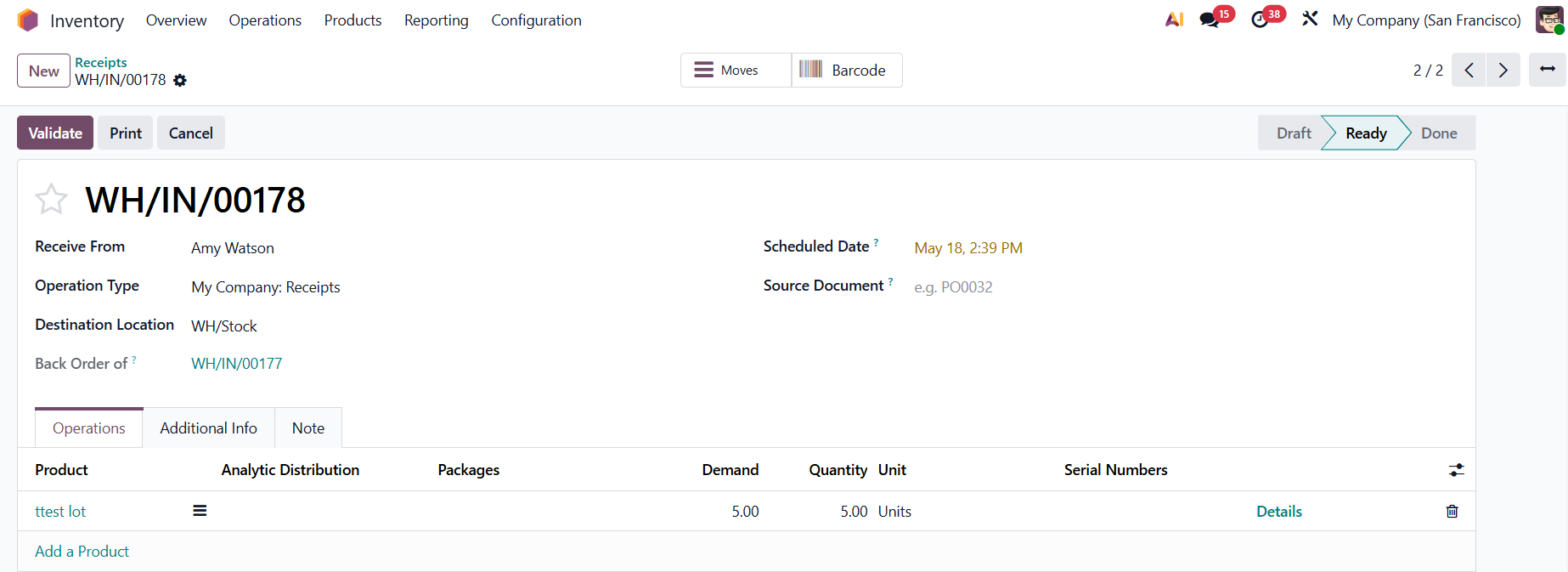
The transfer will be automatically done, and the lots will be added. |
|
The backorder is created as well. |
|
機能詳細
ODOOの動作
Odoo は、データベースを設定するための強力な設定パネルと、追加機能を追加するためのアプリストアを提案します。ただし、設定パネルからよりも、追加アプリでデータベースを設定する方がはるかに複雑です。
CLUEDOOの動作
Cluedooの設定パネルからは、認定モジュール(OCAまたはCluedoo製)のリストを直接確認できます。さらに、Odoo・OCA・Cluedooのすべてのオプションから欲しい機能をその場で簡単に検索し、スムーズに追加することができます。
モジュールの使い方
販売用 Cluedoo 設定パネル
