ODOO'S FUNCTION
Standard Odoo treats approvals as rigid, static technical configurations restricted to IT administrators. This approach offers poor process visibility, lacks organization, and prevents business controlling departments from easily managing approval conditions.
CLUEDOO'S FUNCTION
VALIDATION RULES | |
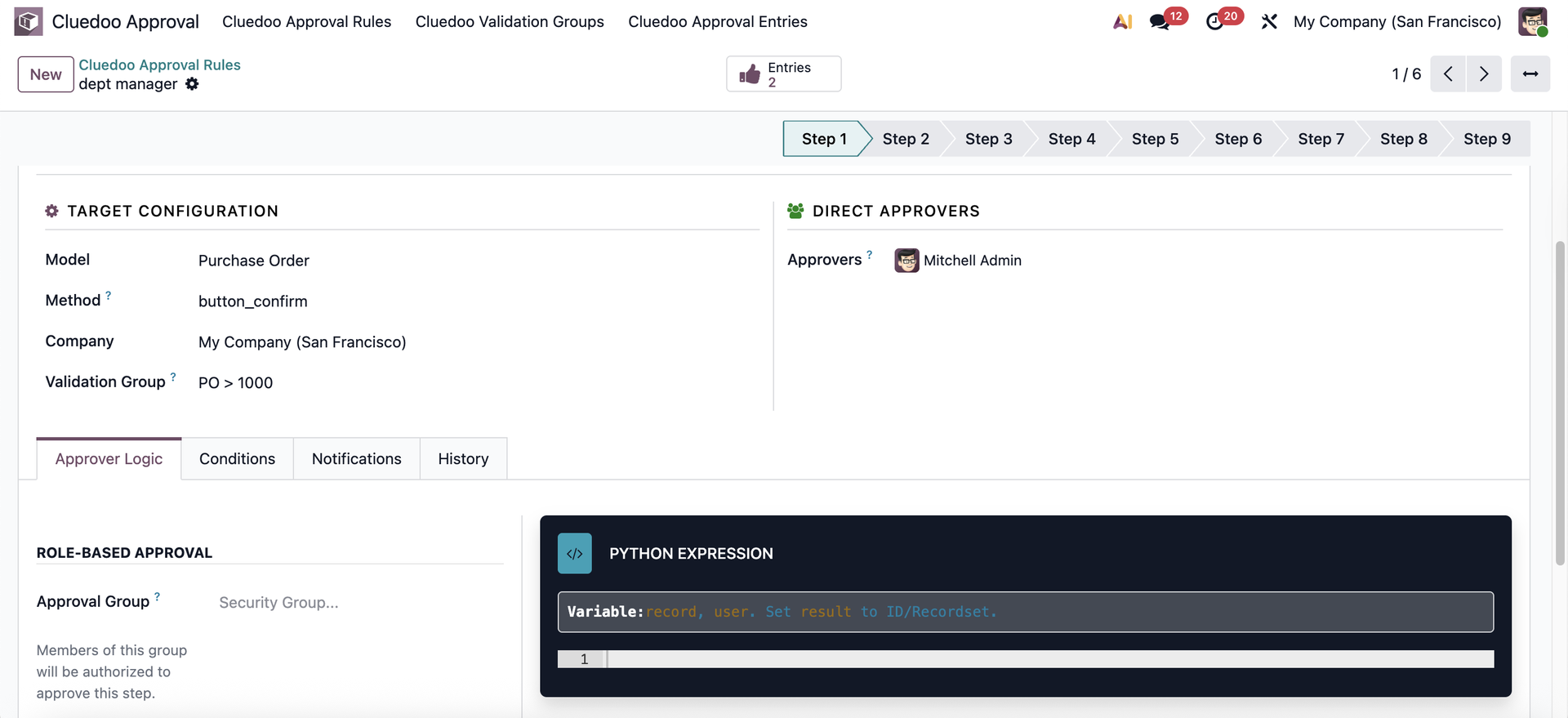
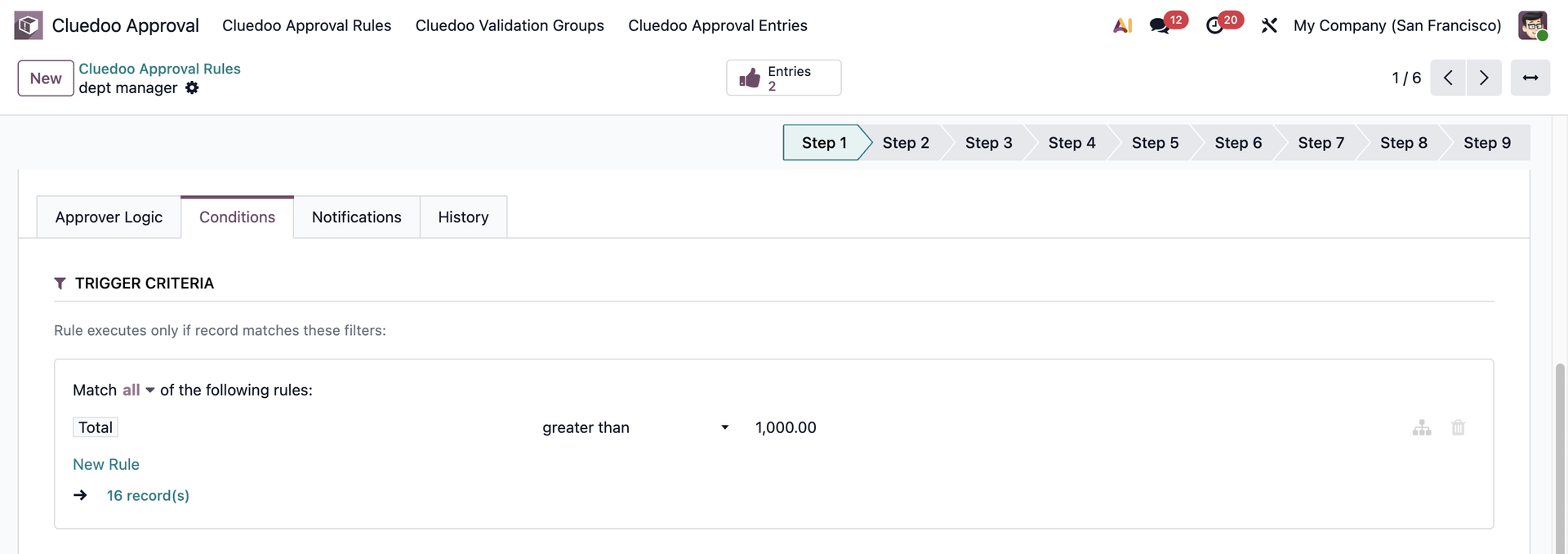
Go to CLuedoo Approval → Approval Rules → Create a new rule. Fill the necessary information. e.g., triggering an approval upon clicking 'Confirm RFQ' for orders over $1,000. Actions:
→ The dropdown suggests the groups related to the selected model only.
|
|
| Conditions
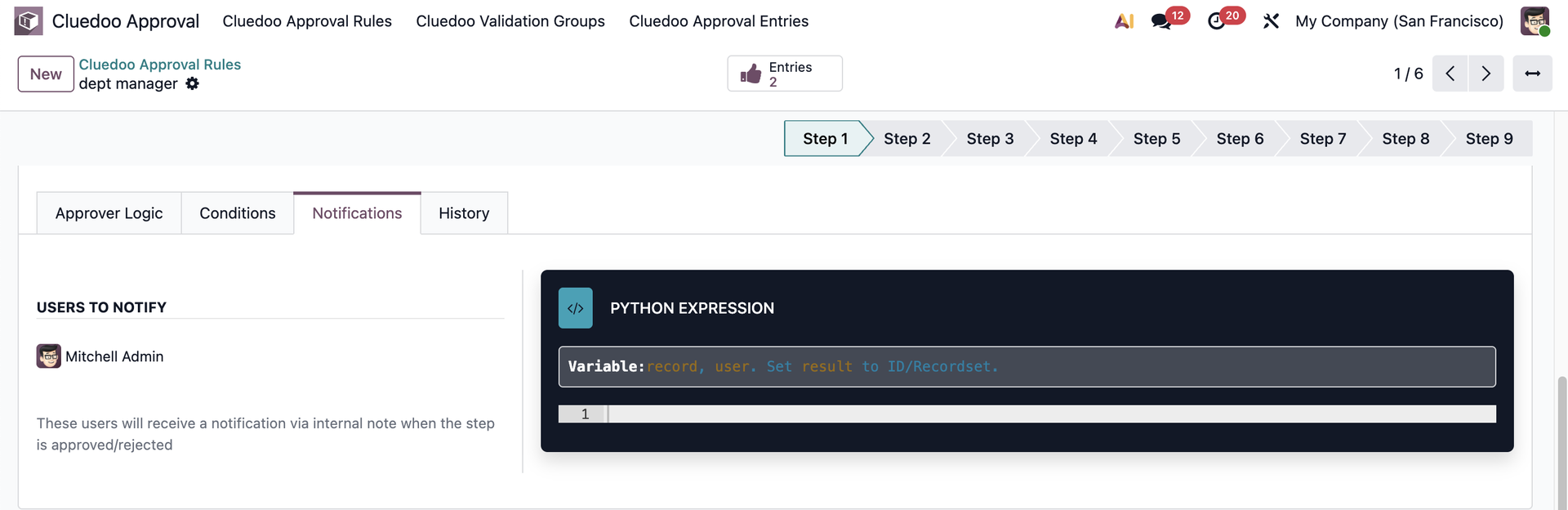
Notifications
|
Create one or more approval rules. |  |
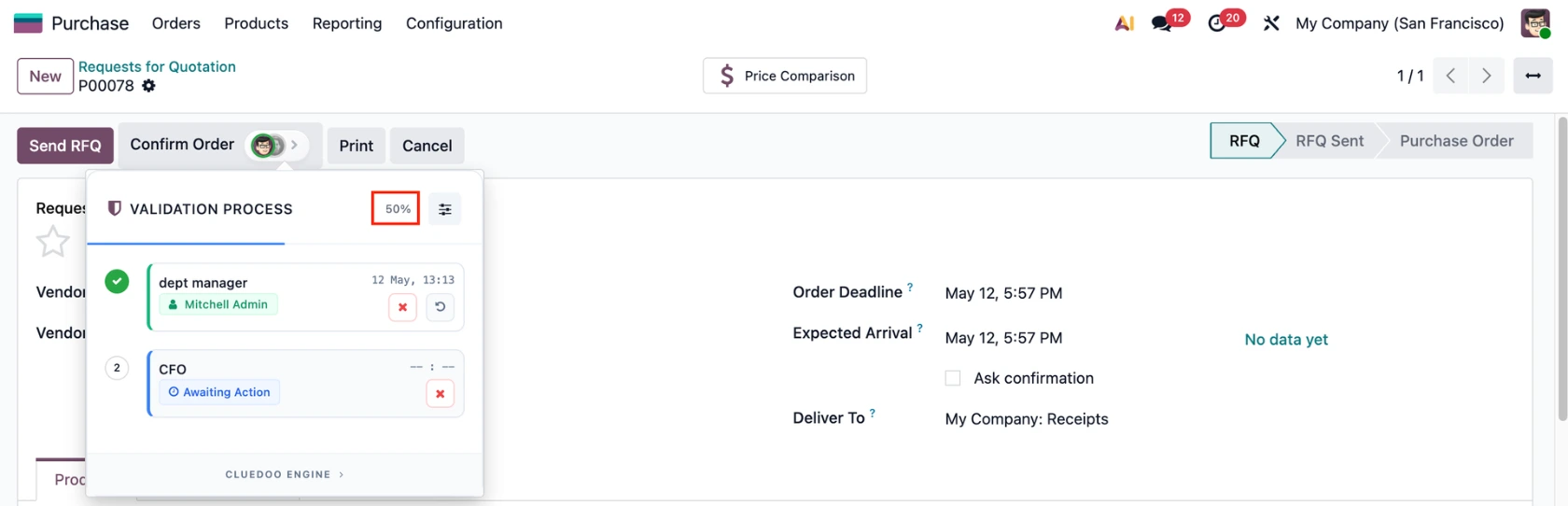
Result: Create a Purchase Order with total > 1000, the approval rules will be triggered on the Confirm Order button. | 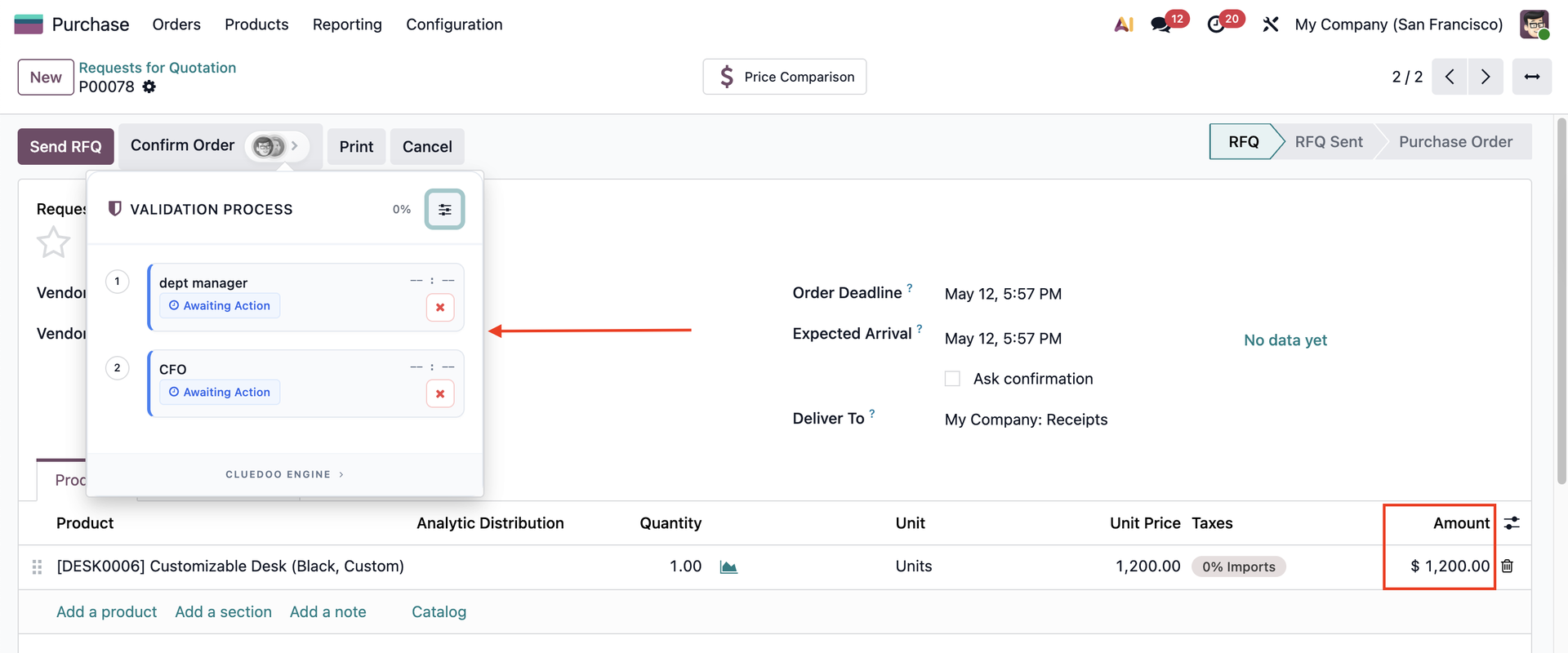 |
The system automatically updates the progress after each approval. |
|
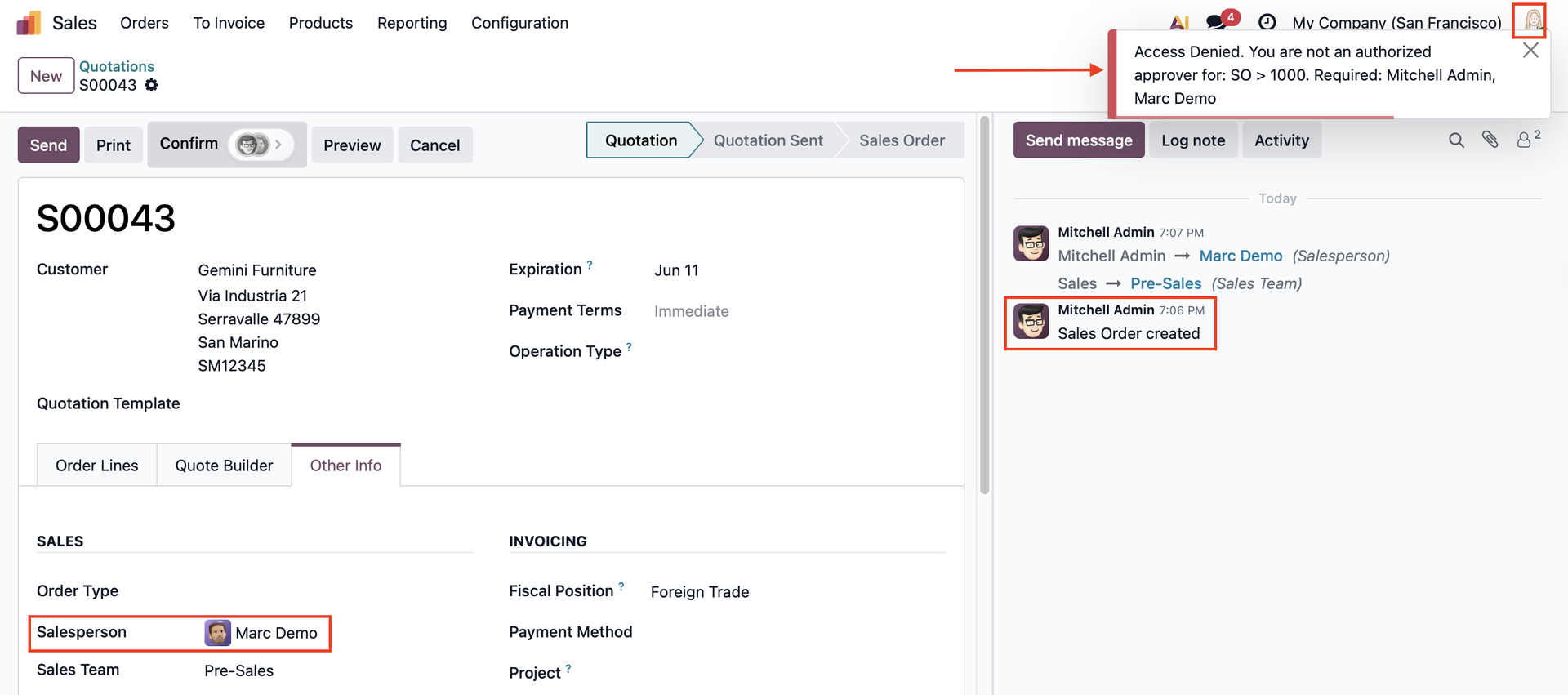
If you are not the designated approver for this step, a warning message will appear. |
|
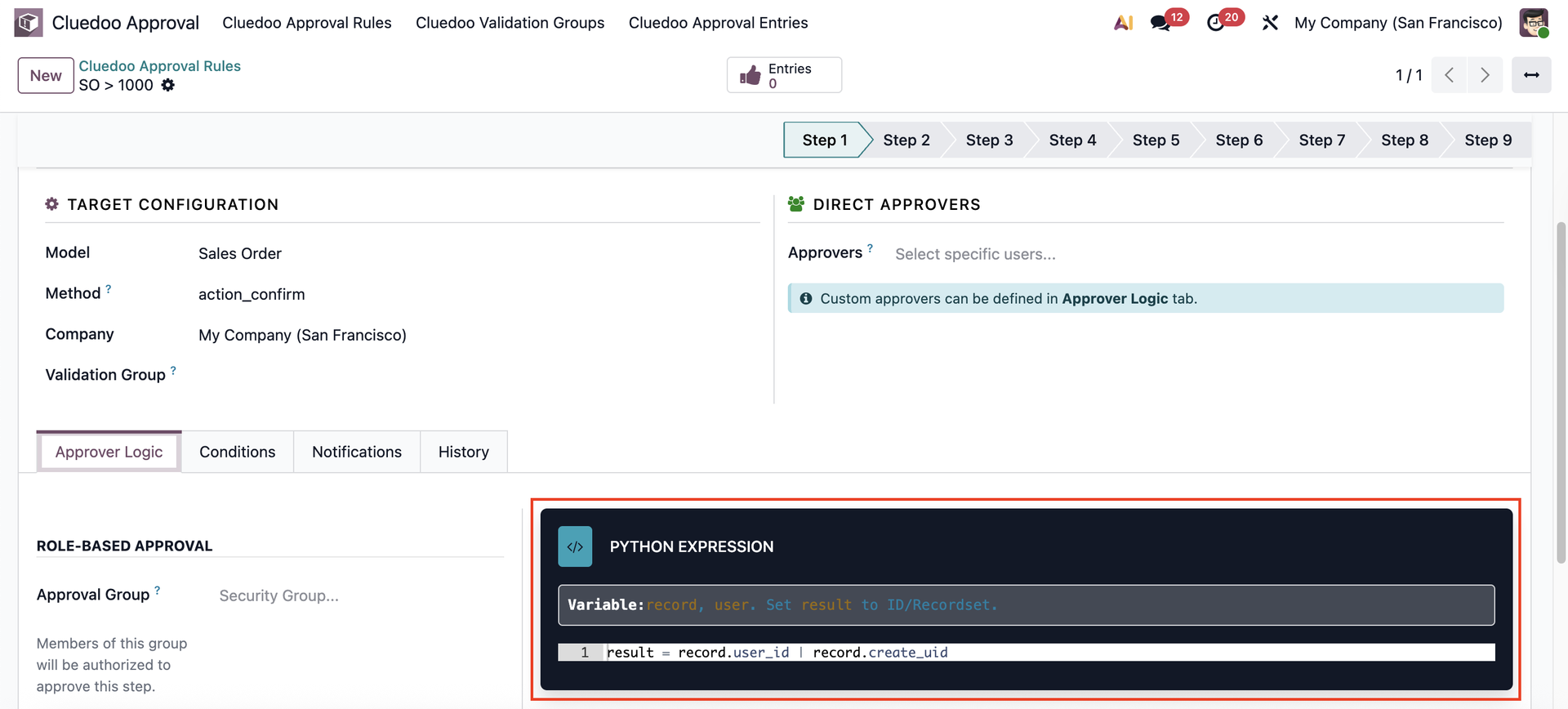
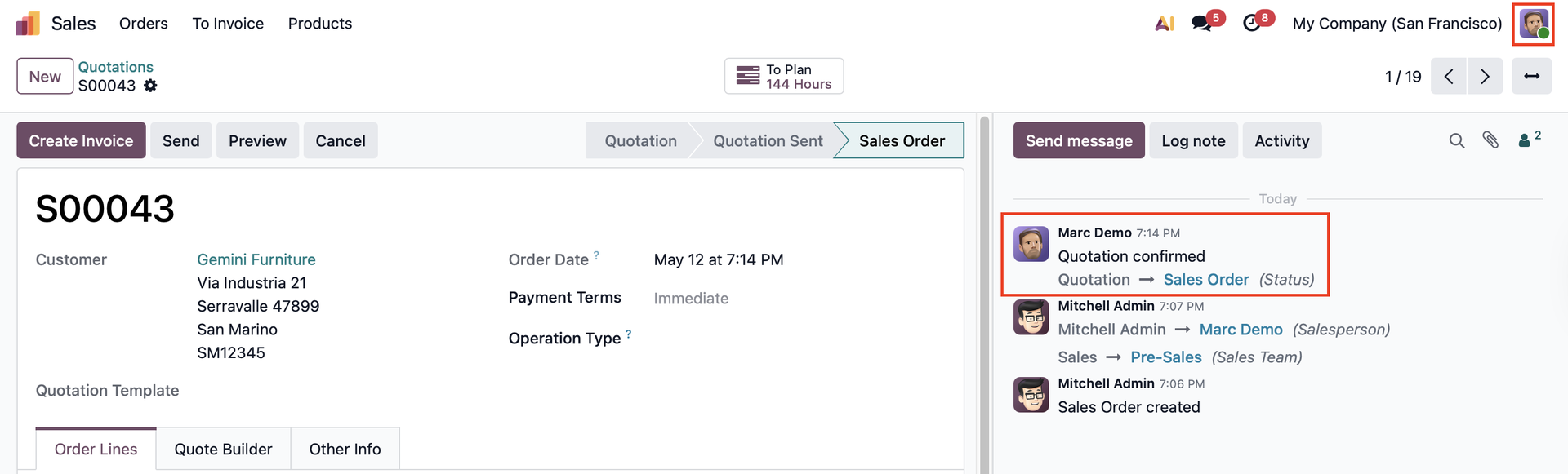
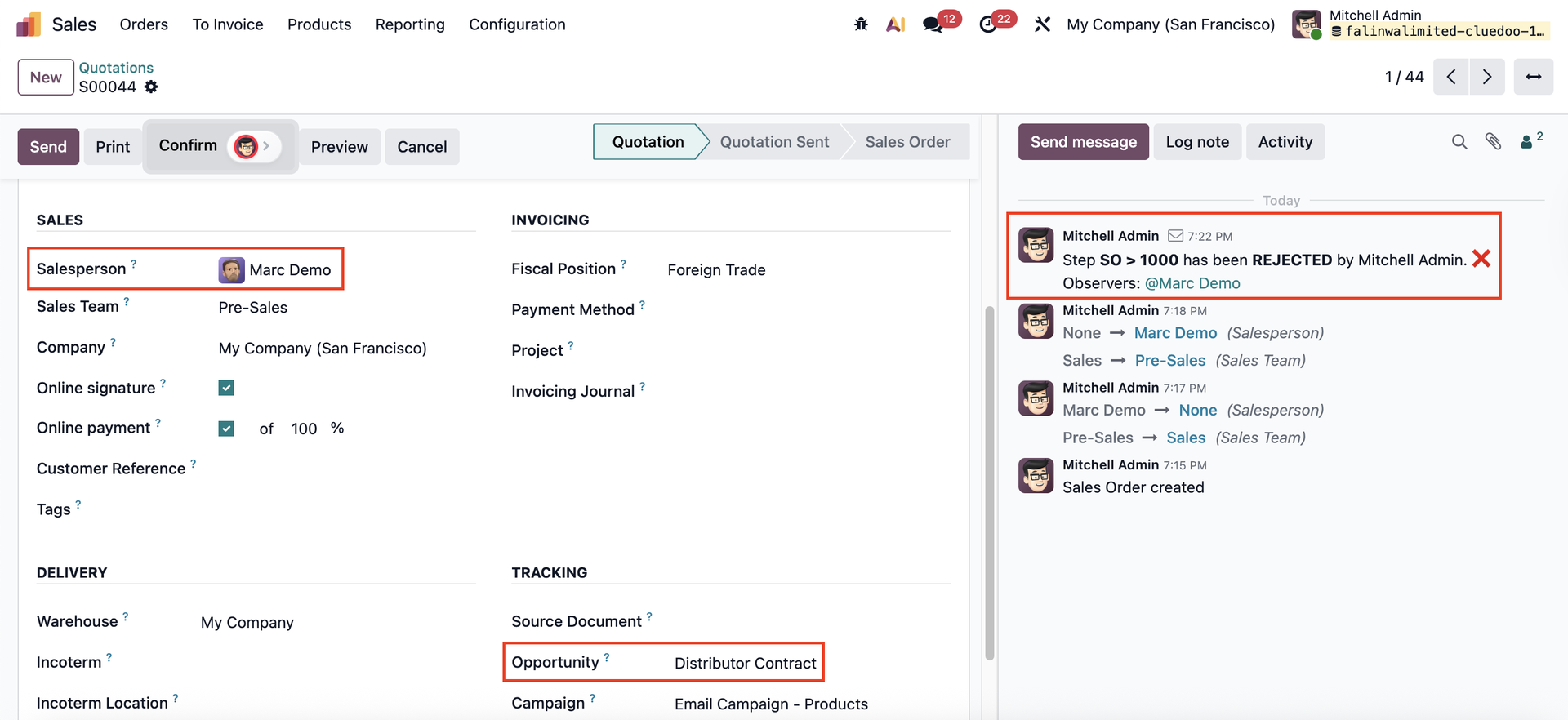
DYNAMIC APPROVERSOn an approval rule, fill in a Python code to define the approver of this step. result = record.user_id | record.create_uid → Only the Salesperson and Sale Order creator are allowed to approve/ reject. |
|
| |
| |
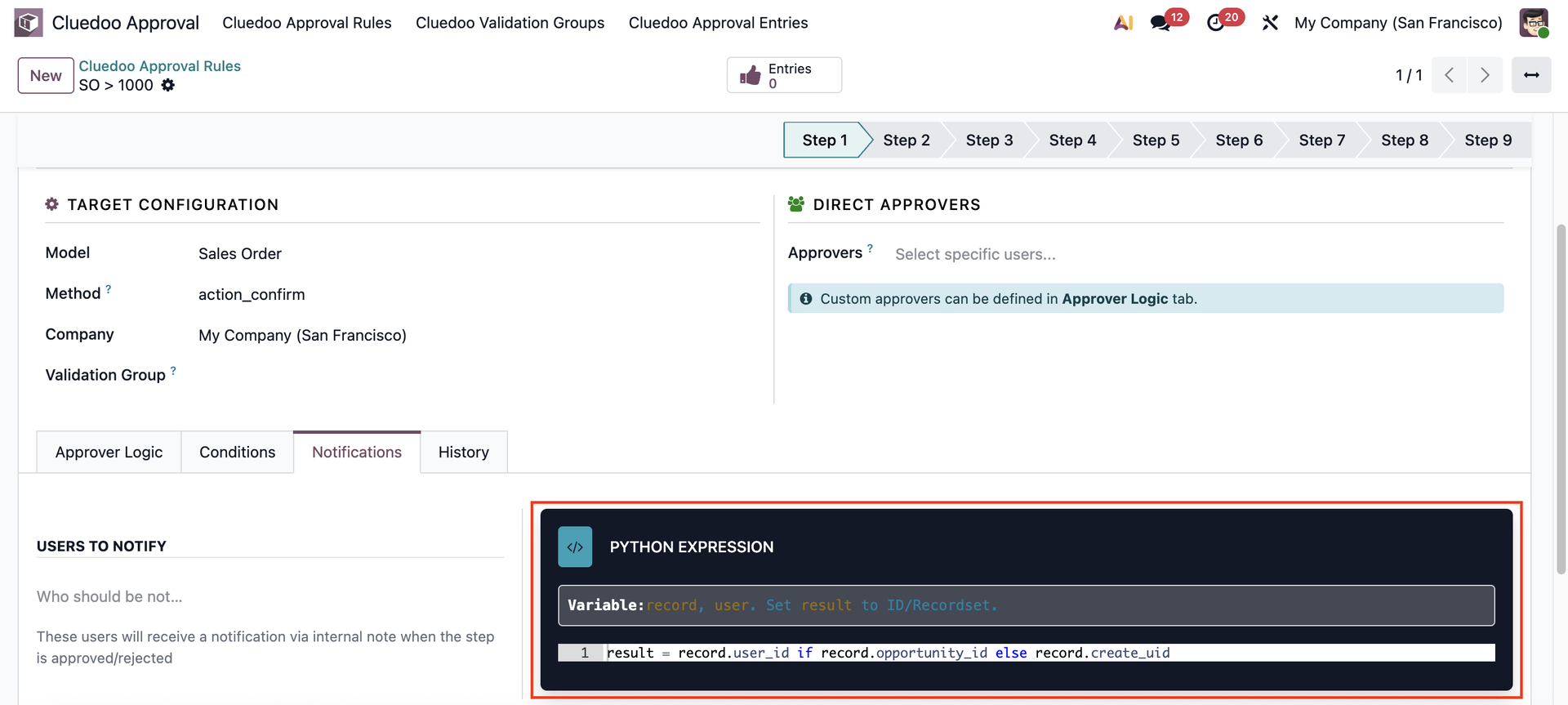
DYNAMIC USERS TO NOTIFYOn an approval rule, fill in a Python code to define the users to notify of this step. result = record.user_id if record.opportunity_id else record.create_uid → If the Opportunity field is set on the Sales Order form, it will notify the Salesperson. Otherwise, it will notify the Sale Order creator. |
|
| |
VALIDATION GROUPS | |
Go to CLuedoo Approval → Validation Groups → Create a new group. Fill in group name and choose the Model (e.g., Purchase Order). | 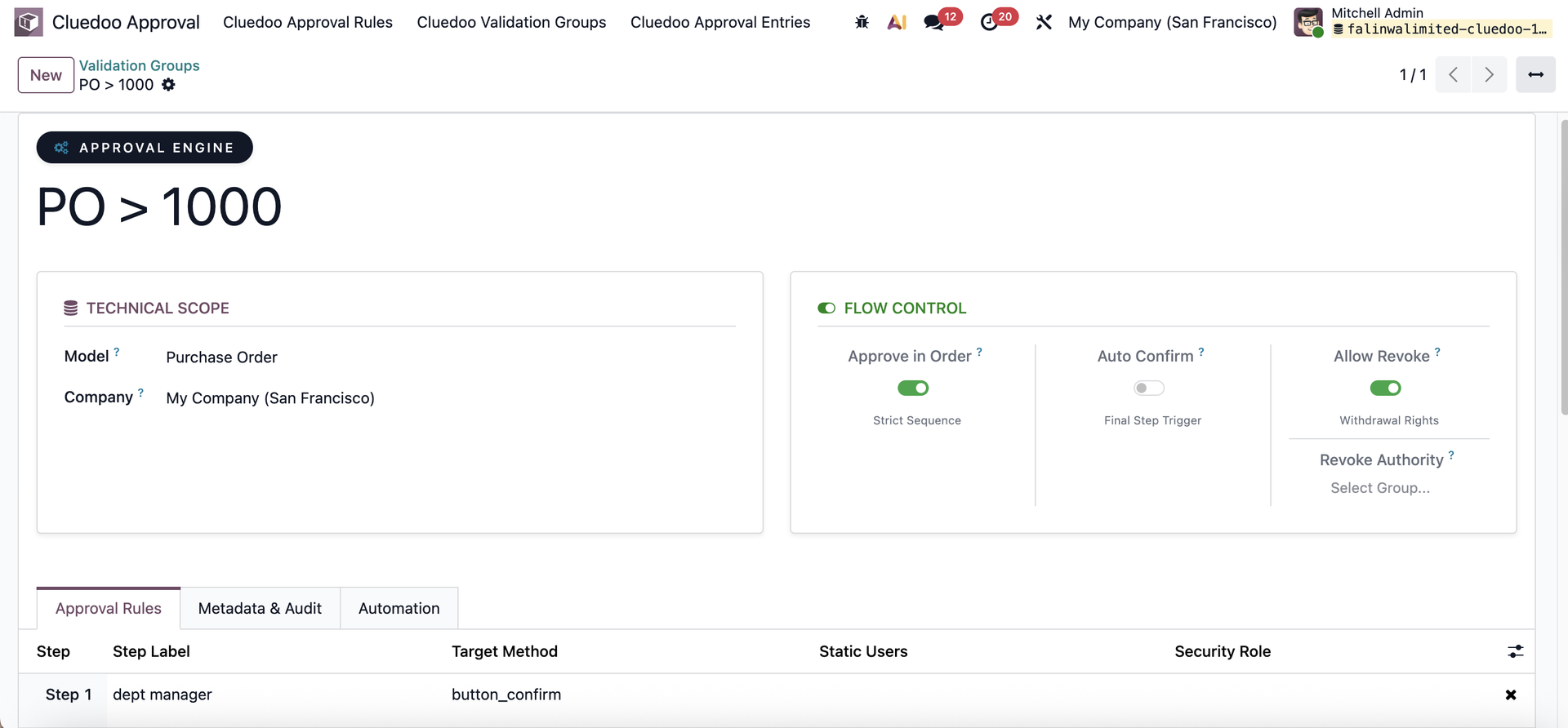 |
APPROVAL RULES TABClick Add a line to select the created rules to the group / create new rules on the fly.
You can also view all approval rules linked to this validation group here. | 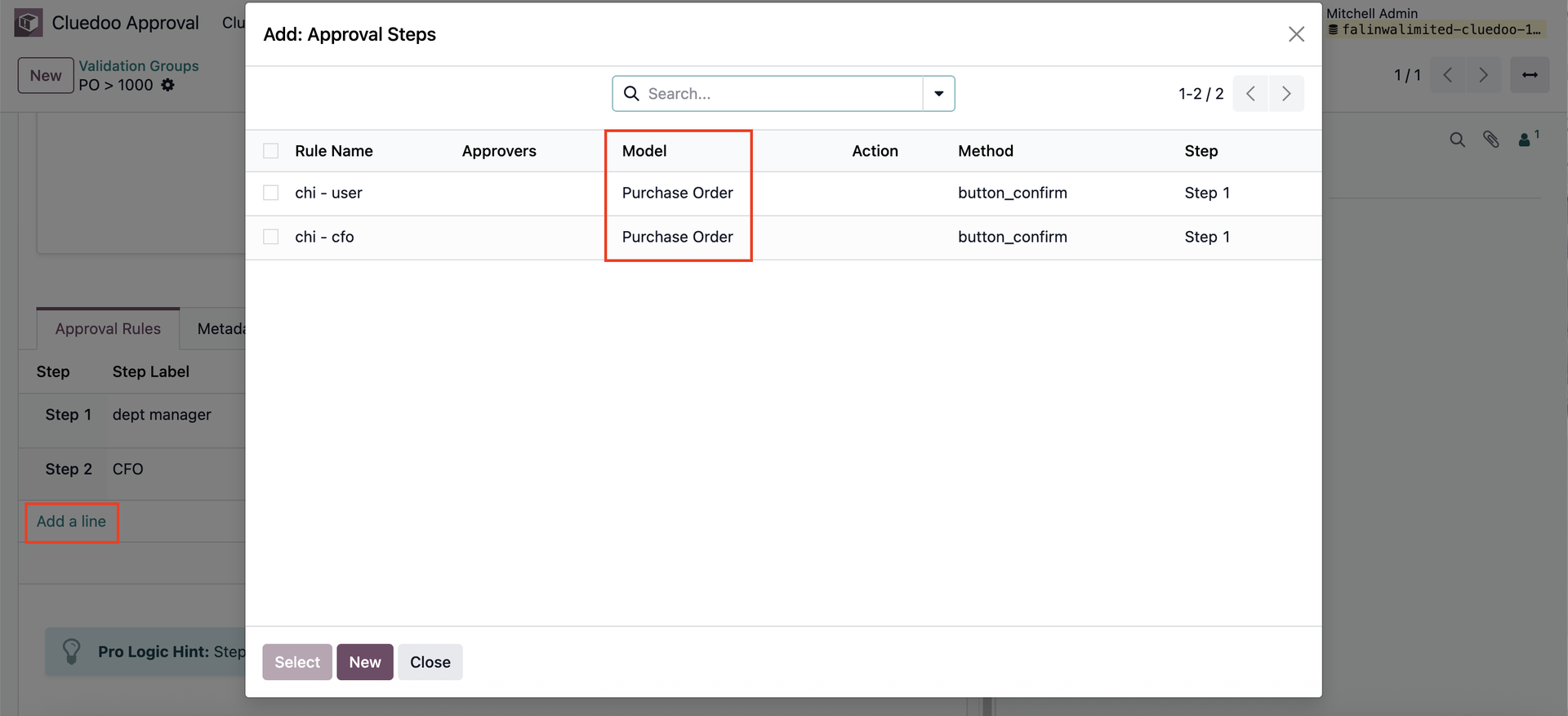 |
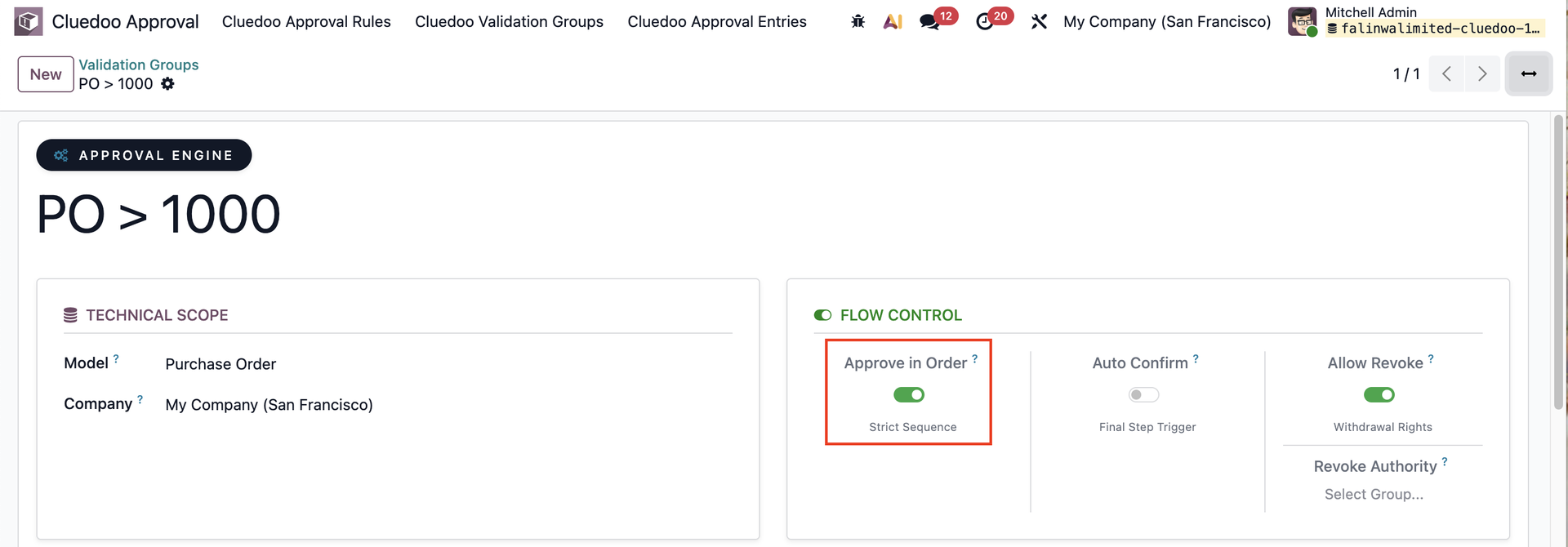
APPROVE IN ORDER
|  |
The system will block the action and display a warning if an unauthorized user attempts to confirm the RFQ. | 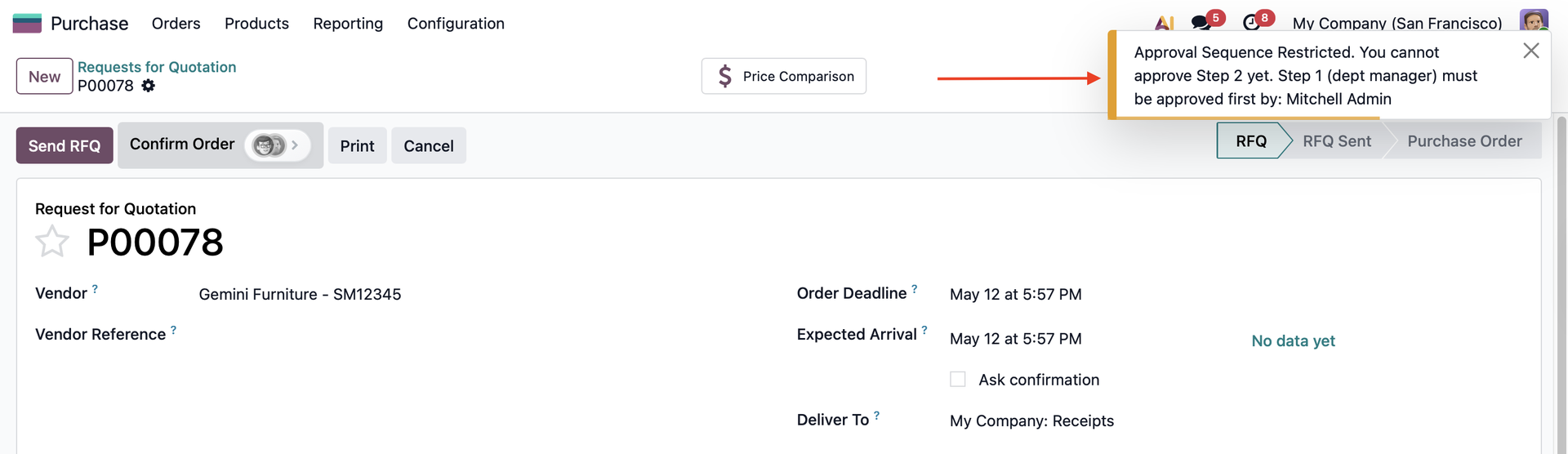 |
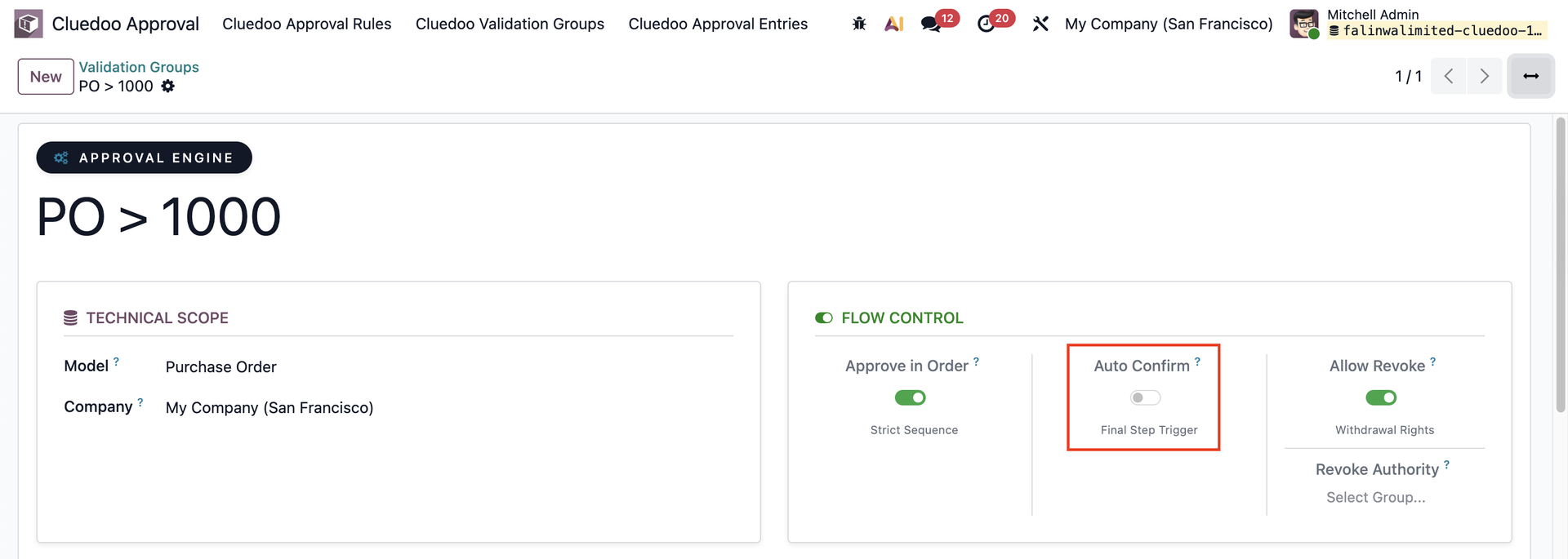
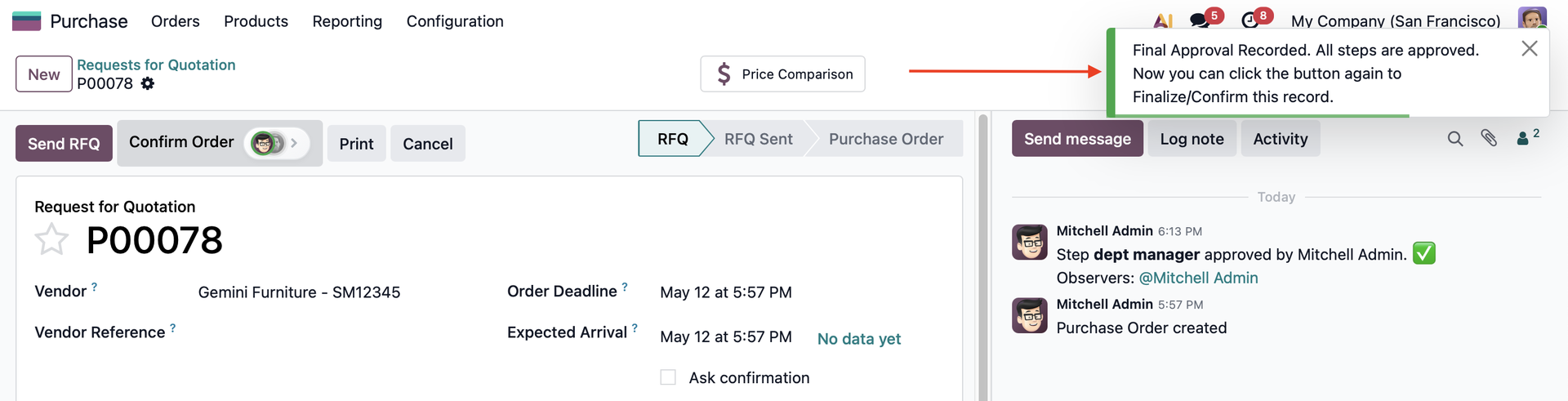
AUTO CONFIRM
|
|
| |
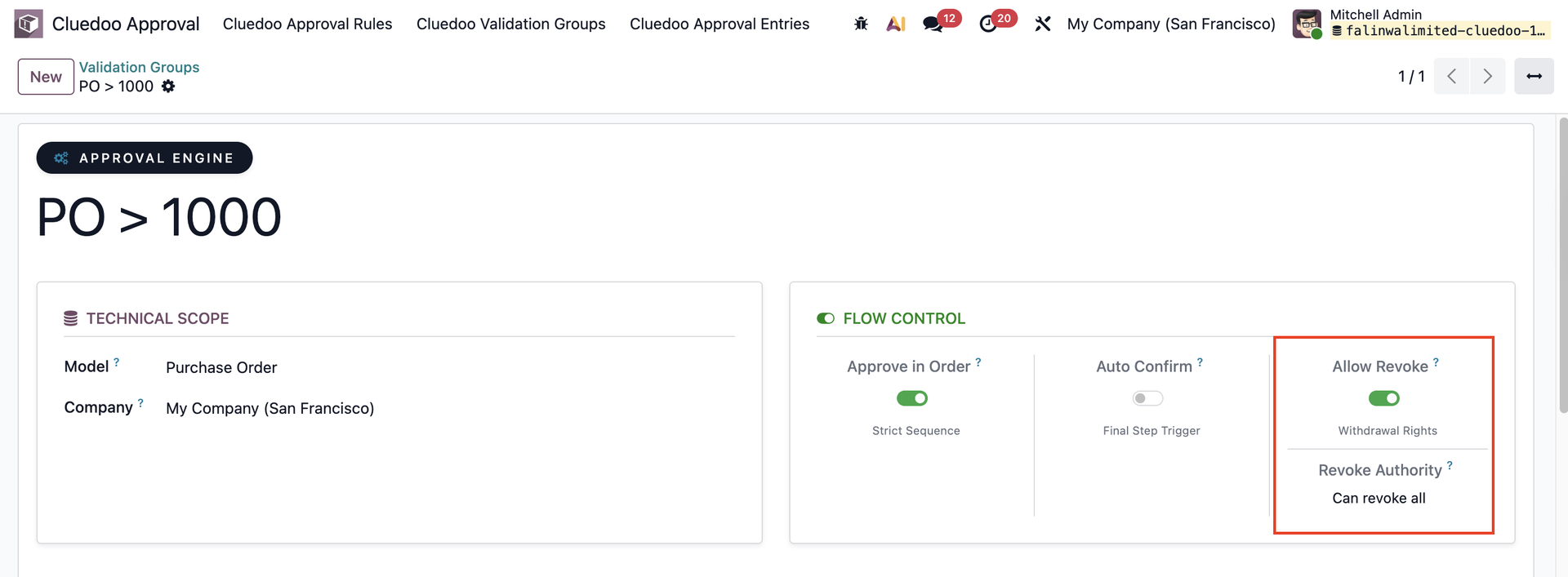
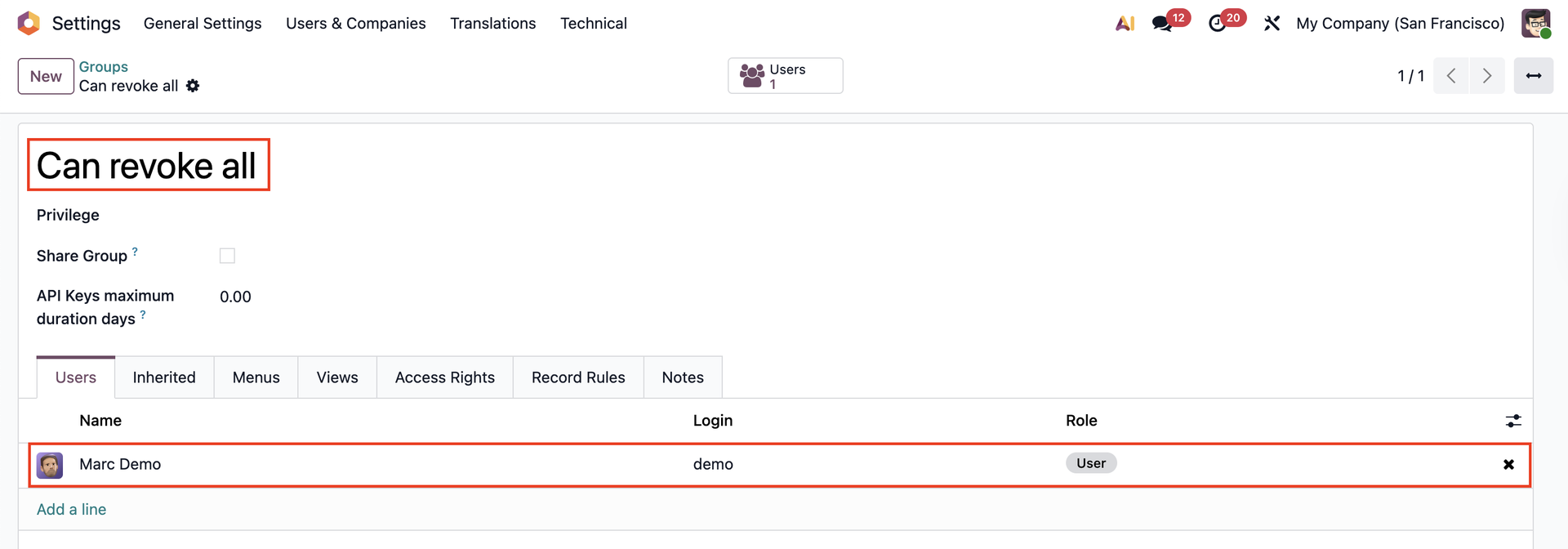
ALLOW REVOKEIf activated, users in the selected group can revoke all previous validation steps. |
Add user(s) in the group.
|
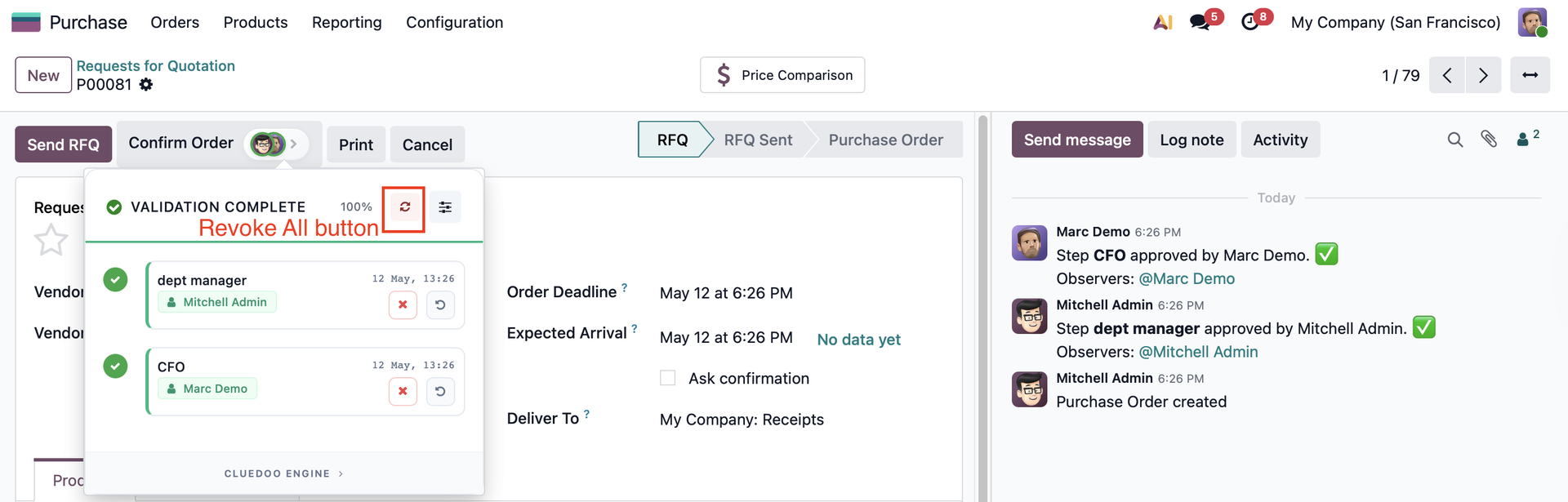
The Revoke All button appears for users in the group only. |
|
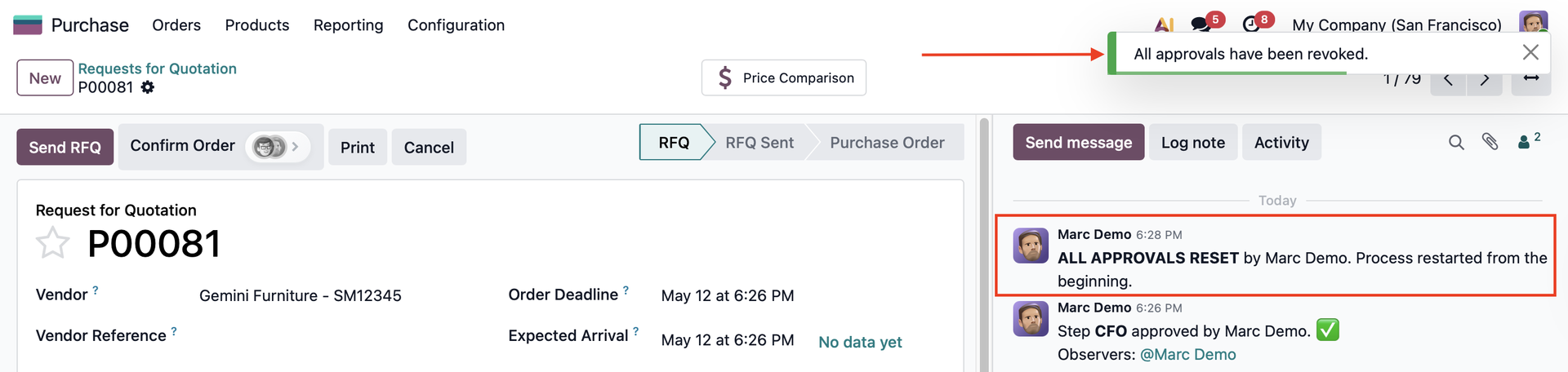
A confirmation message will appear. Click 'Yes, Reset Everything' to revoke all previously completed steps. |
|
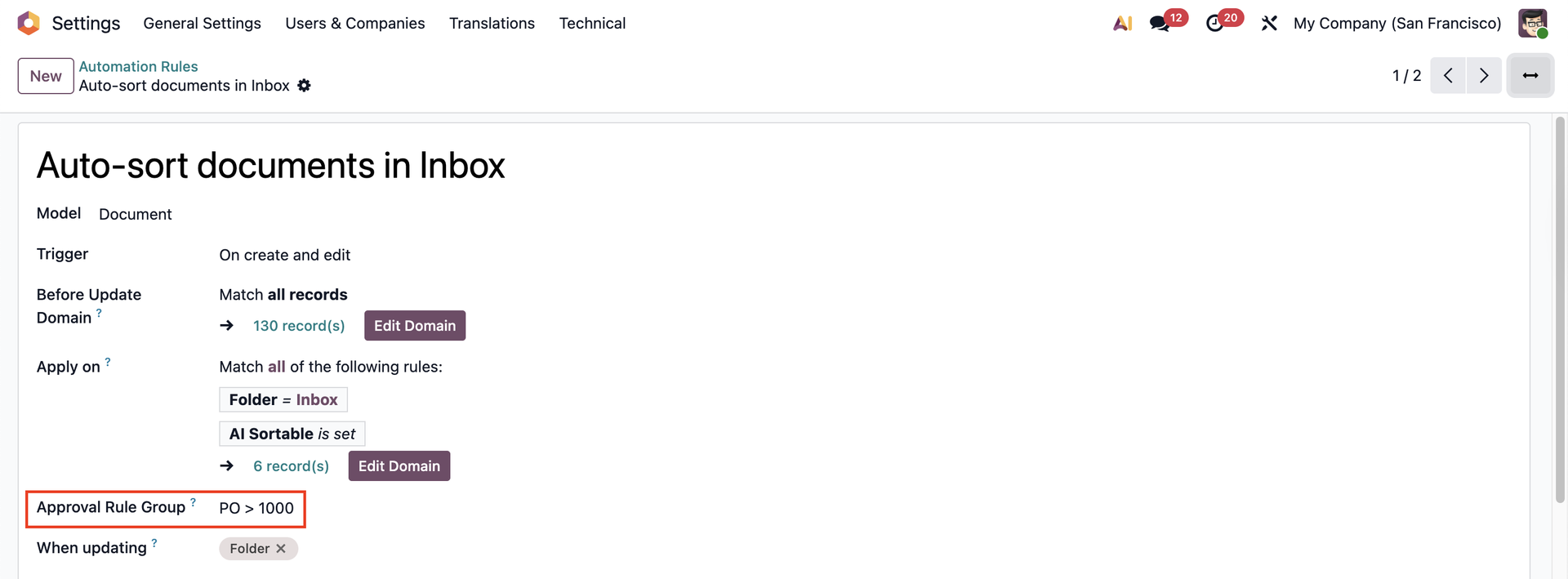
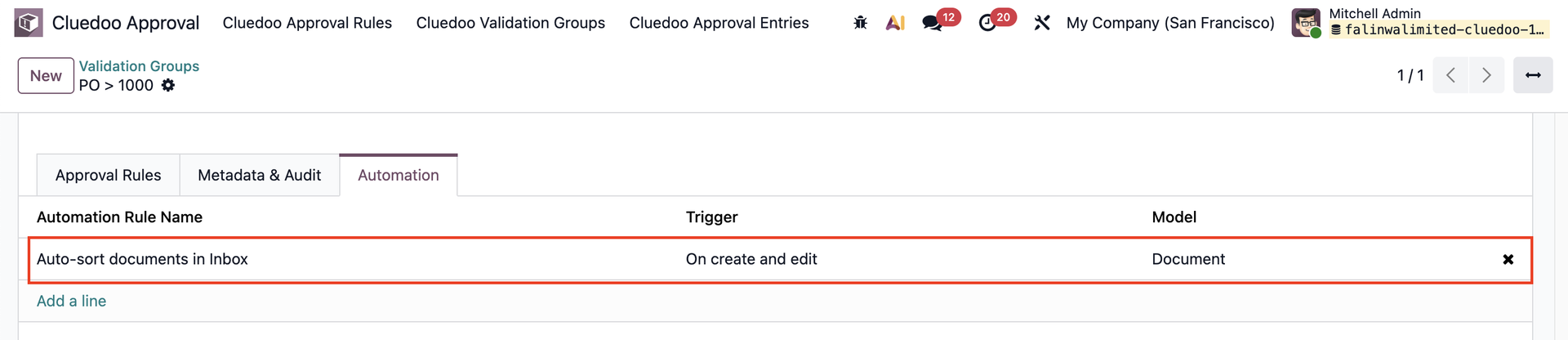
AUTOMATION TABGo to Settings → Technical → Automation → Automation Rules → Create a new rule and select the approval rule group → Save |
|
Go back to the approval rule group → Under the Automation tab, the automation rule has been automatically added. You can add Automation Rules from any models. |
|
Click 'Add a line' to create/select a new automation rule. |
|
VALIDATION ENTRIES | |
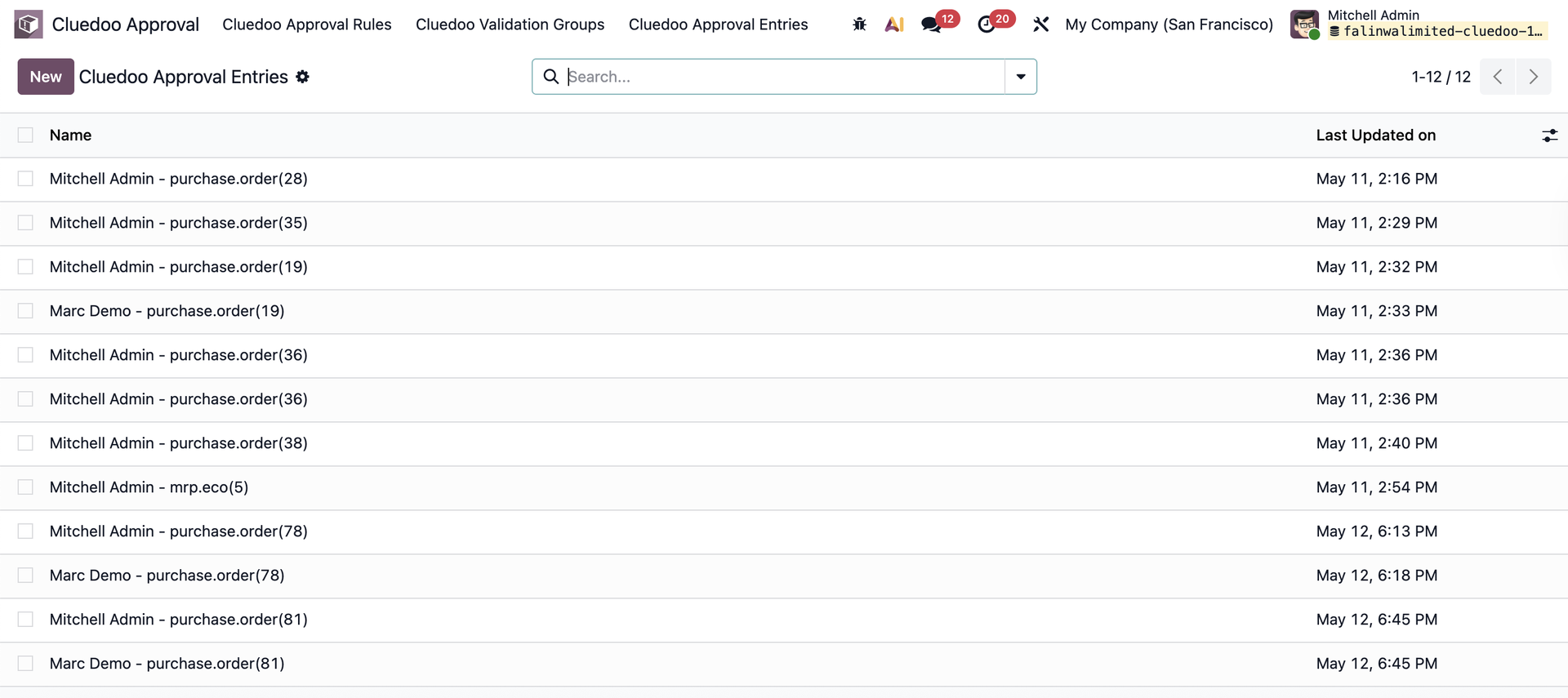
Go to CLuedoo Approval → Validation Entries → Users can view all approval entries of all models. |
|
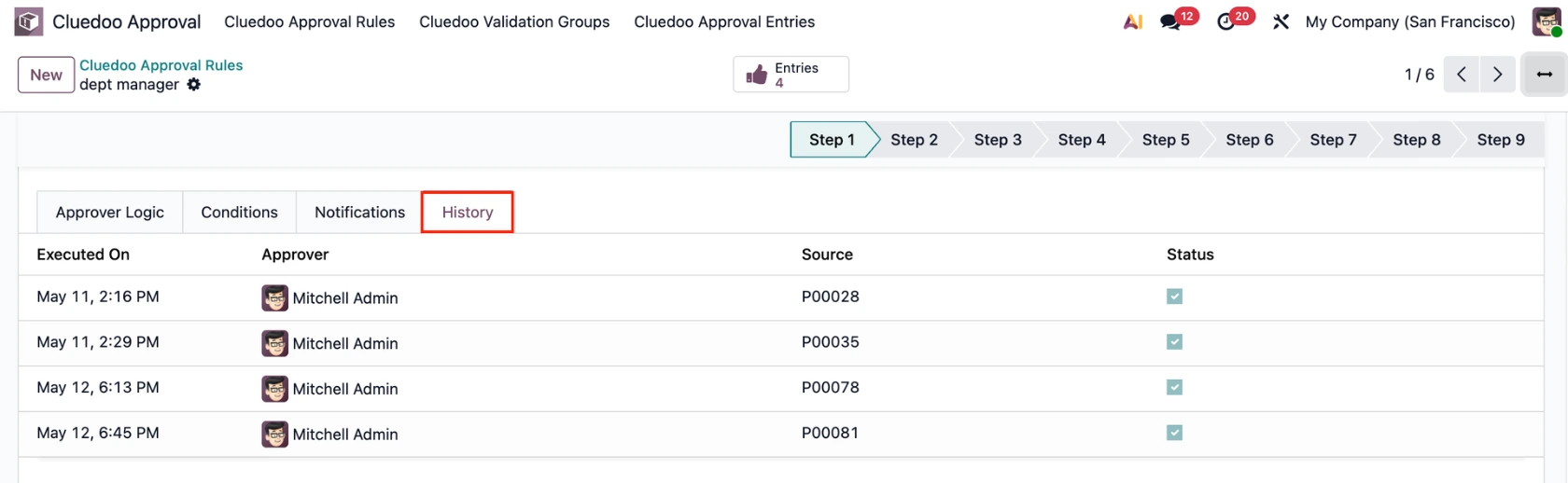
The validation history corresponding to each approval rule can also be accessed via the History tab. |
|