ODOO'S FUNCTION
In Odoo, section lines are only used to organize sales order lines. You cannot create projects or tasks directly from a section line, and tasks created from service products do not automatically show all sales order lines belonging to the same section.
CLUEDOO'S FUNCTION
CLuedoo enhances section lines by making them actionable and improving the link between sales orders and project tasks.
CONFIGURATION | |
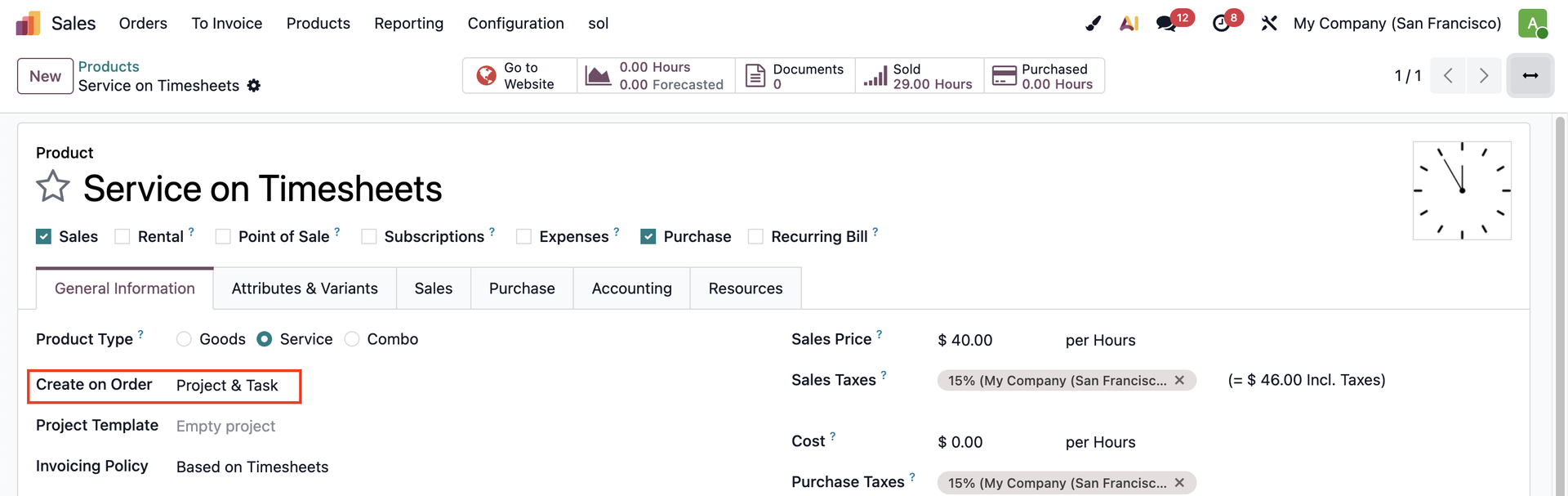
Create a service product and select the Create on Order option that best suits your business needs. e.g., Project & Task |
|
USAGE | |
1. Go to Sales → Create a Sales Order. On the SOL, click on Add a section → You have the ability to add the product(s) and the description to the section. | 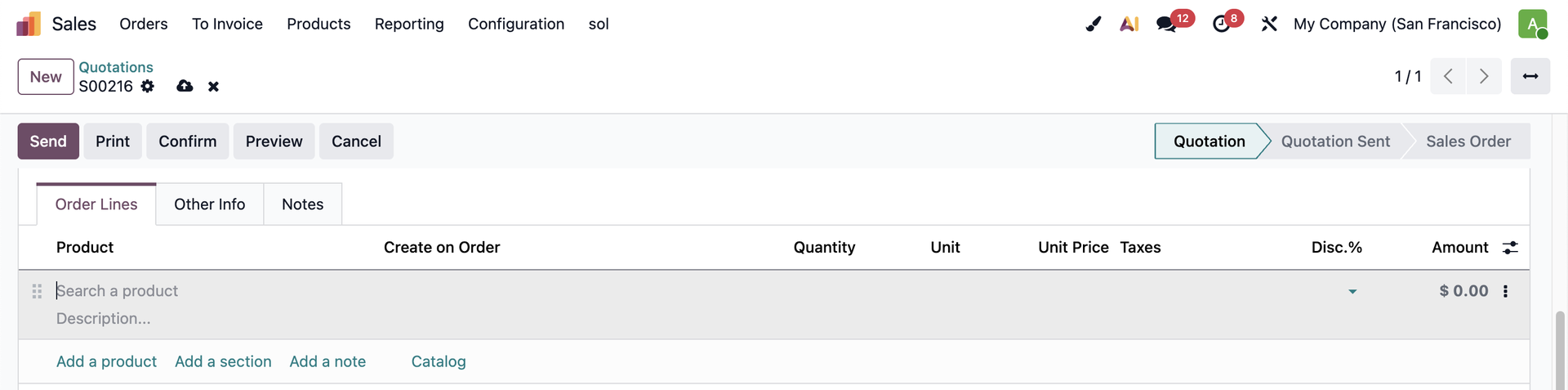 |
2. Add the configured product to the section and some other products on the product order lines. e.g., Adding 3 products:
The Amount column in the section is the sum of all the products in it. Confirm the SO → Based on the configuration, there will be 1 Project and 2 Tasks created. Click on the Projects/Tasks button. | 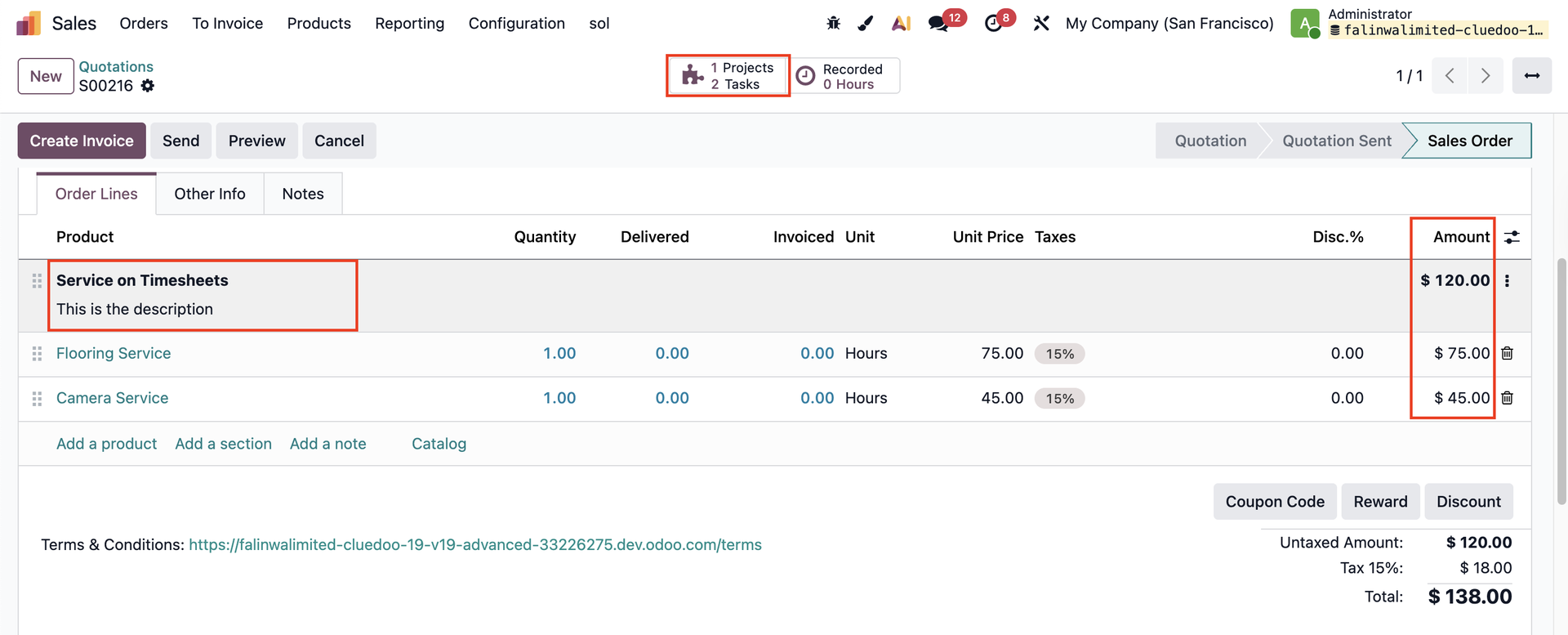 |
3. In the task created from the section line, all SOLs belonging to the related section are listed under the Sales Order Lines tab. | 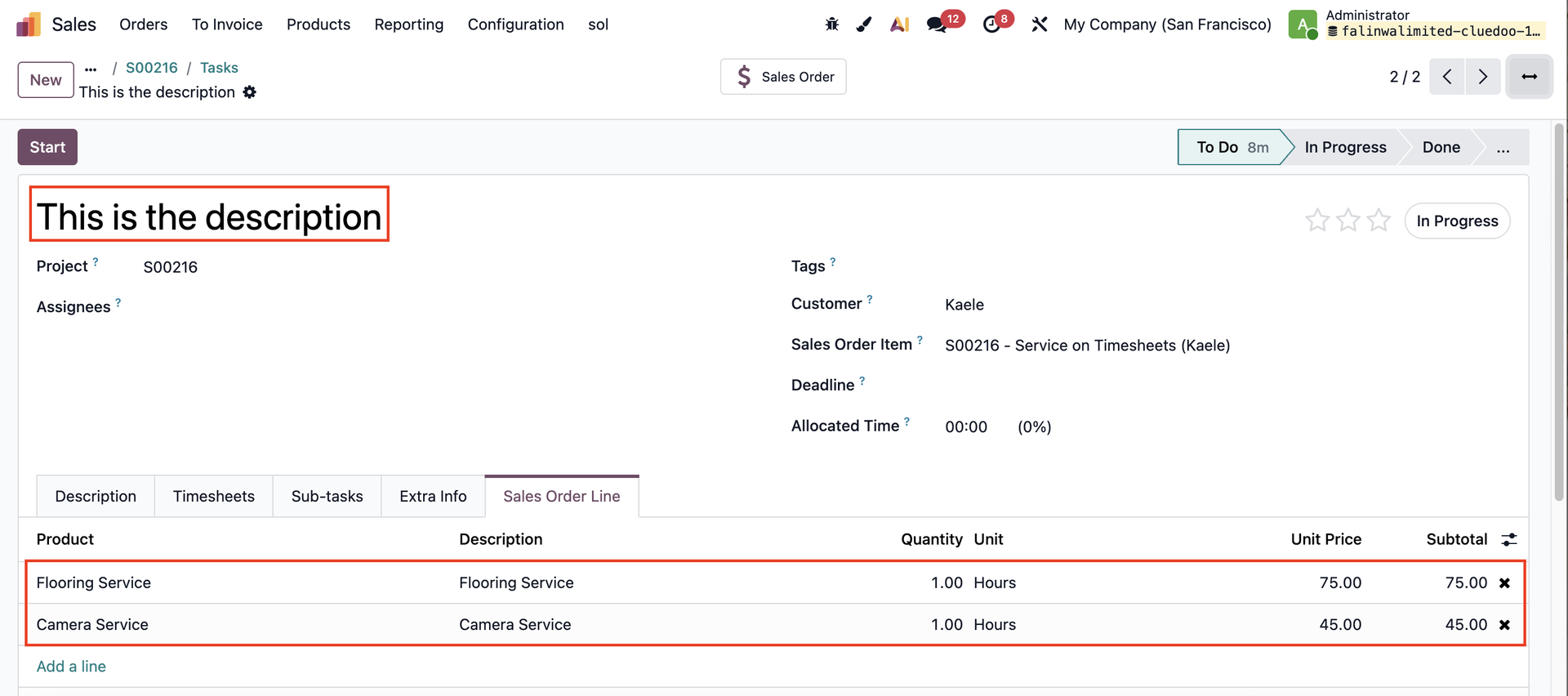 |