



ODOO'S FUNCTION
In standard Odoo, when modifying or disposing of an asset, users must manually select the appropriate Loss and Gain accounts inside the "Modify Asset" pop-up wizard every single time. Odoo does not natively store or pre-configure these disposal accounts on the Asset Model level and Asset level. This repetitive manual entry increases the risk of accounting errors and slows down the asset decommissioning process.
CLUEDOO'S FUNCTION
CLuedoo enhances the standard asset management workflow by integrating dedicated Loss Account and Gain Account fields directly into the Asset Models and Assets. This update allows the "Modify Asset" pop-up wizard to automatically inherit the pre-configured accounts from its parent model during asset modification or disposal. By automating this data inheritance, the system eliminates repetitive manual entry, saves time, and ensures strict financial consistency across all asset write-offs.
1. Configure Loss and Gain Accounts on Asset Model. Go to Accounting > Configuration > Asset Models and open or create an asset model. Under the ACCOUNTING section, fill in the Loss Account and Gain Account fields with the designated accounts, then save the model. | 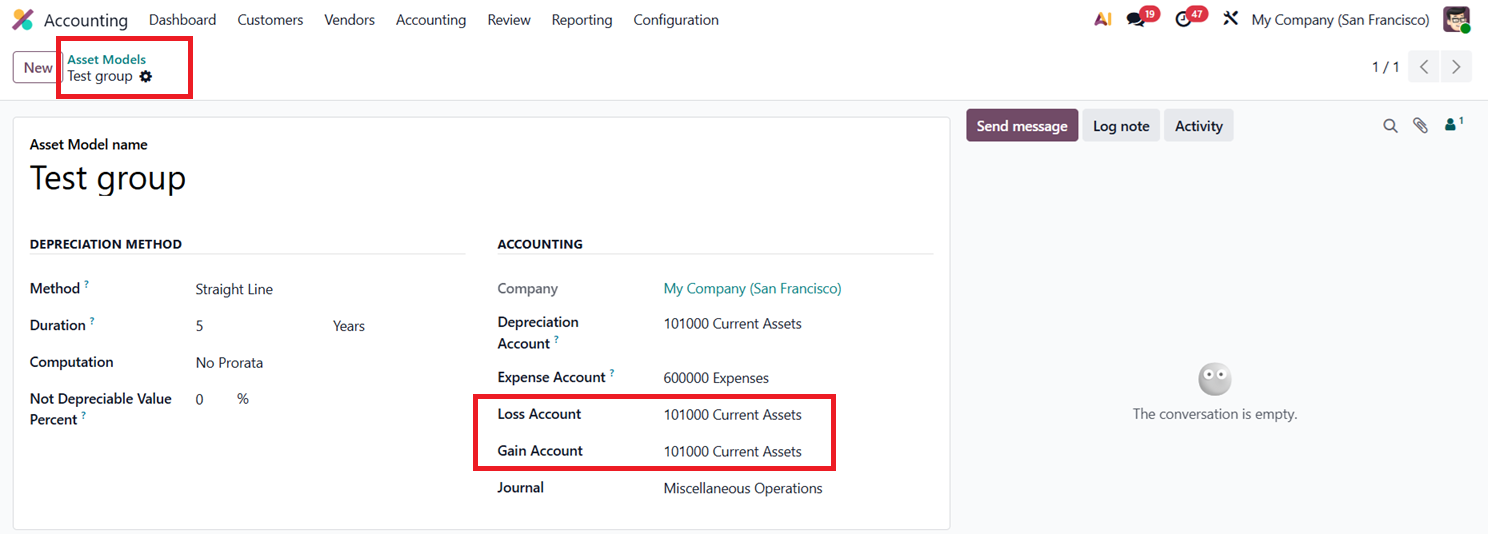 |
2. Create an Asset Accounting > Accounting > Assets and click New to create a fresh asset record. Enter the Asset Name (e.g., Test), fill in the Original Value (e.g., $ 1,000.00), and select your pre-configured Asset Model (e.g., Test group). Click Confirm to move the asset from the Draft stage to the active Running stage. | 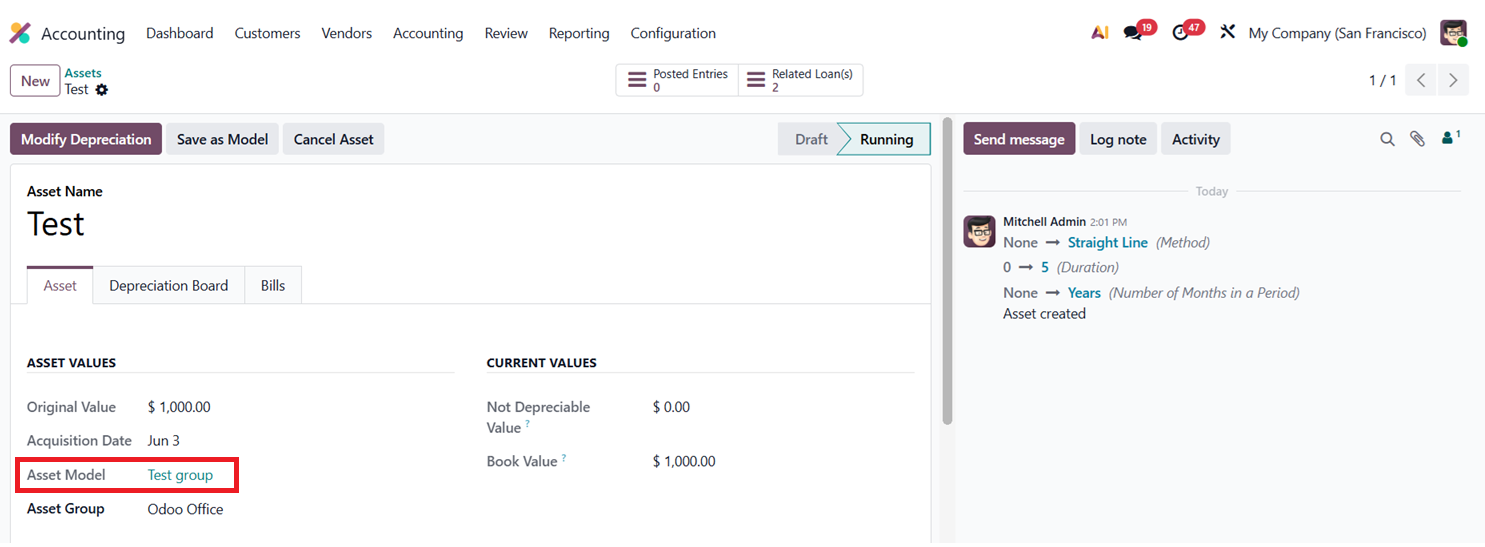 |
3. Verify Pre-configured Accounts on the Asset Form: Verify that the Loss Account and Gain Account values have been automatically inherited directly from the parent Asset Model | 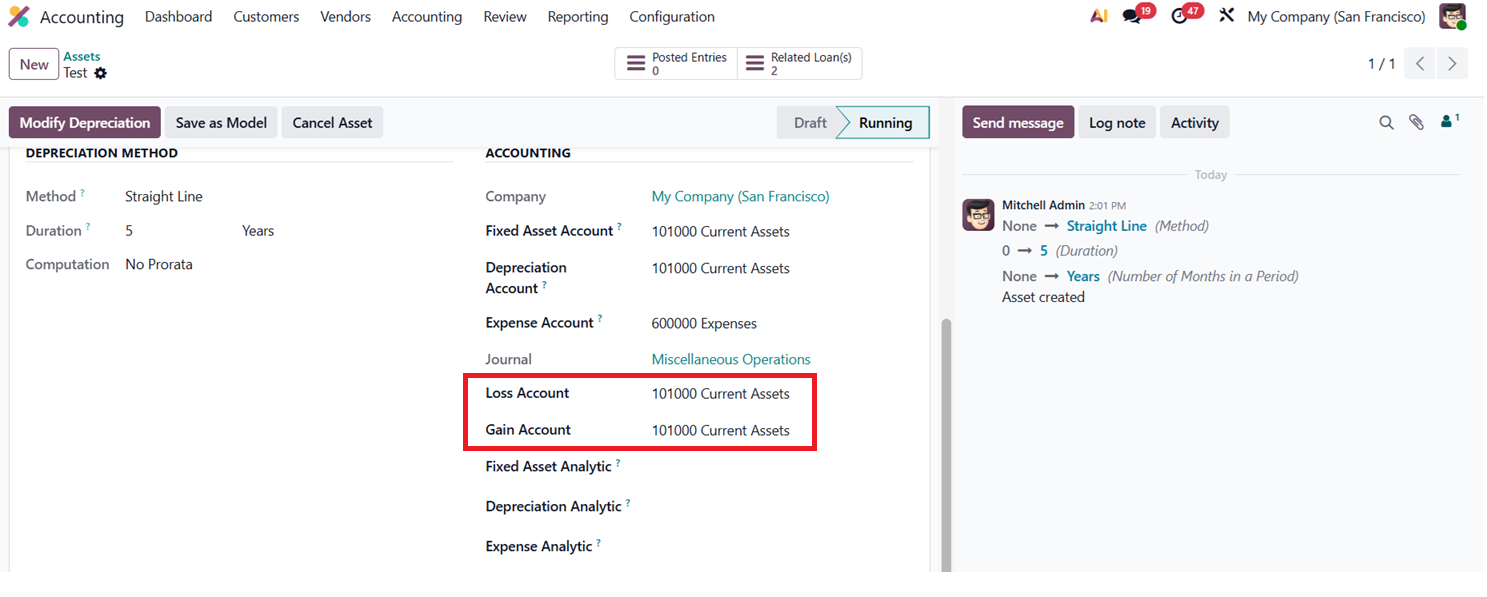 |
4. Modify Depreciation Click the Modify Depreciation button at the top-left of the asset screen. In the Modify Asset pop-up wizard,
Note: The automatically populated fields are fully editable. You can manually change the Loss Account or Gain Account directly in the pop-up wizard before confirming the action. | 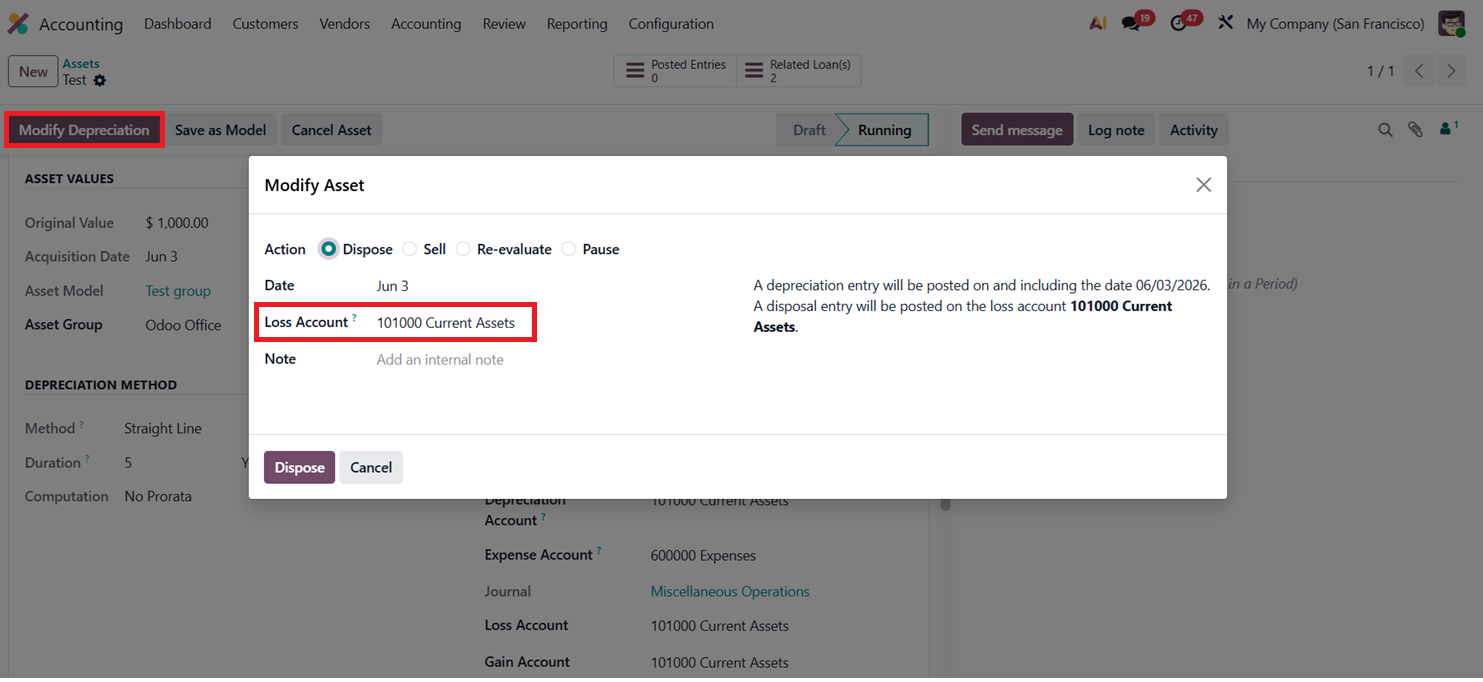 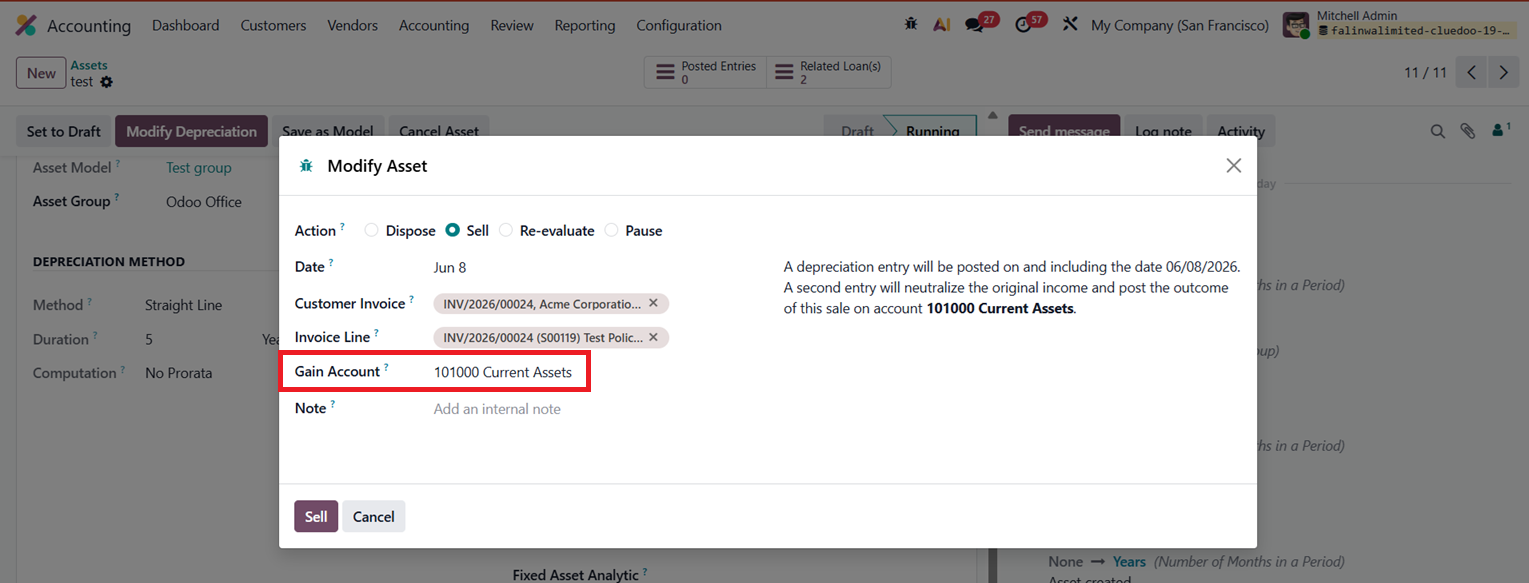 |