ODOO'S FUNCTION
When you change a product's tracking setting from Consumable (untracked) to Storable (tracked), Odoo starts tracking your stock perfectly from that moment on. However, if you have old, pending orders from before the change, standard Odoo creates a trap. If you try to validate those old orders just to clean up your dashboard, the system processes them using the new tracking rules. This means those old orders will automatically add or subtract from your current physical stock, instantly ruining your newly accurate inventory counts. Standard Odoo provides no safe way to simply "close out" these historical records without destroying your current stock reality.
CLUEDOO'S FUNCTION
The CLuedoo Skip Stock Quant feature provides a "Safety Switch" for your inventory. It allows you to process and close pending stock transfers for administrative purposes while keeping your current stock levels untouched.
Key Benefit: It solves the "stuck ticket" problem when you change product tracking (e.g., from no tracking to tracking) and need to clear old records without messing up your current, accurate stock counts.
CONFIGURATION | |
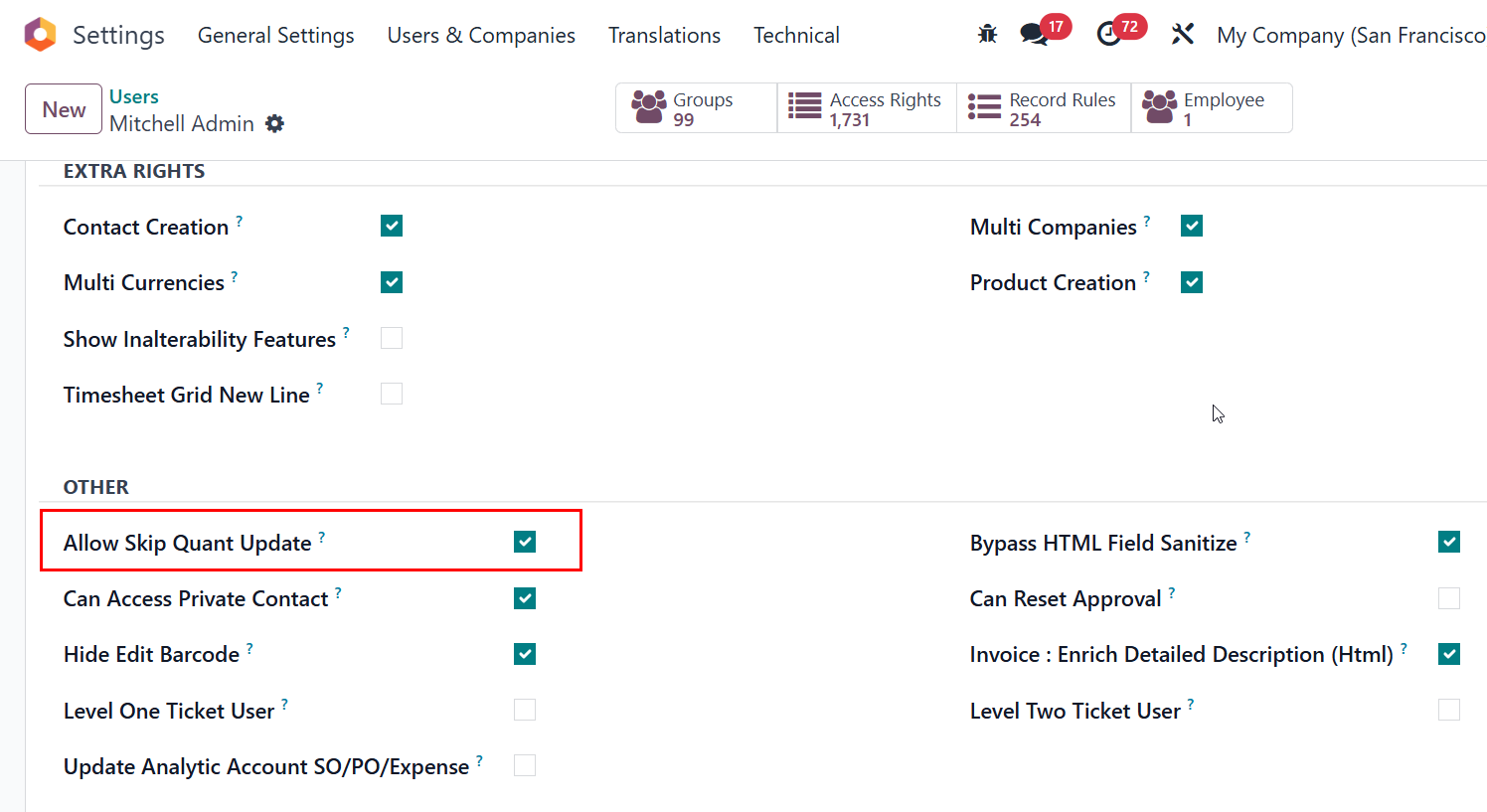
1. Go to Settings > Users & Companies > Users > Choose a user and enable the checkbox "Allow Skip Quant Update" for the authorized administrator. |
|
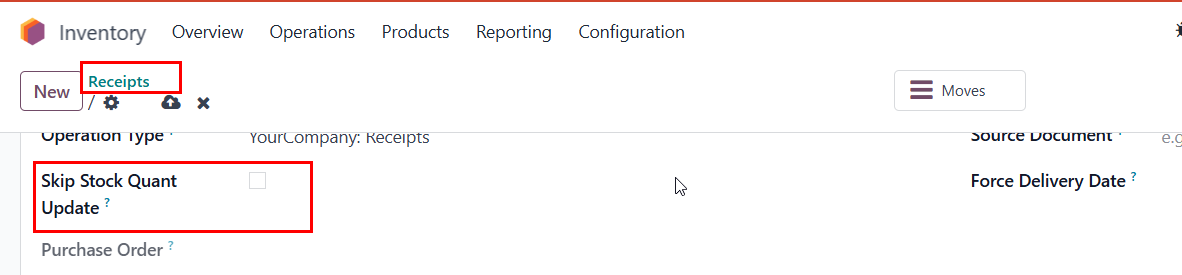
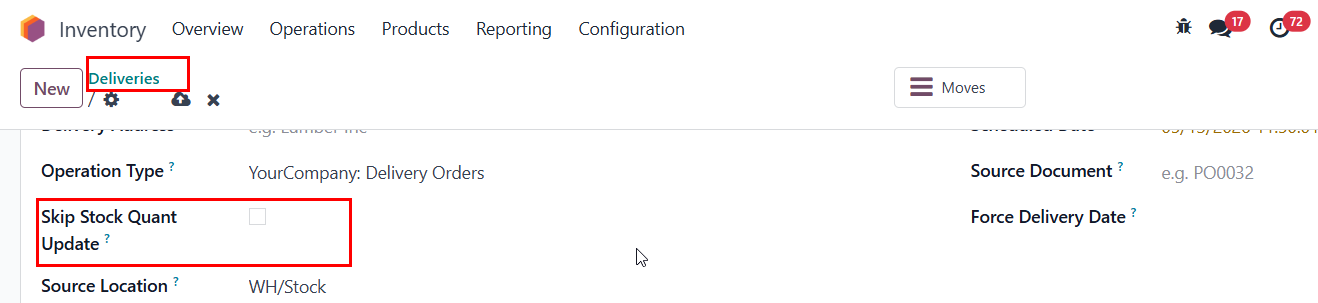
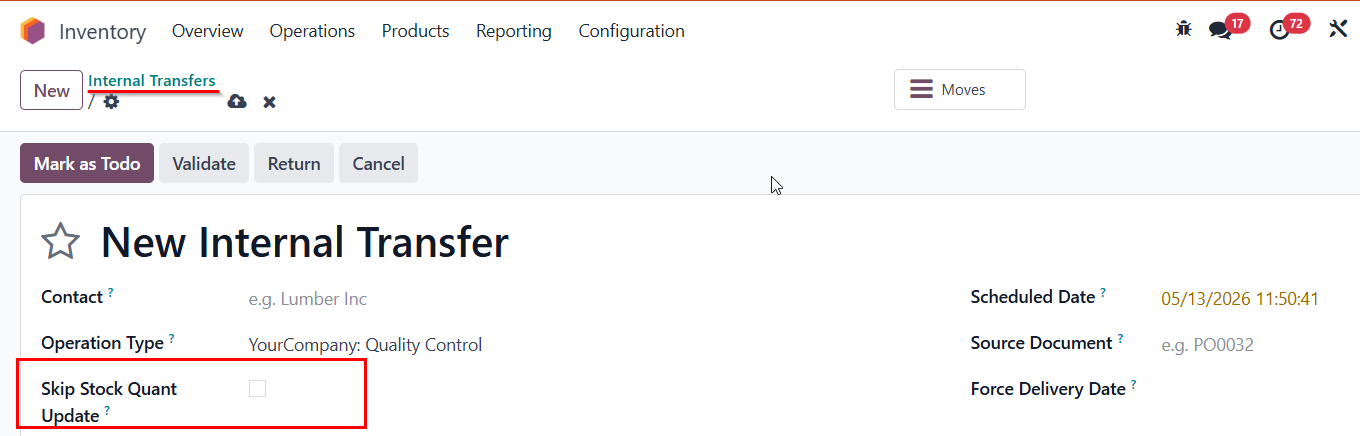
2. Once enabled, the Skip Stock Quant Update field will appear on all Picking types (Receipts, Deliveries, Internal Transfers). |
|
USAGE | |
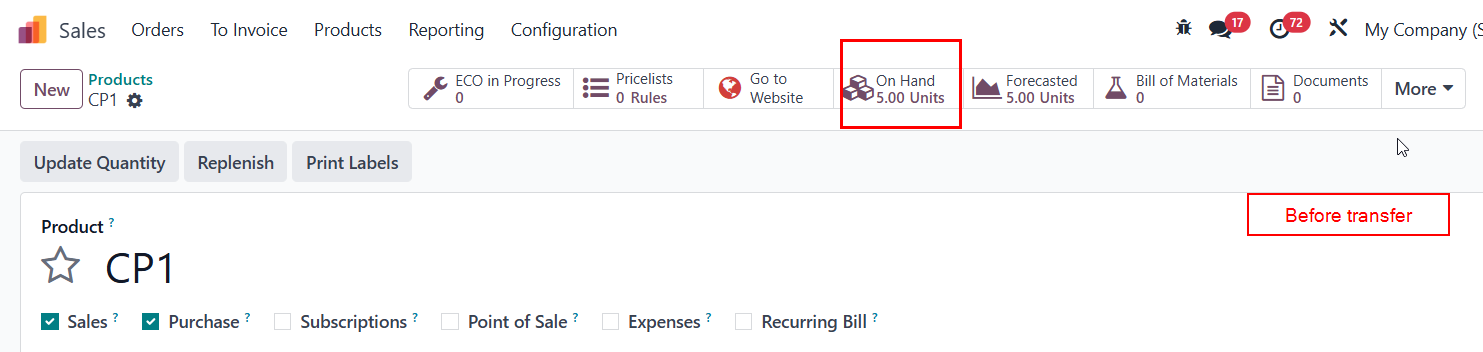
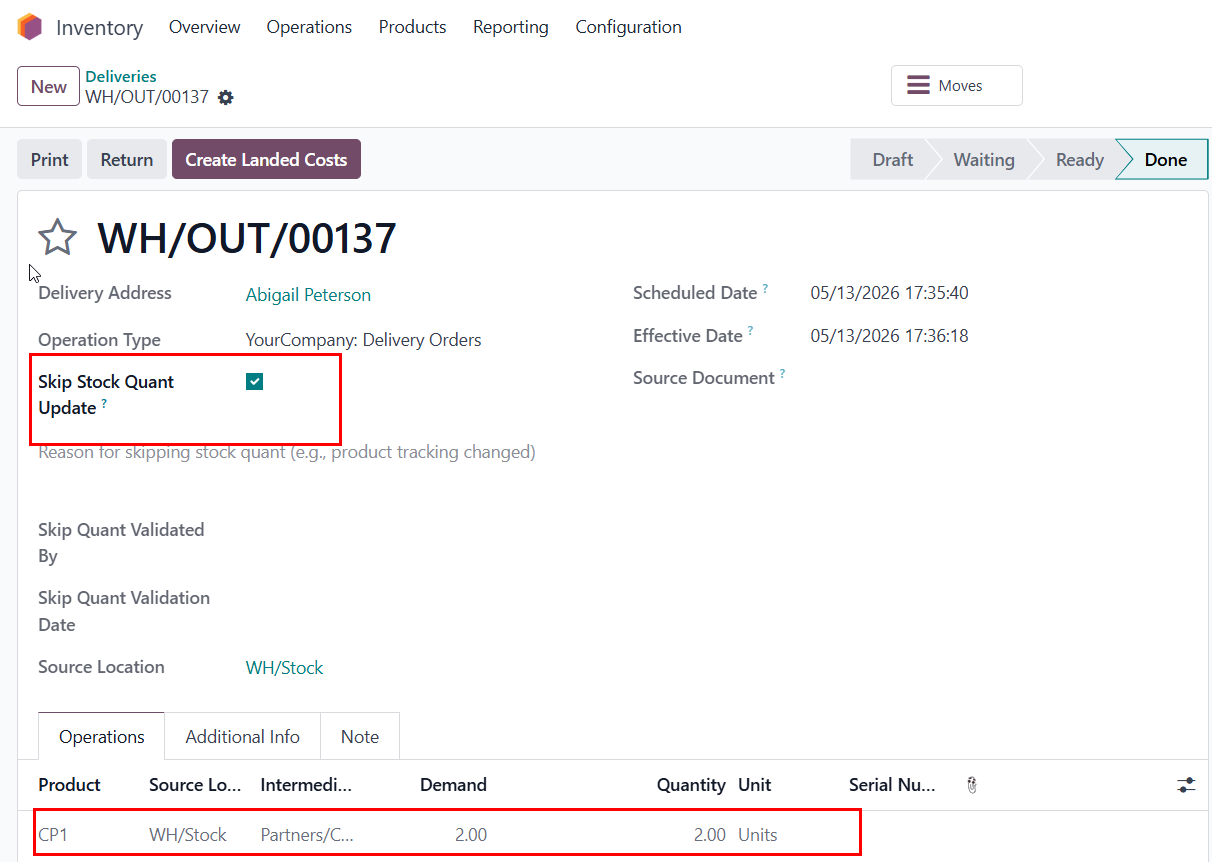
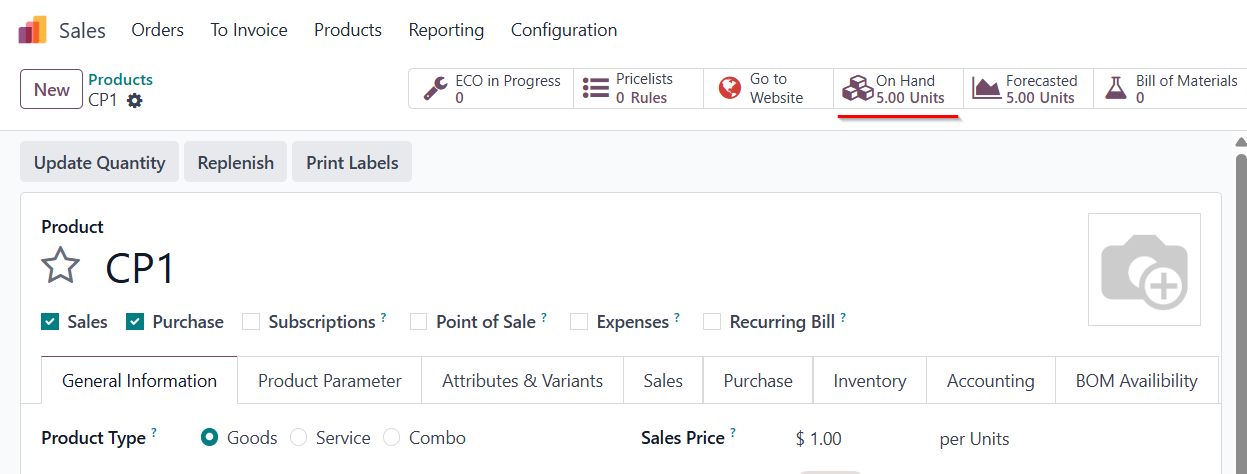
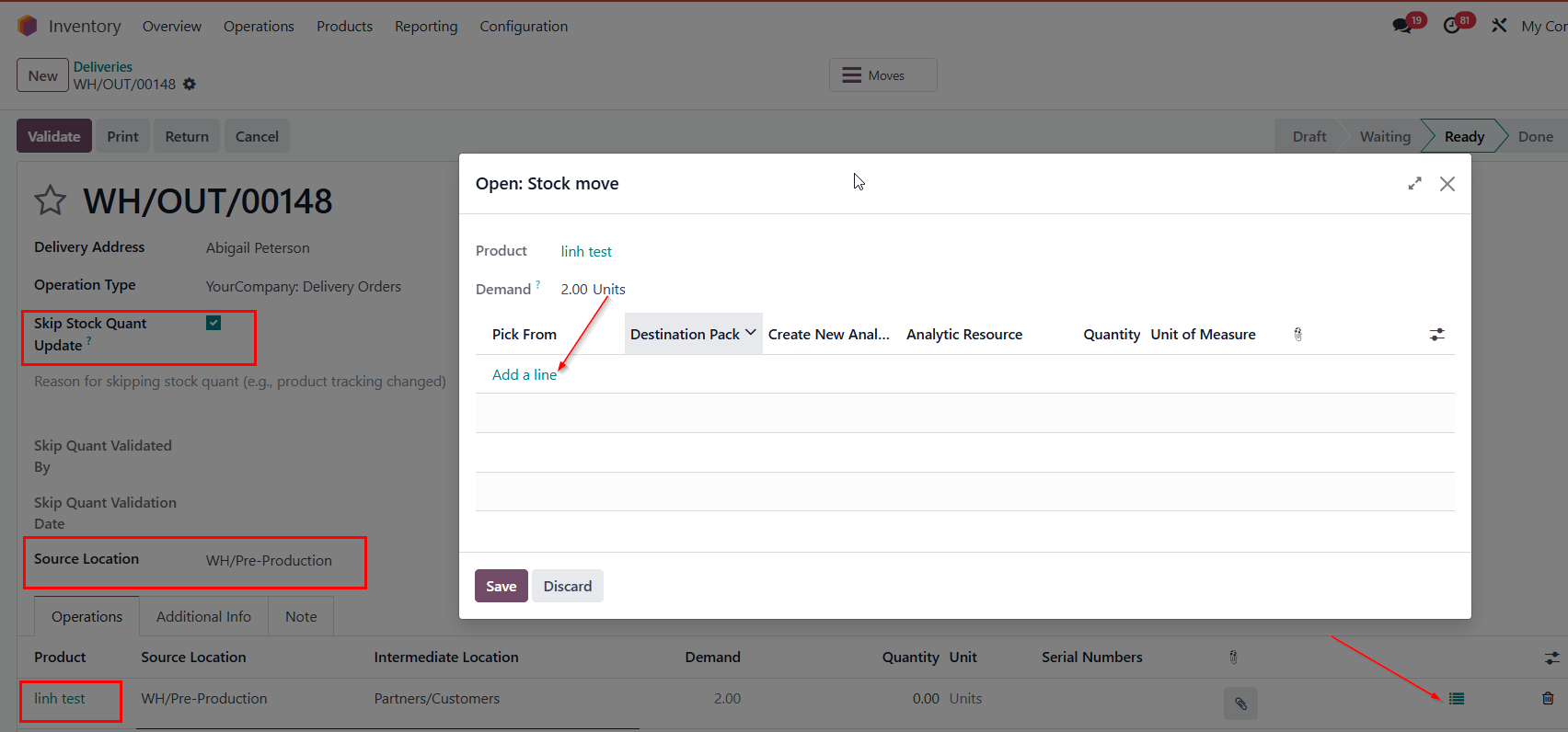
Skip Stock Quant Update checkedGo to Inventory > Operations > Transfers > Deliveries. Create a new delivery, tick the box Skip Stock Quant Update, fill in the product and quantity > Validate transfer Result: When the user goes back to the product, the on-hand quantity does not change. |
After transfer
|
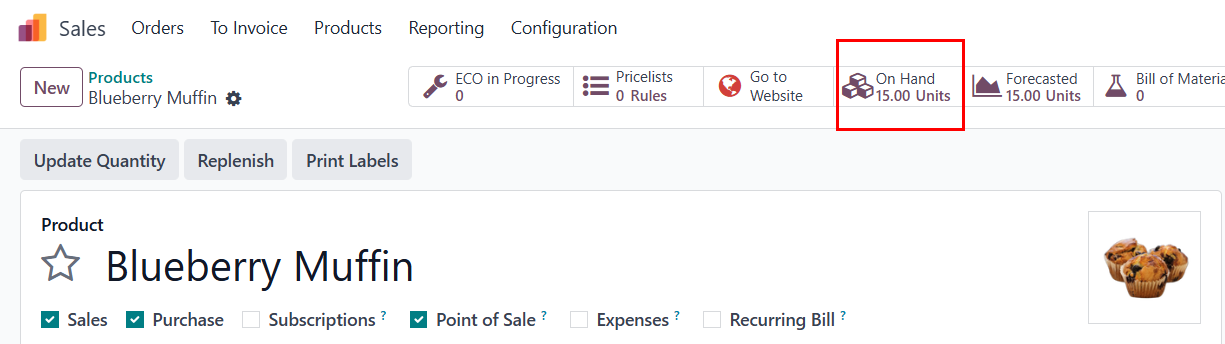
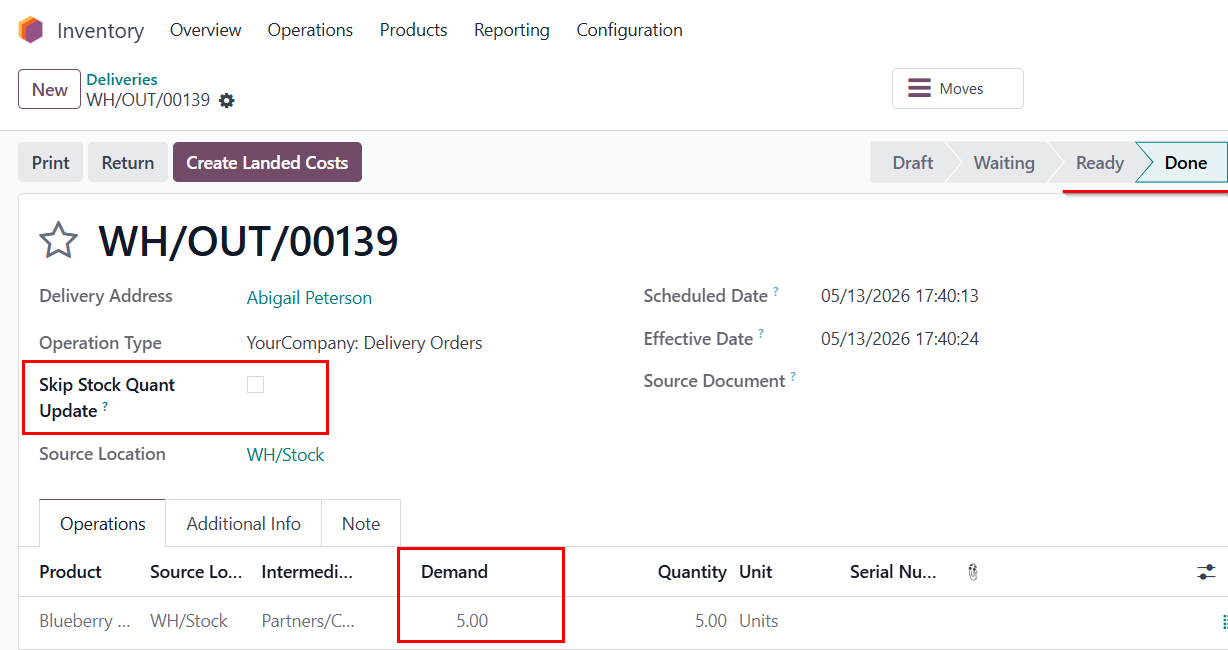
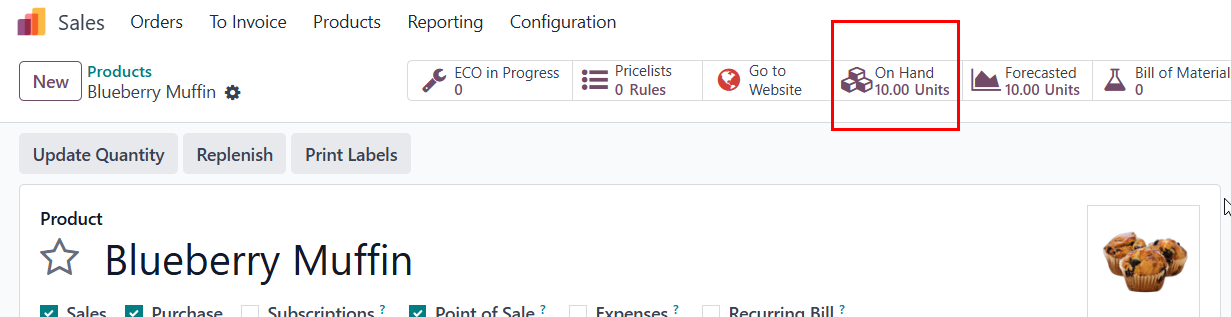
Skip Stock Quant Update uncheckedCreate a new delivery, fill in the product and quantity > Leave the box Skip Stock Quant Update unchecked > Validate the transfer. Result: When the user goes back to the product, the on-hand quantity has declined by the quantity in the validated delivery. |
After transfer
|
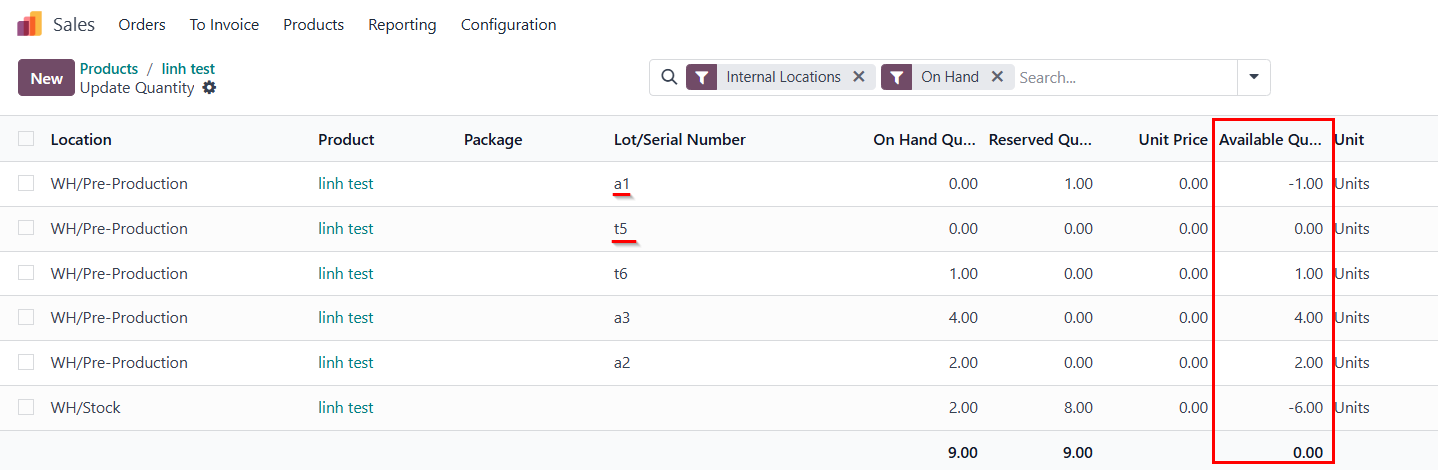
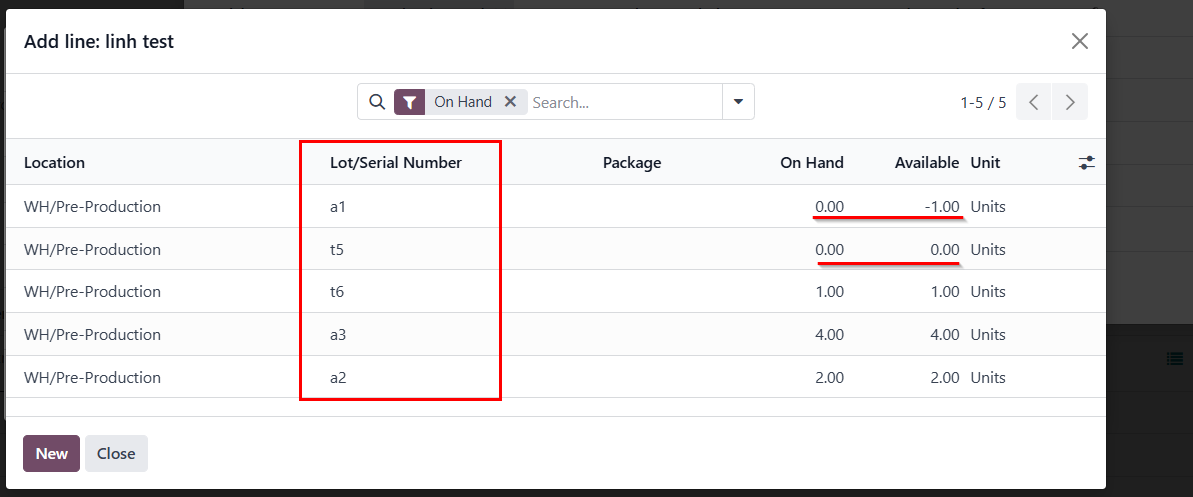
Old Lots/SNs SelectionThe user can pick any historical Lot/SN, even when the quantity is zero or negative. This bypasses availability restrictions and can clean up old, pending deliveries without messing up current stock numbers.
Result: Can see lots/sn with both positive and negative (even = 0) quantity. Function Skip Stock Quant Update still works in this case. |
|