


Se rendre au contenu

Production Order 360 views and plan

Display material requirements for a production order, with links to all related moves, to support better planning and management.
257,53 € 257,53 € (Hors taxes)
US$ 300,00 (Hors taxes)

  • Versions
Conditions générales
Garantie satisfait ou remboursé de 30 jours
Livraison : 2-3 jours ouvrables

STORY BEHIND THE FEATURE

ODOO BEHAVIOUR

By default, Odoo only provides a Manufacturing Order menu in the Manufacturing app, but no Production Order menu which displays material requirements for a production order with the links to all related moves. This limitation prevents users from creating production orders or utilizing the related functions, thereby restricting their capabilities in planning and production management.


CLUEDOO BEHAVIOUR

The fal_production_order_view_and_plan module enhances Odoo's manufacturing capabilities by providing a 360-degree view for Production Orders, improving planning, replenishment, and traceability with the following features:

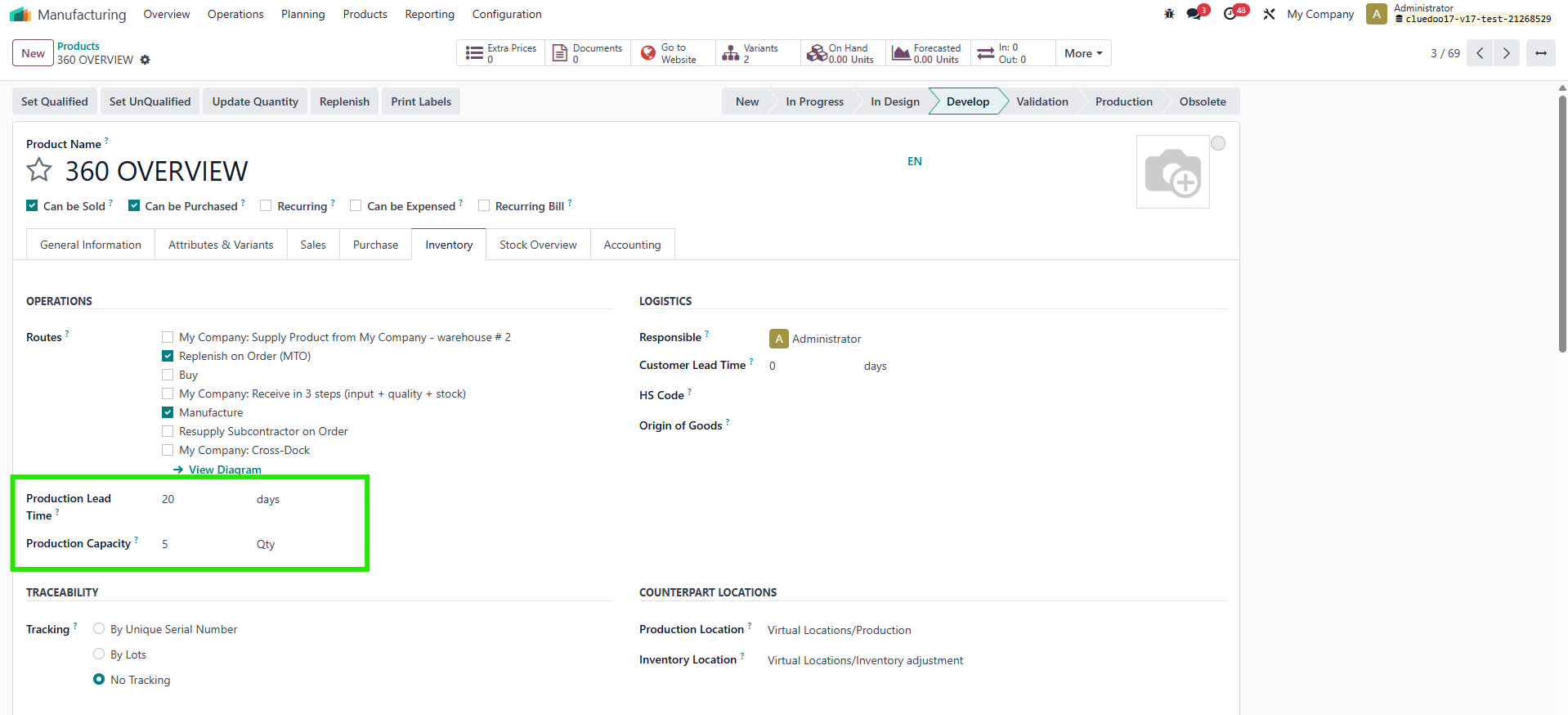
  • Adds Production Leadtime and Production Capacity fields at the product level to calculate the Scheduled Starting Date for POs.
  • Supports spliting MOs based on Production Capacity with sequential scheduling.
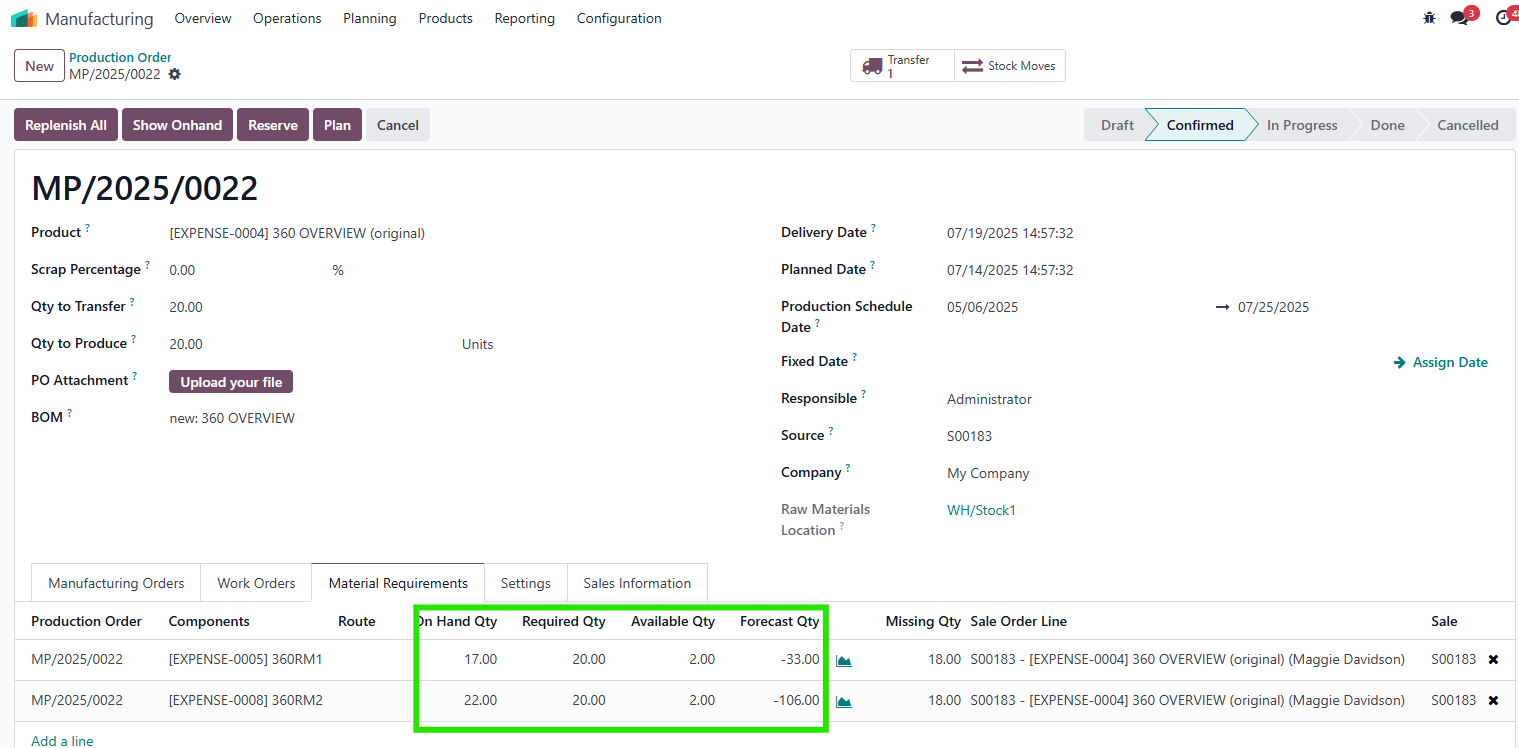
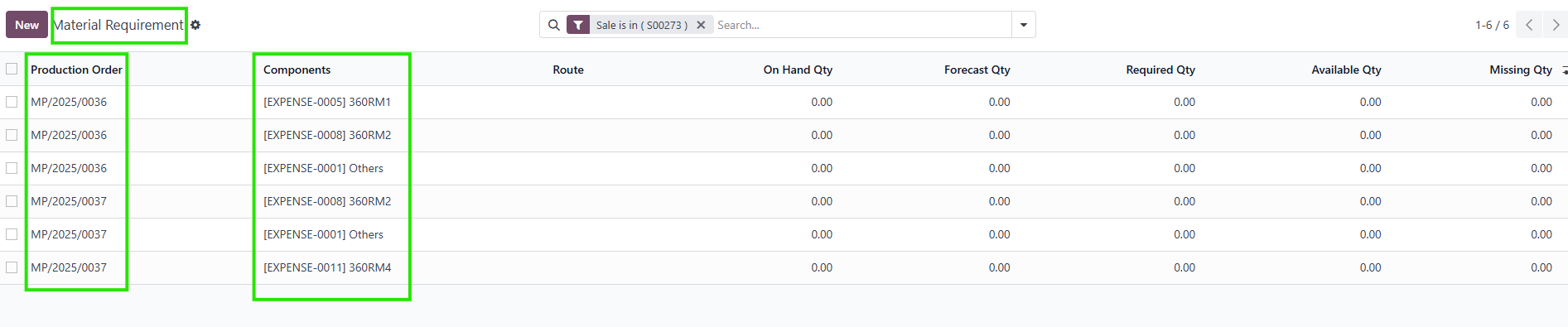
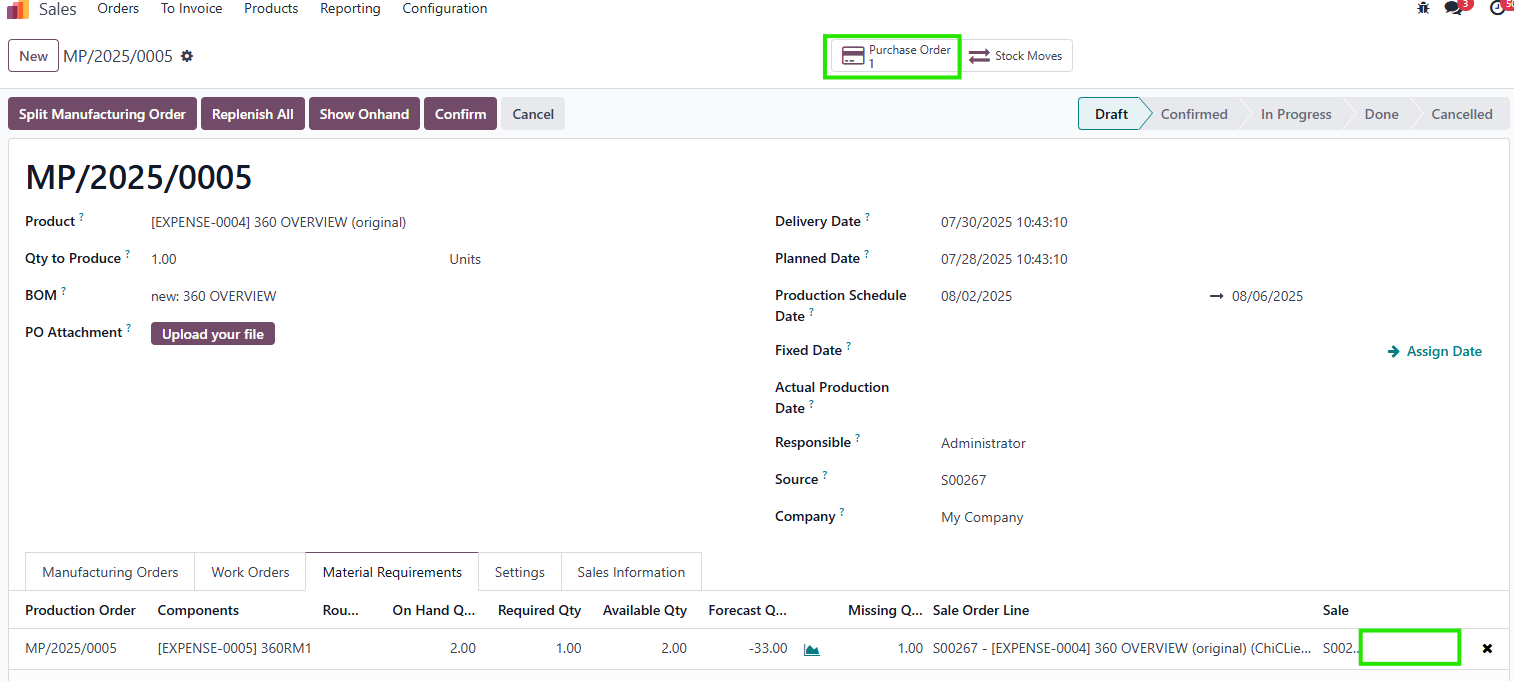
  • Introduces a Material Requirements tab and a dedicated menu displaying Qty Required, Qty on Hand, Available Qty, Forecast Qty, and Qty Missing, with manual updates via an Update button.
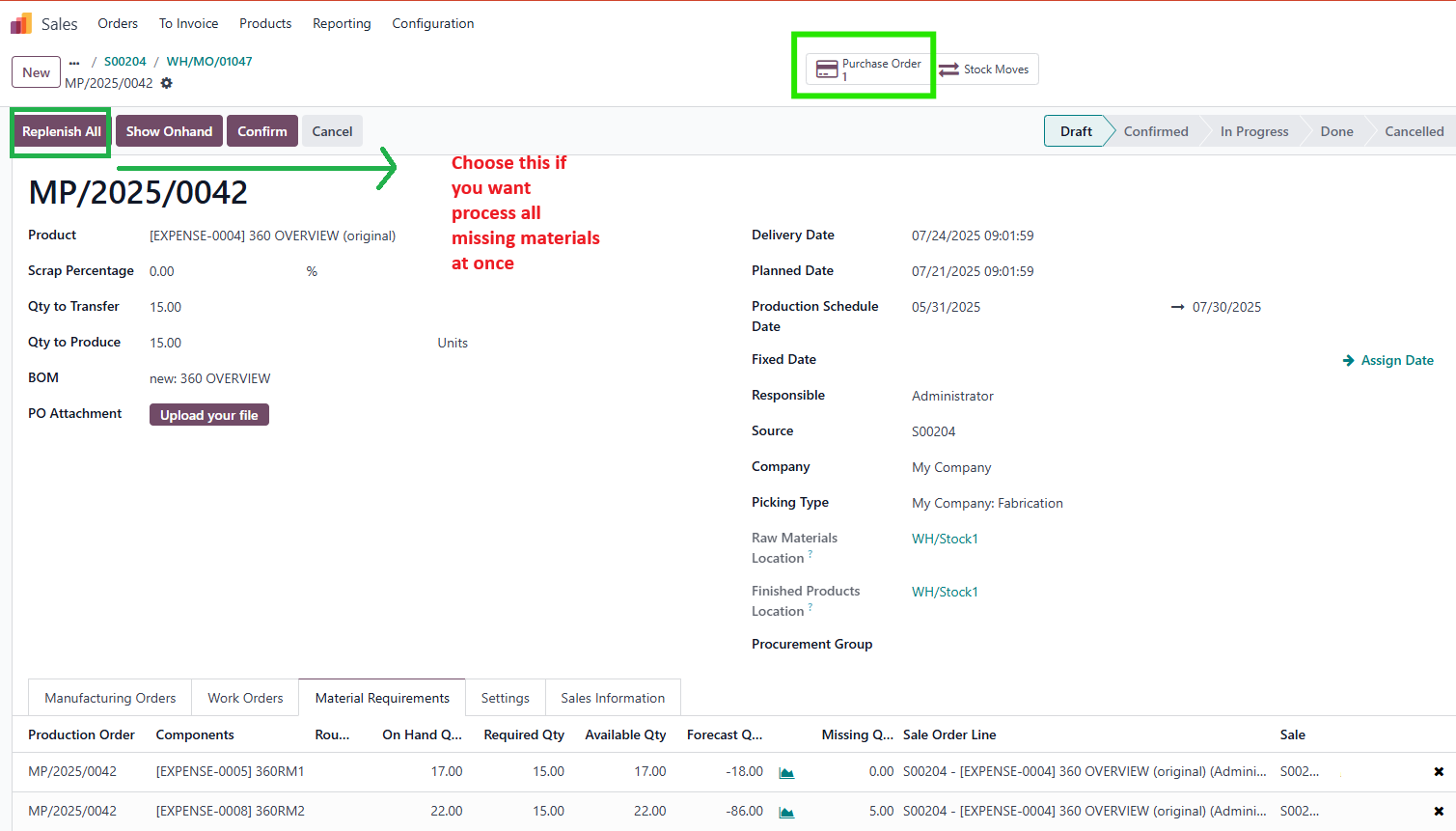
  • Streamlines replenishment with Replenish and Replenish All buttons directly in the PO
  • Consolidates material requirements for the same product within a PO using a Merge Requirement feature, accessible in the PO and Material Requirements List View.
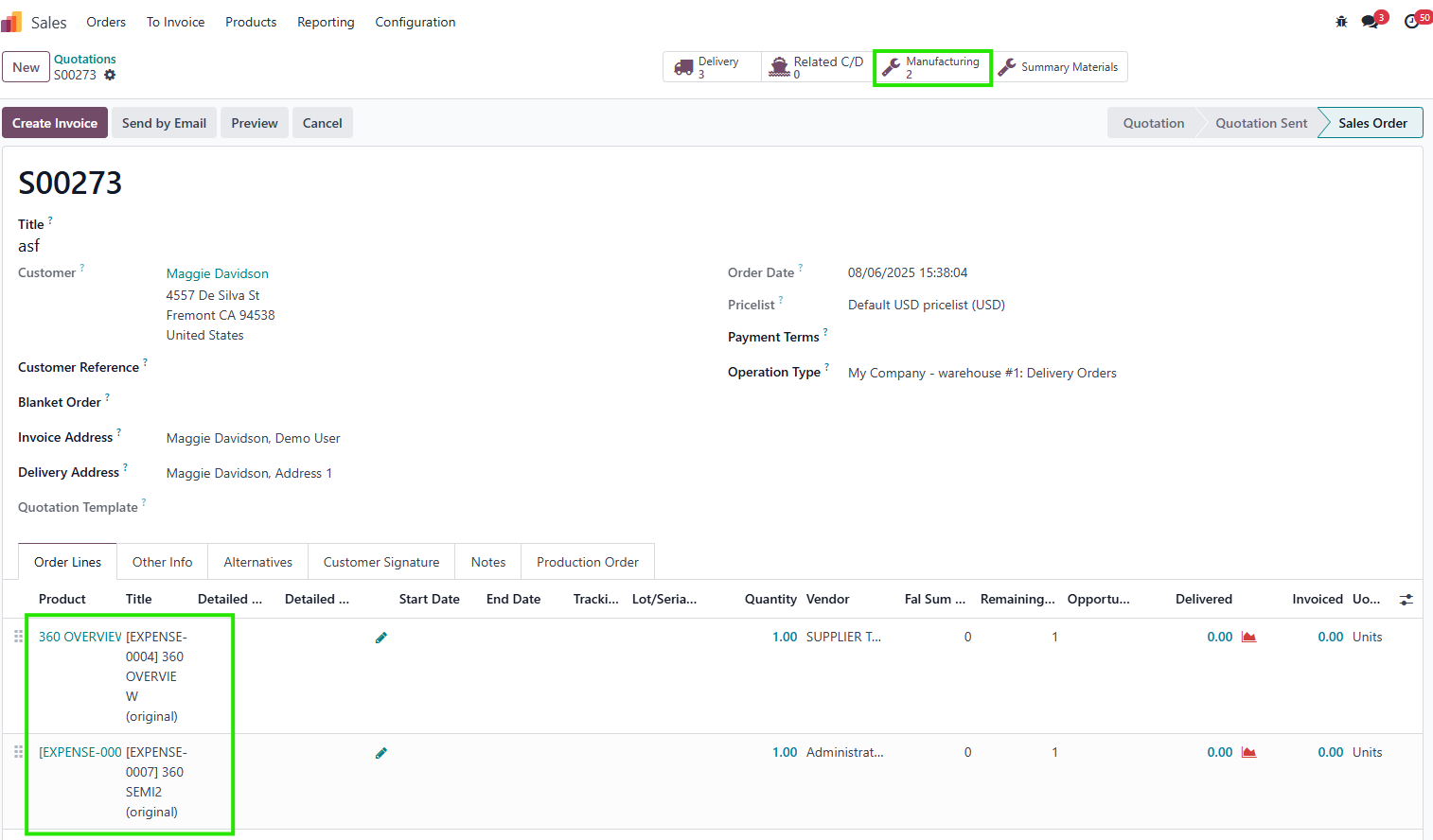
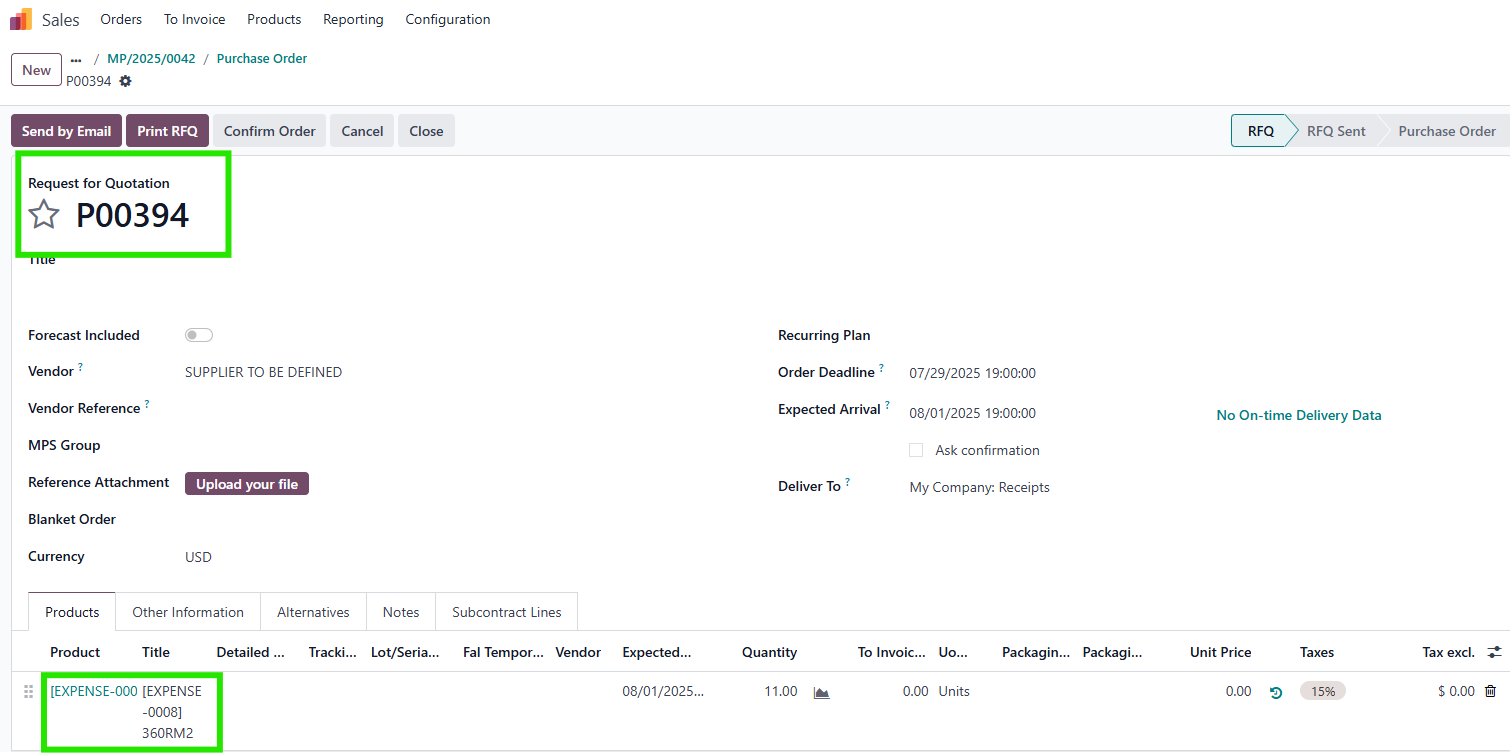
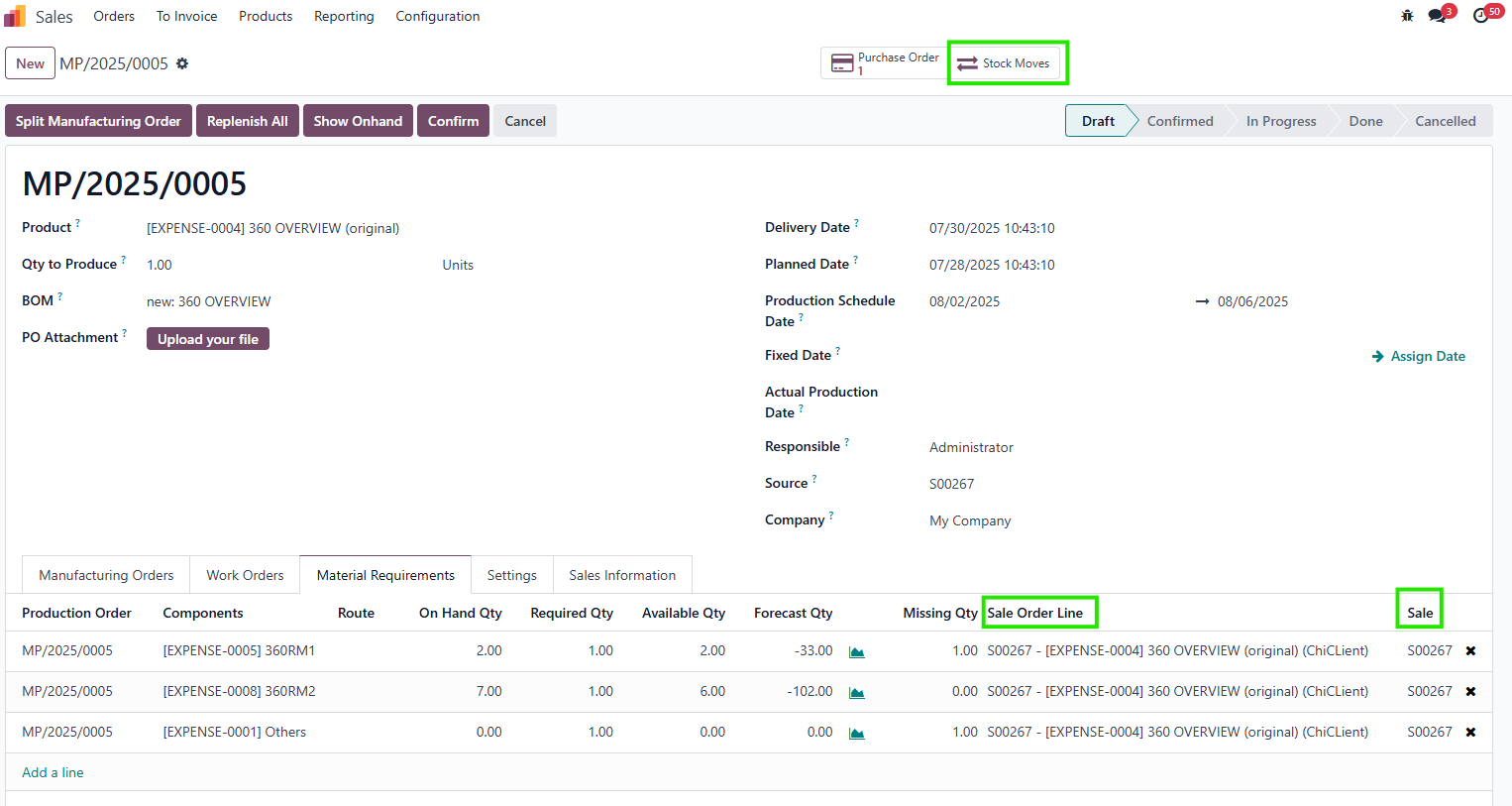
  • Links POs to Sales Orders (SOs), Sale Order Lines (SOLs, for single-variant cases), RFQs, PO lines, stock moves, and a dedicated document folder for full traceability.
  • Supports multiple main MOs with different product variants (same Product Template) in a single PO, compatible with Odoo v18.
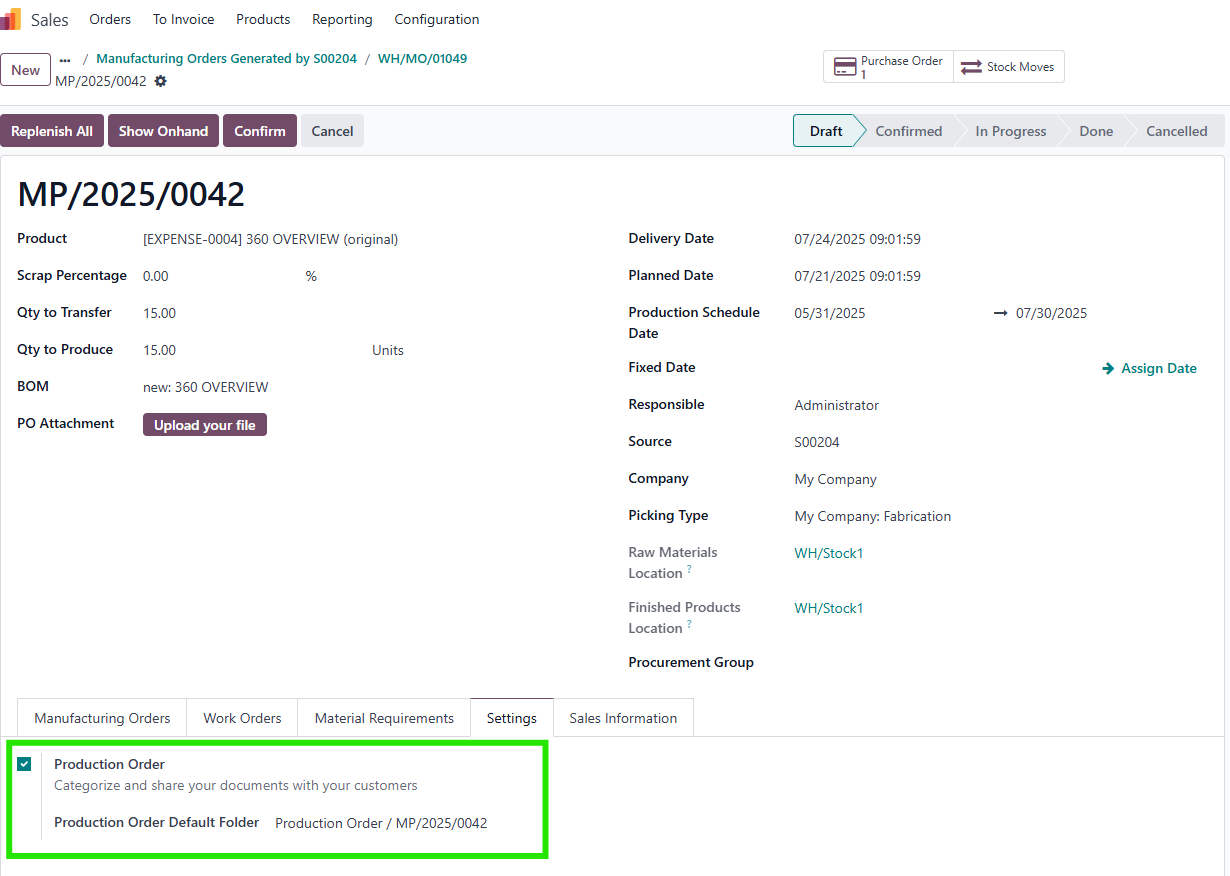
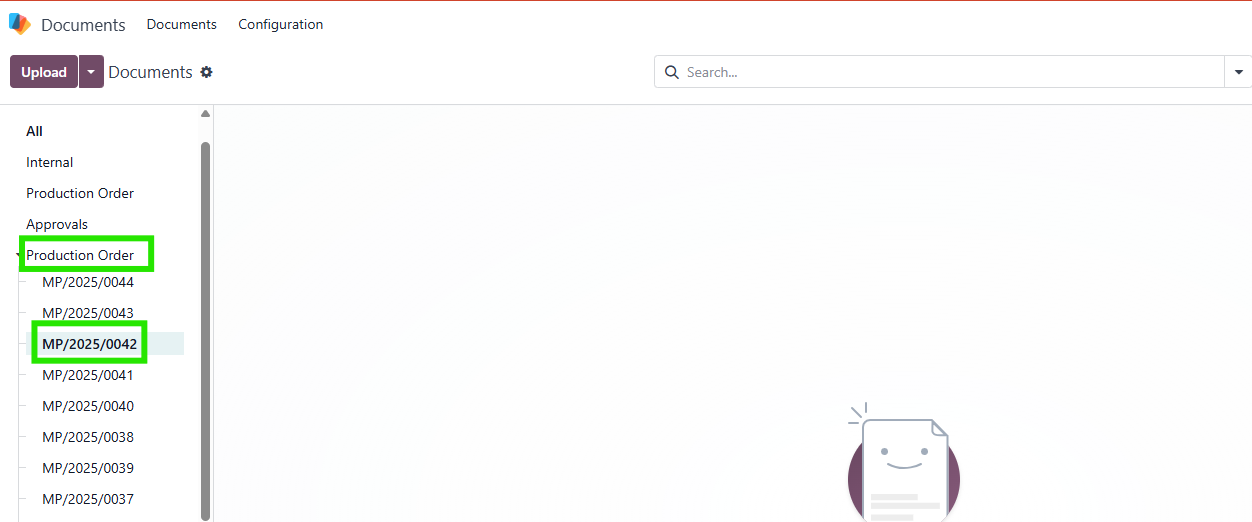
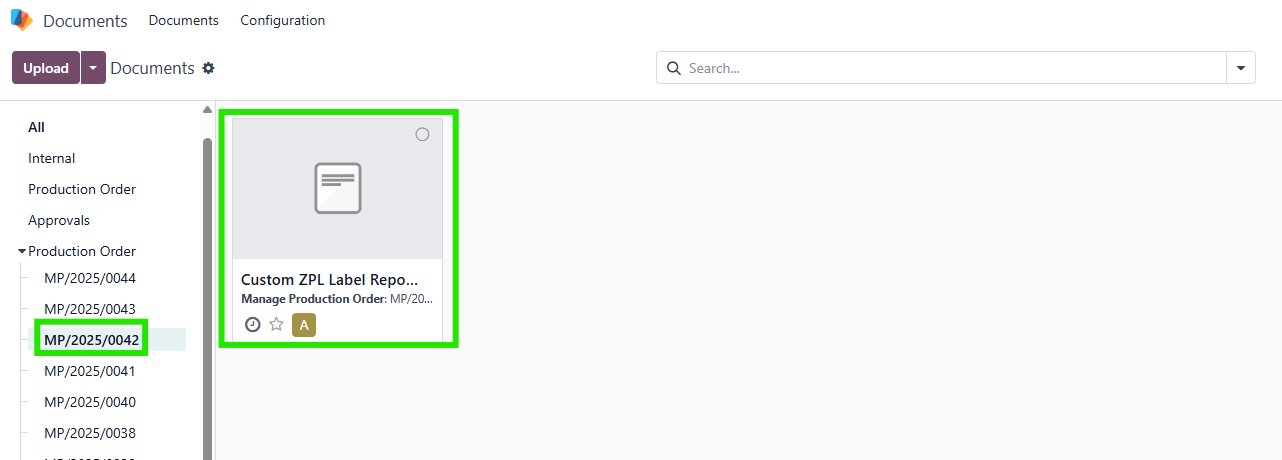
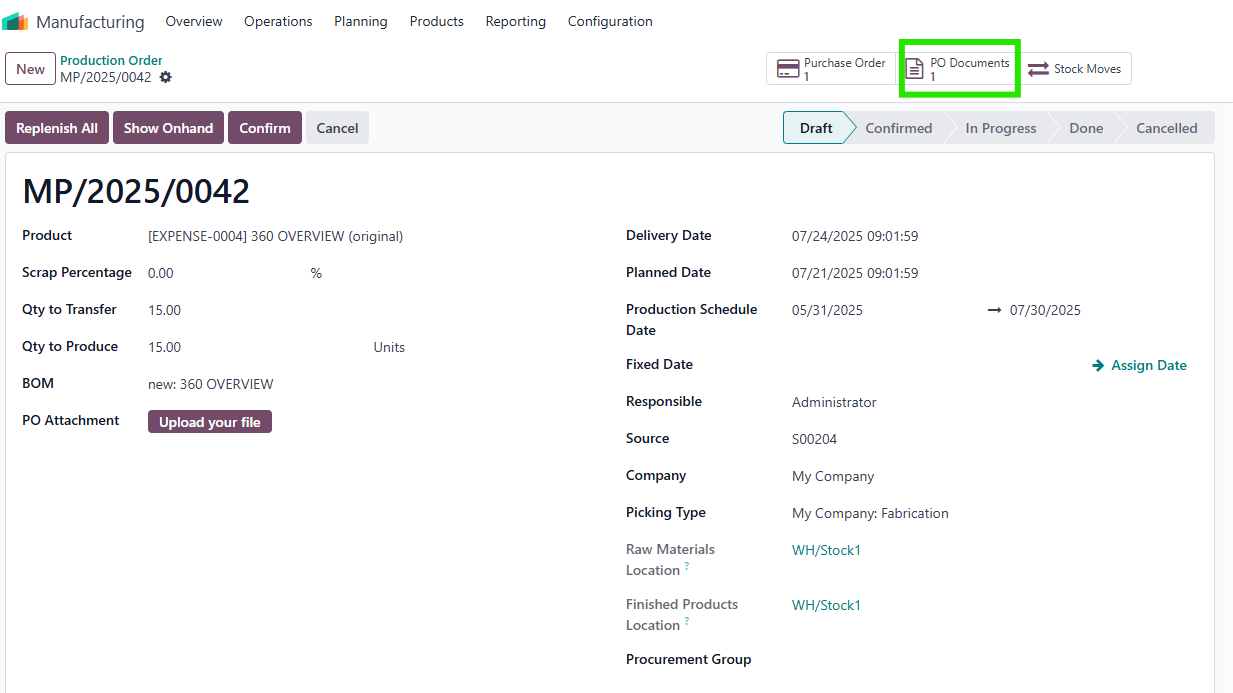
  • Provides a dedicated document folder per PO, accessible via a smart button in the PO form.
  • Allows manual editing of Qty Missing to handle cases where the same product appears in multiple POs or when semi-product Qty Missing is zero.


BUSINESS CASE

This module is ideal for manufacturing businesses that require precise production planning and comprehensive visibility into their production processes. For companies using Make-to-Order (MTO) strategies, the module simplifies scheduling by accounting for Production Leadtime and Production Capacity, ensuring timely production. It is particularly valuable for businesses with complex BOMs, multiple product variants, or high-volume production, where managing material requirements, replenishment, and traceability is critical. The 360-degree view reduces manual navigation, minimizes errors in replenishment, and ensures all related data (SOs, RFQs, stock moves, documents) is accessible from a single interface, improving operational efficiency and decision-making.


HOW TO USE THIS MODULE


1. Configure Product Settings

  • Go to: Inventory > Products > Products and select the product you want to configure for production.
  • Steps:
    • Production Leadtime: In the Inventory tab, set the Production Leadtime (e.g., 20 days). This is the total time to produce the finished product, including sub-MOs and main-MO.
    • Production Capacity: Set the Production Capacity (e.g., 5 units per period) to define the number of finished products that can be produced in a given period.
  • Note:
    • If Production Leadtime or Production Capacity is not set, the module will not calculate the Scheduled Starting Date correctly.

2. Create and Configure Production Orders

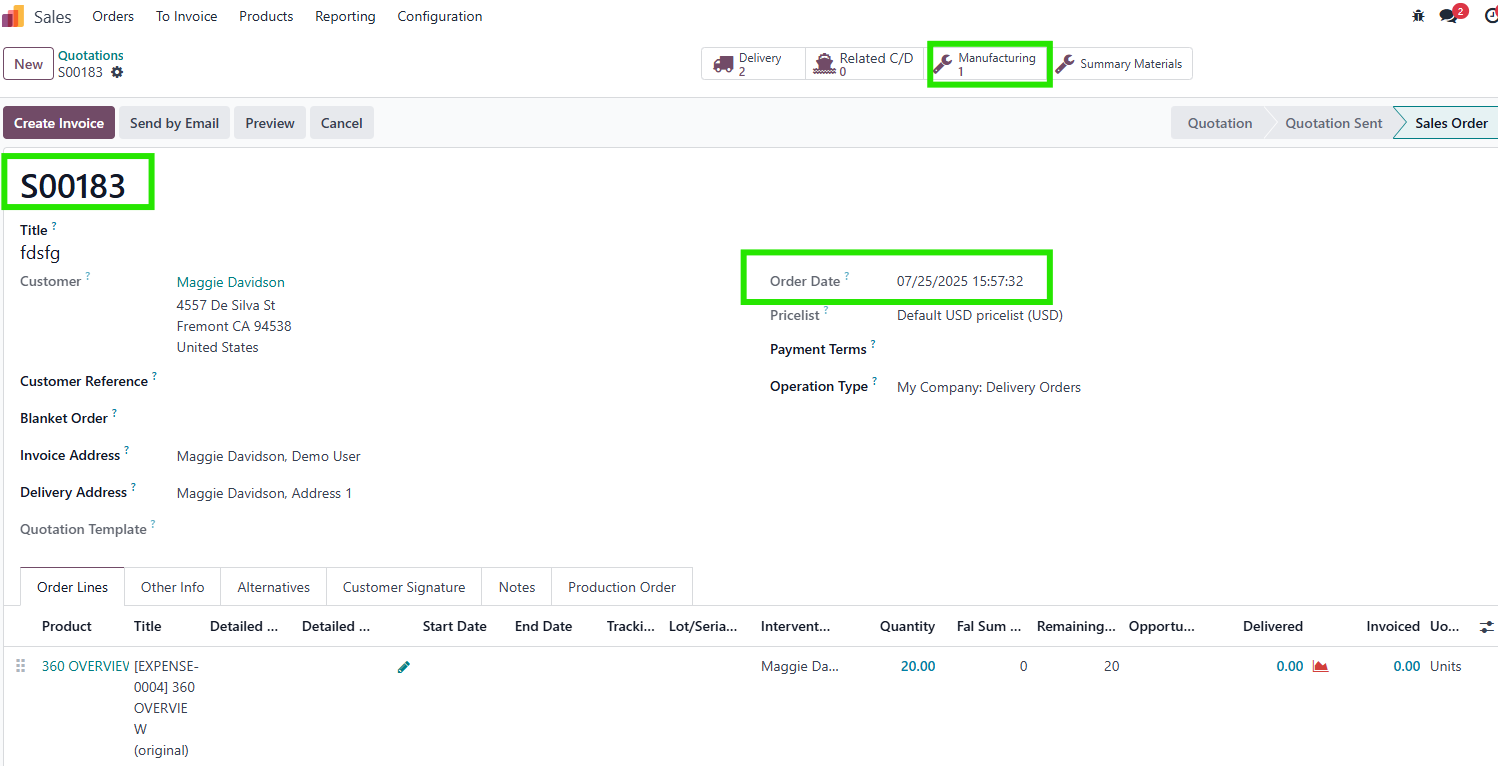
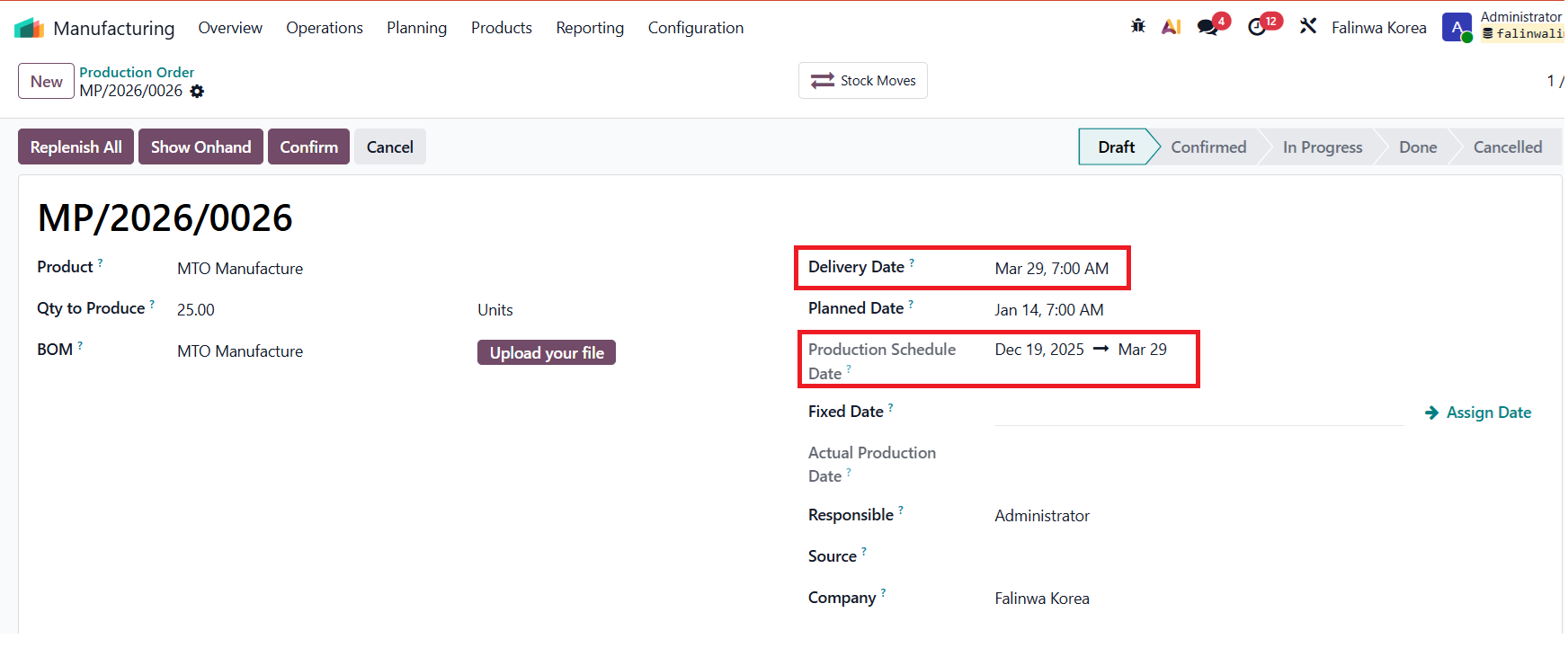
  • Go to: Manufacturing > Planning > Production Orders and create a new Production Order (PO) or let it be generated from a Sales Order (SO) for Make-to-Order (MTO).
  • Look for:
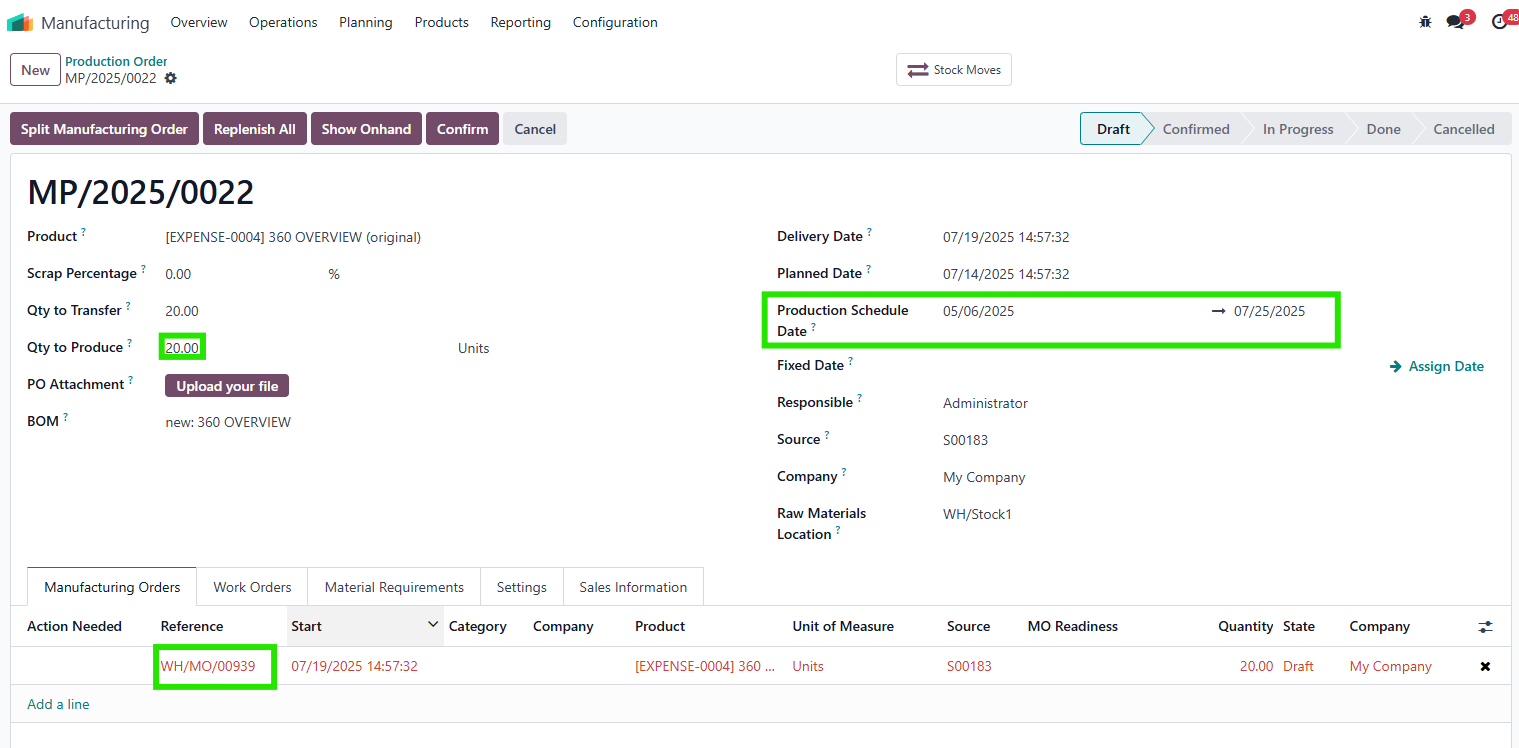
    • Scheduled Starting Date: For MTO, this is automatically calculated using the formula:
      Scheduled Starting Date = SO Commitment Date - roundup(PO Quantity / Production Capacity) × Production Leadtime
      • Example: If PO Quantity = 20, Production Capacity = 5, Production Leadtime = 20 days, and SO Commitment Date = 25/07/2025, then:
        • Duration = roundup(20 / 5) × 20 = 4 × 20 = 80 days.
        • Scheduled Starting Date = 25/07/2025 - 150 days = 06/05/2024.
Note:
  • If the PO is created manually (not from an SO), the Scheduled Starting Date will be calculated based on the inputted Delivery Date automatically 

3. Manage Manufacturing Orders (MOs)

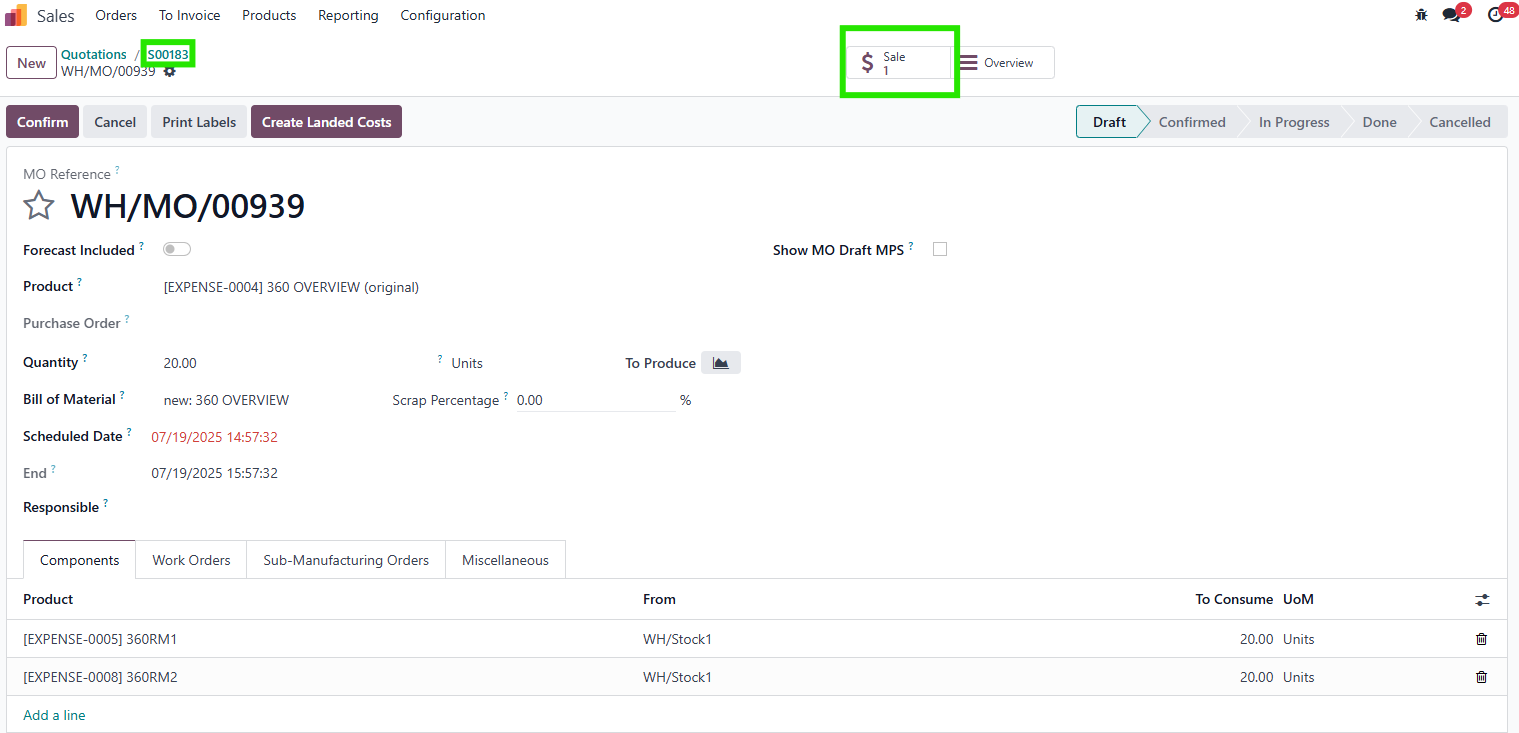
Go to: Manufacturing > Operations > Manufacturing Orders or view MOs directly from the PO form.
Look for:
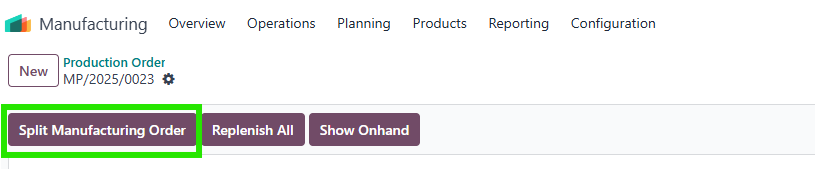
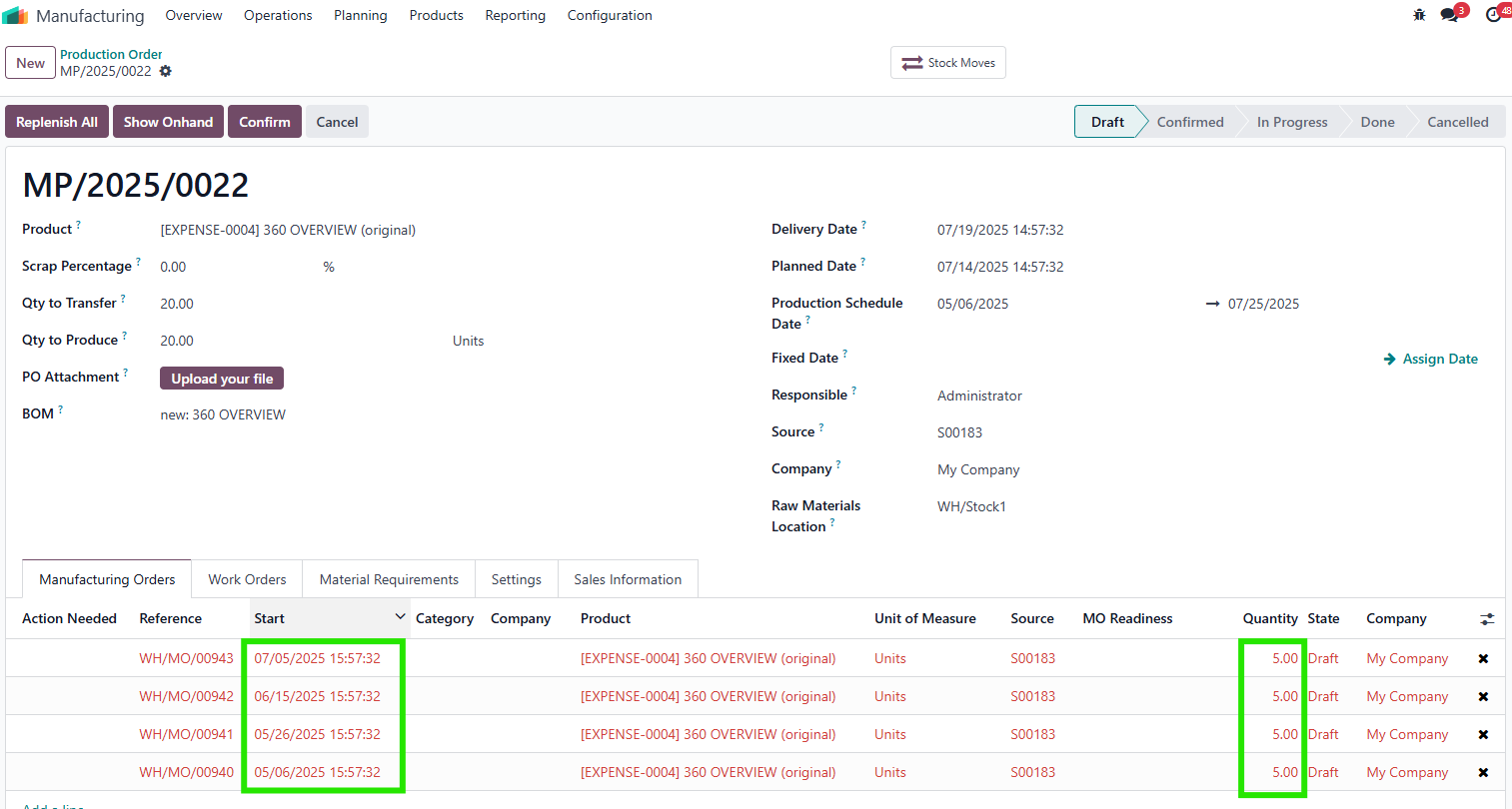
  • The system automatically splits the PO into multiple MOs based on Production Capacity when you click "Split Manufacturing Order".
  • Each MO has a Scheduled Date calculated as:
    MO Scheduled Date = Production Scheduled date + X Leadtime, where X is the number of the MO. 
    • Example: If Production Scheduled Date = 06/05/2025 and Leadtime = 20 days:
      • MO1: 06/05/2025
      • MO2: 26/05/2025
      • MO3: 15/06/2025
      • MO4: 05/07/2025

Note:
  • If the PO is created manually (not from SO), the MO splitting still follow the Production Leadtime or Capacity.

4. Manage Material Requirements

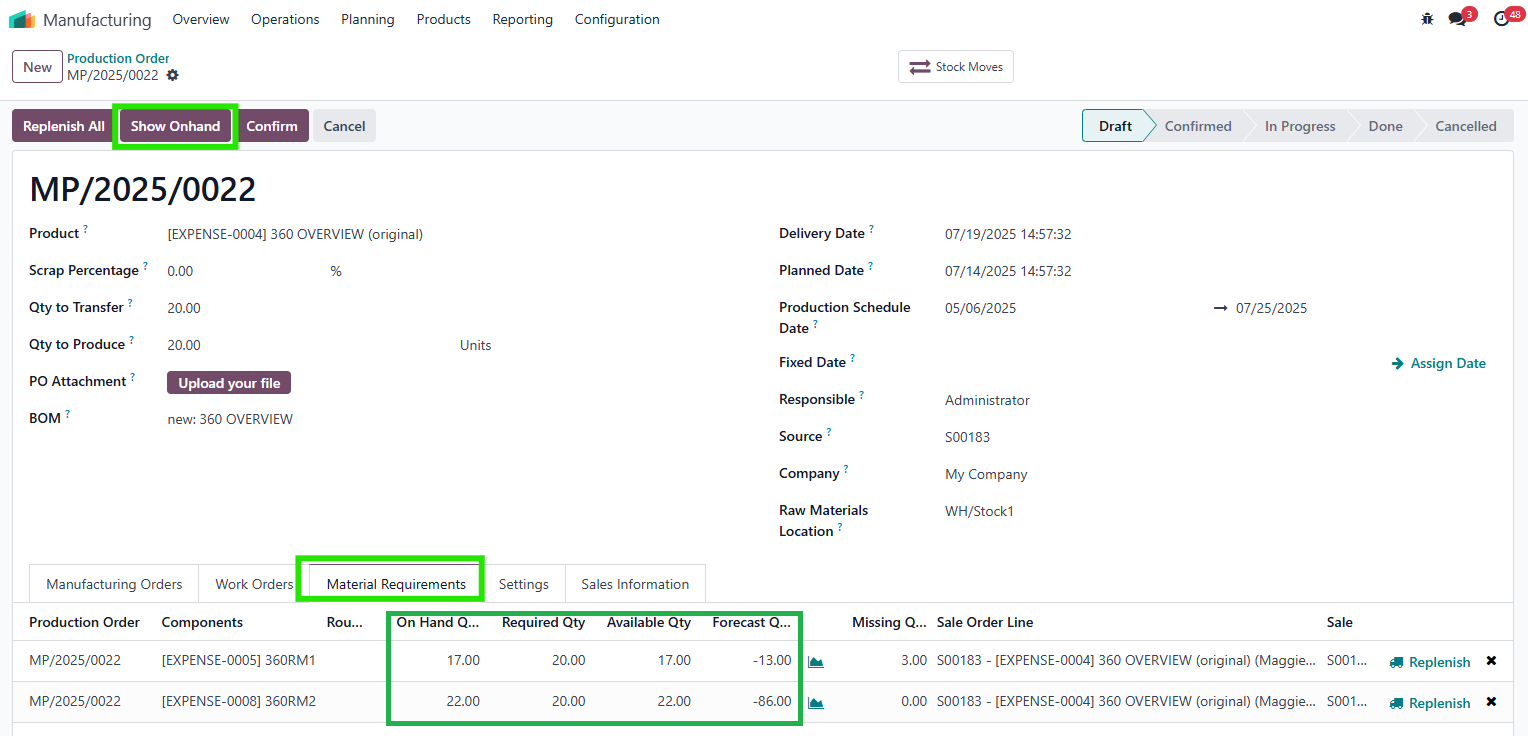
  • Access the Material Requirements tab in the PO form.
  • Look for:
    • Columns displaying:
      • Qty Required: Quantity needed based on the BOM.
      • Qty on Hand: Current stock quantity.
      • Available Qty: On Hand Qty - Reserved Qty.
      • Forecast Qty: Forecasted stock quantity.
      • Qty Missing: Available Qty - Required Qty.
      • Sources: Links to Sale Order (SO) and Sale Order Line (SOL). For multiple product variants in one PO, only the SO link is shown.
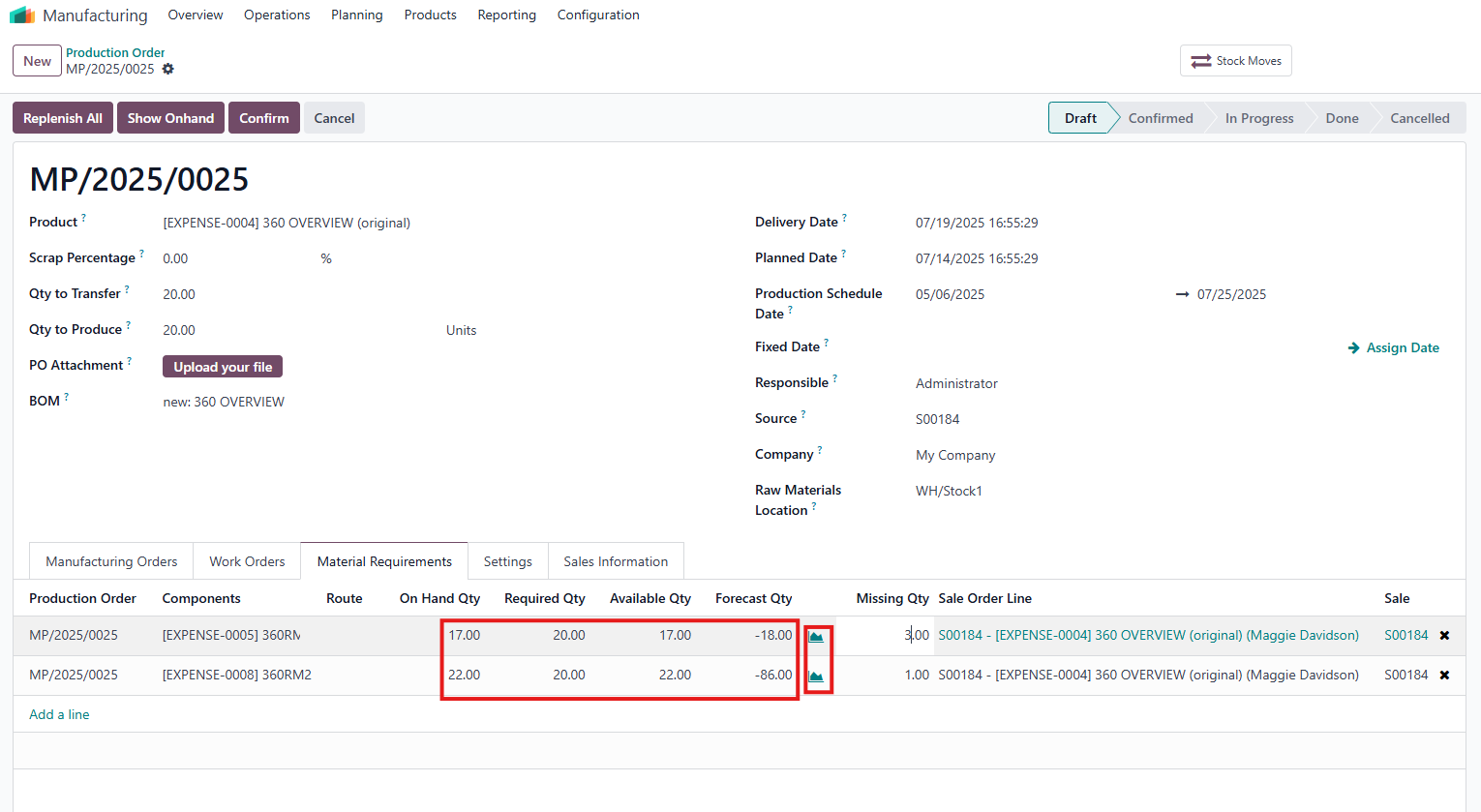
    • Show Onhand Button: refresh and update On Hand Qty, Available Qty, and Forecast Qty.(Besides is before and after using Onhand button)
    • Merge Requirement: Use the Merge Requirement button in the PO or the Merge action in the Material Requirements List View to consolidate requirements for the same product within the same PO (sum Qty Required, recalculate On Hand, Available, Forecast, and Missing quantities) (Still developing).
NoteForecast Qty column has been removed from the Material Requirements tab since v19
Note:
  • All the Qty can be manually edited.
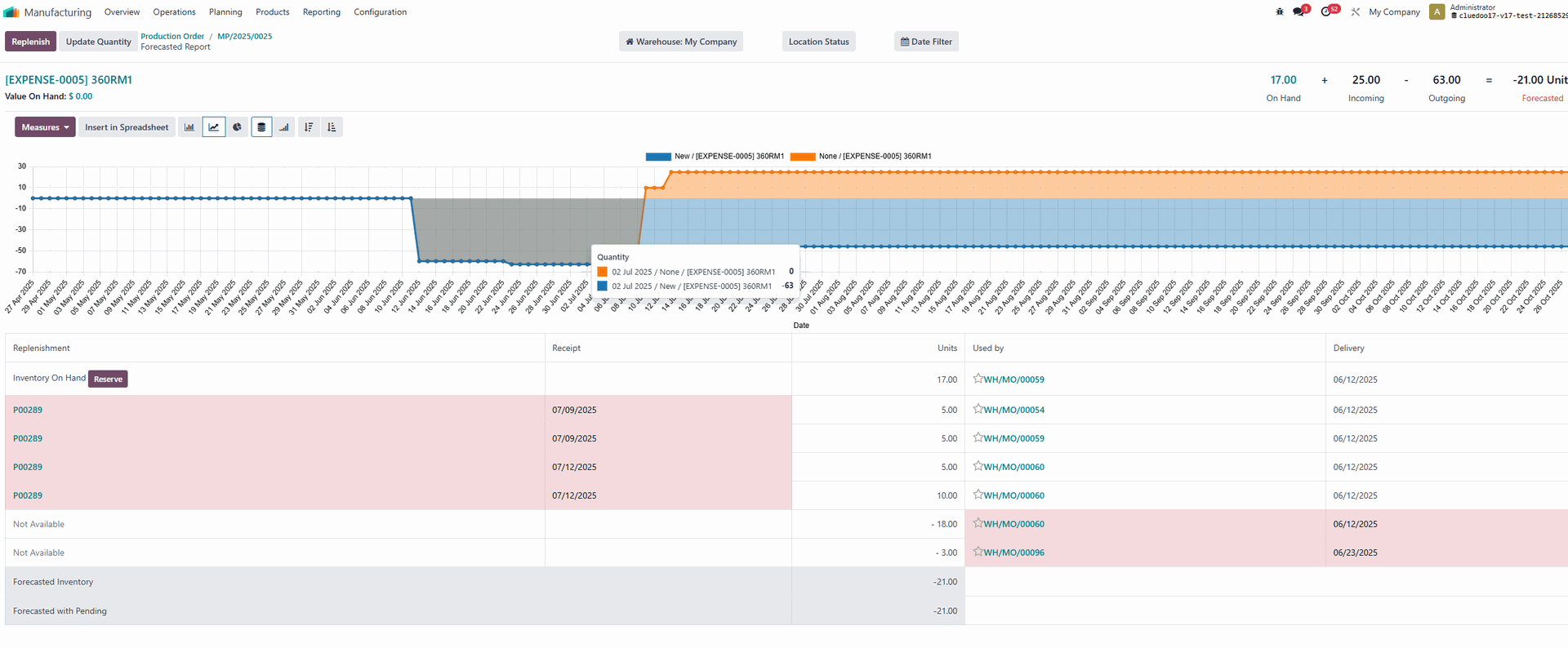
  • Use the Stock Forecast View button to access stock forecasts, similar to the Replenishment Order interface.
Note:
  • For Sales Orders with multiple products, the Material Requirements List View shows consolidated raw material needs.

5. Replenish Materials

  • Go to: Material Requirements tab in the PO form.
  • Look for:
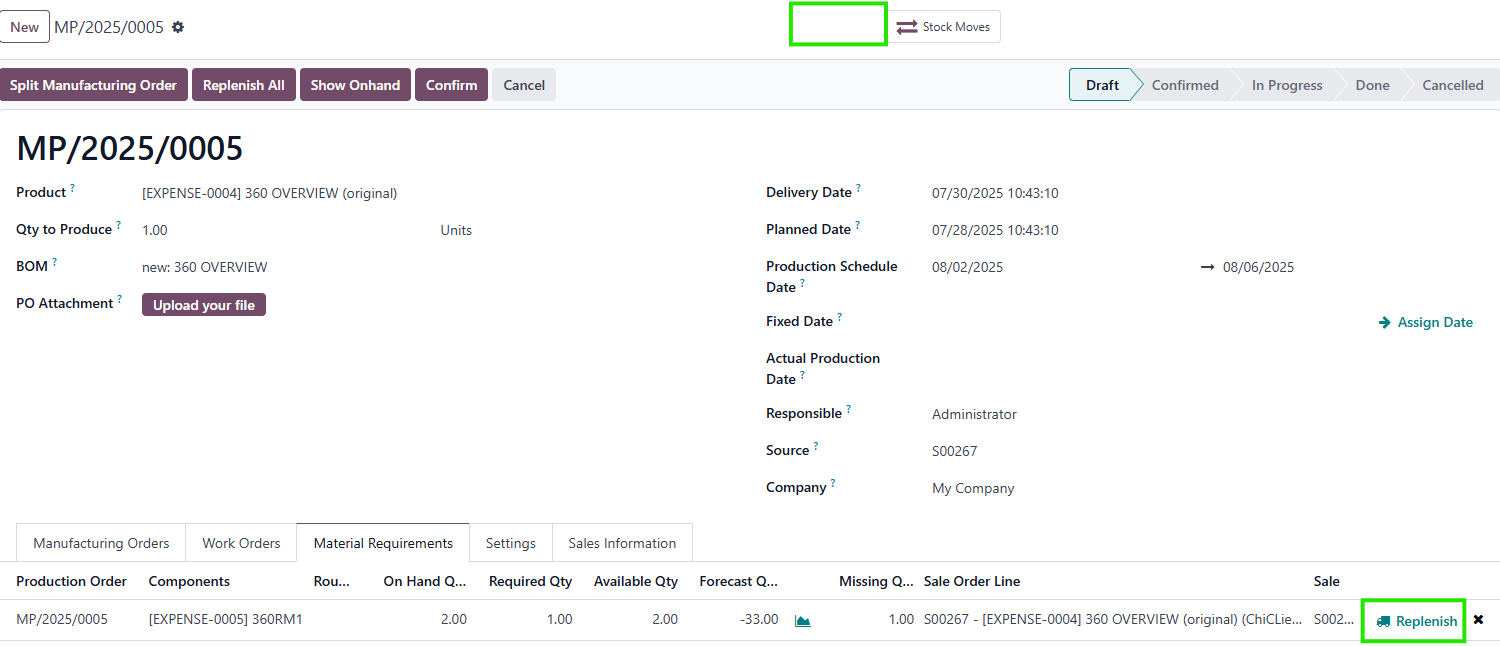
    • Replenish button: Appears only when there is a Qty Missing for a material.
    • Replenish All button: Replenishes all missing materials in one action.
  • Steps:
    1. Click Replenish to create a Purchase Order (PO) or Manufacturing Order (MO) for the missing quantity based on the Replenishment Rule.
    2. If needed, manually edit the Qty Missing before replenishing.
    3. Use Replenish All to process all missing materials at once.


  • Note:
    • The button Replenish only visible when there is a missing qty
    • The Replenish button is hidden after replenishment to prevent duplicate orders.
  • Note:
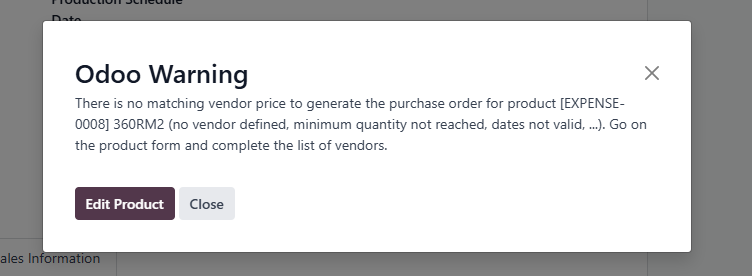
    • If no Replenishment Rule or Vendor Pricelist exists, a User Error pop-up is displayed.
    • If an RFQ is merged into an existing RFQ, the link to the original PO is maintained.

6. Manage Documents

  • Steps:
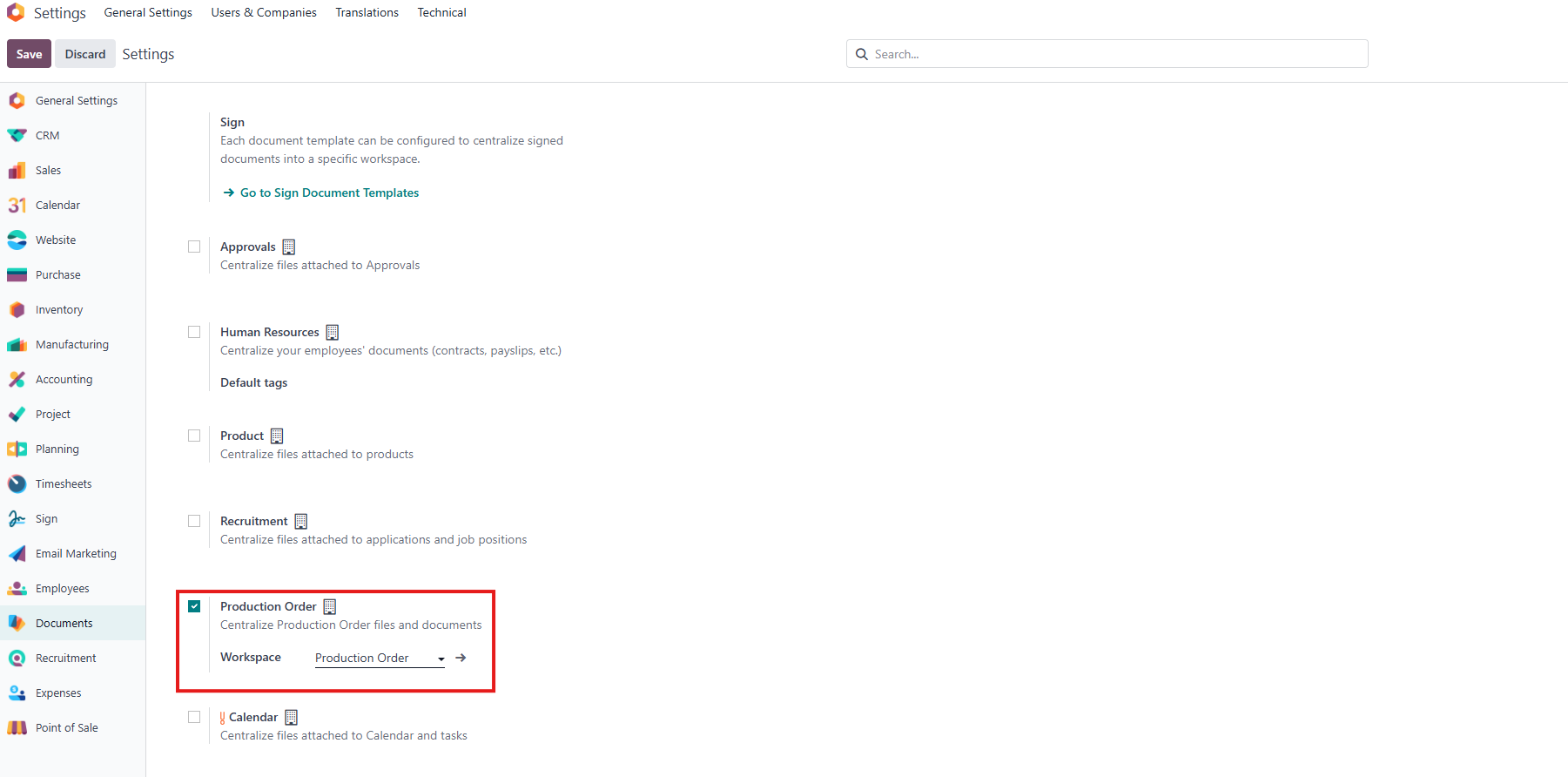
    1. Go to Settings > Choose a workspace
    2. Create a Production Order > Go to Setting > The sub-folder of PO will be created .
    3. Go to Documents > Find your sub-folder > Upload document.
    4. Return to your PO > A smart button which links to sub-folder will appear.

7. Link to Related Records

  • Go to: Production Order form.
  • Look for:
    • Links to:
      • Stock Moves: Displays related stock movements.
      • Sale Order (SO)/Sale Order Line (SOL): Tracks the source of the SO