


ODOO'S FUNCTION
Odoo provides a Commissions feature to reward sales performance through target based or achievement based plans with configurable frequencies and levels. However, the use is limited, without support for advanced filters or custom rules.
CLUEDOO'S FUNCTION
Cluedoo extends commission management by enabling flexible, fully customizable rules, whether based on percentages or with Python code. It also supports advanced filters (by users, members, or both), and allows commissions to be defined with target amounts, percentages, and even across multiple currencies.
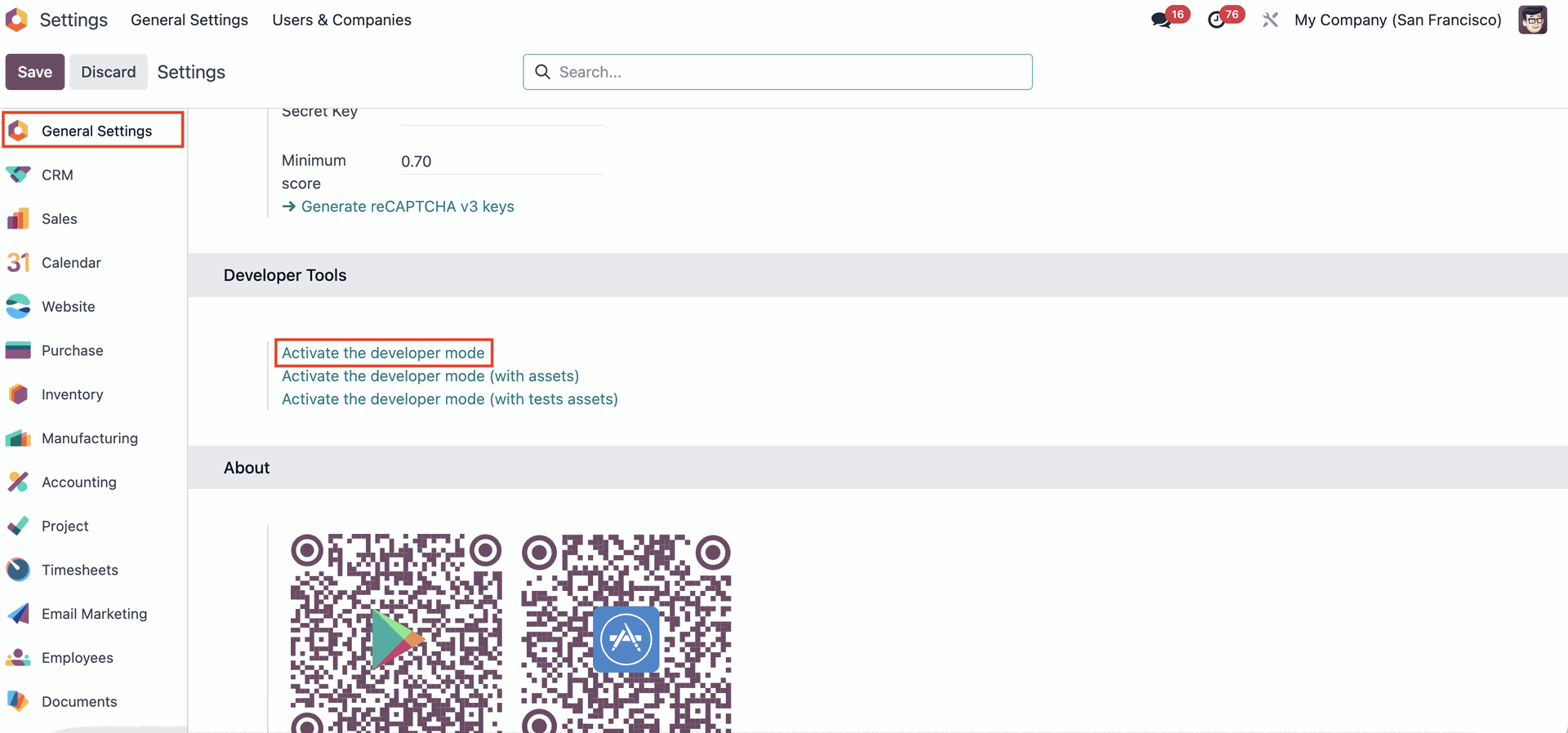
After having the module installed, reach for the 'Settings' App to activate the module. | 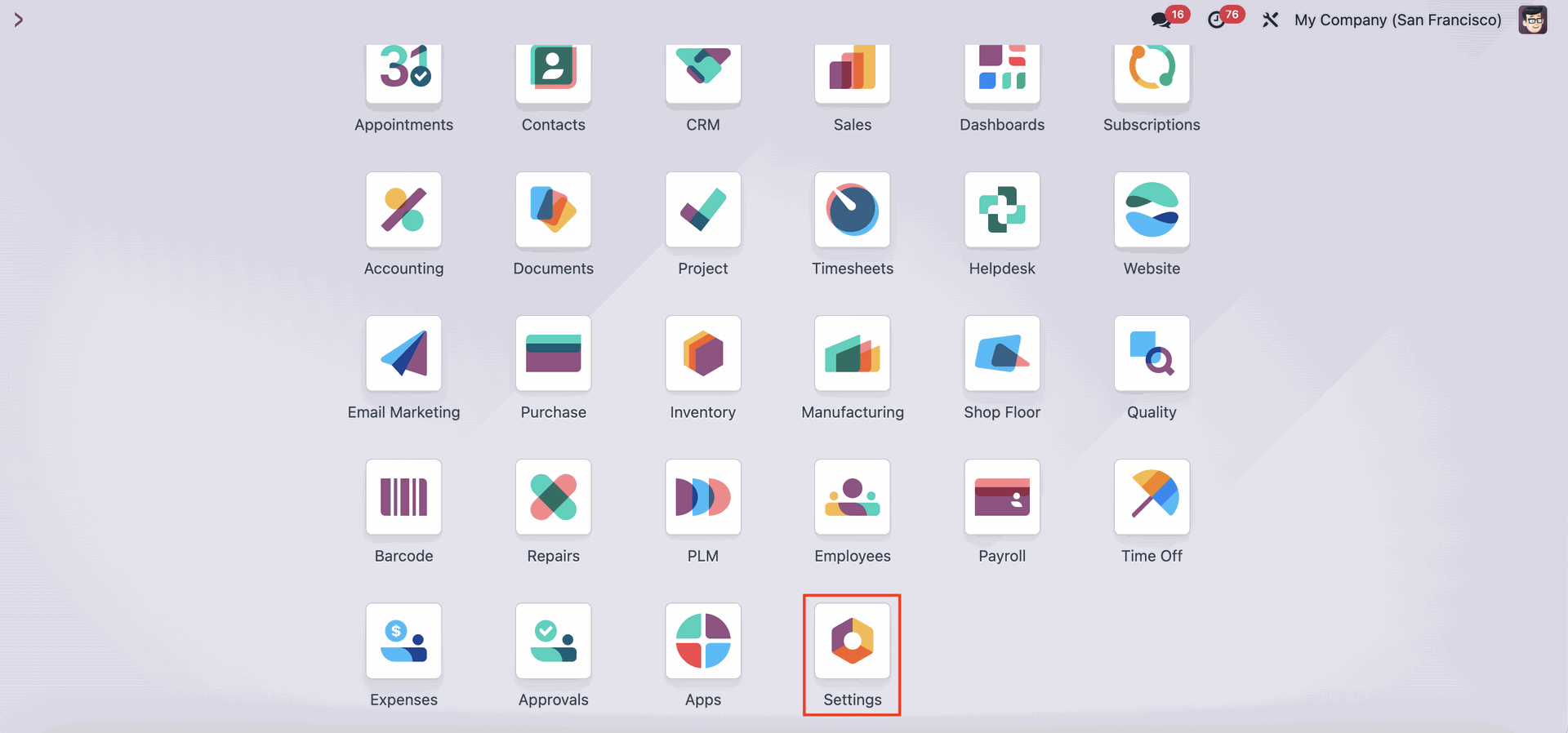 |
In Settings, stay on the 'General Settings' page, but scroll down until you see 'Activate the Developer Mode', then click it. |
|
Few of other menu will show on the upper side of the page. Click on the 'Users & Companies' menu, then chose 'Groups'. | 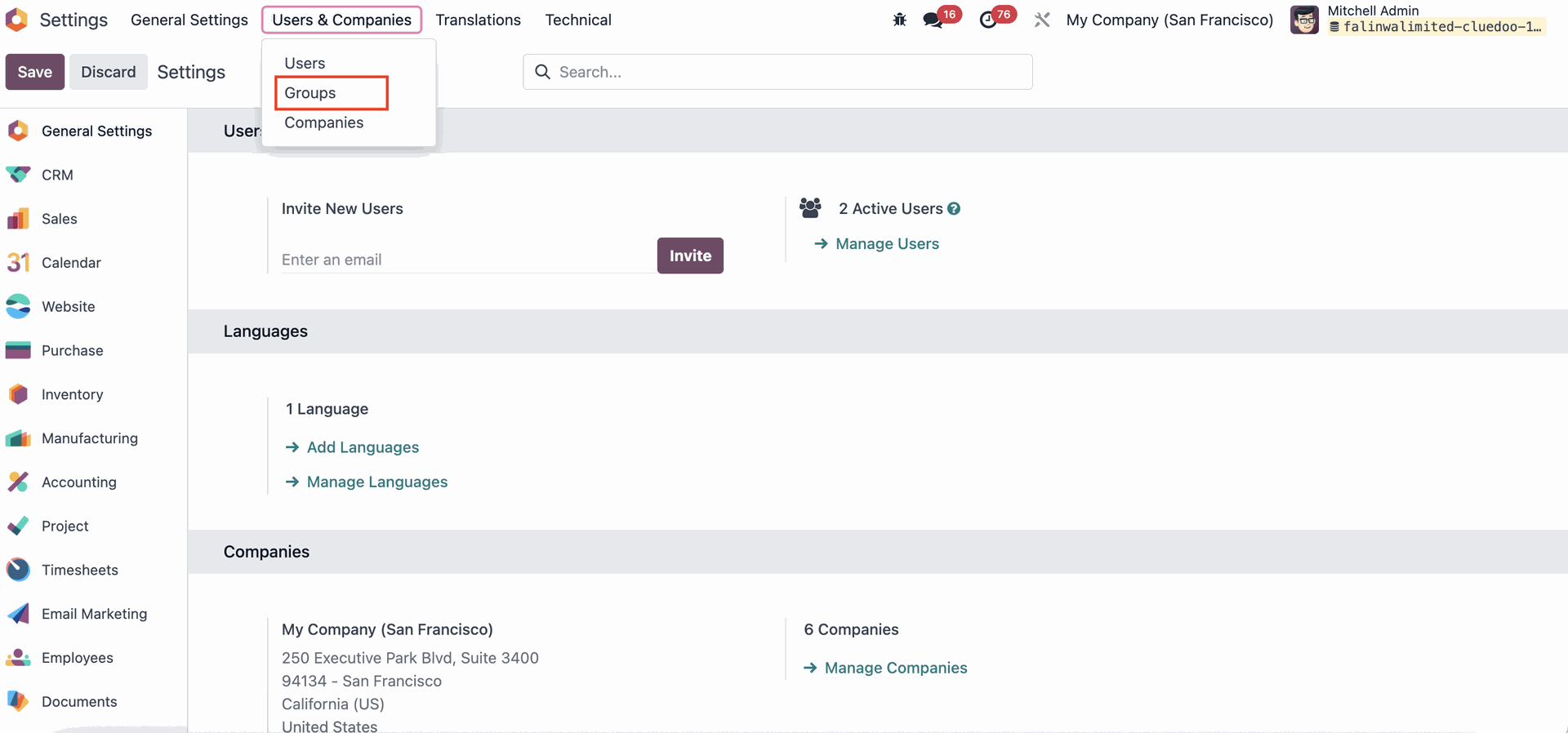 |
Search for 'Commission' in the search field, and you will see the available commission user groups:
Click on one of these groups to add users into the respective user group and give them User Access Rights. | 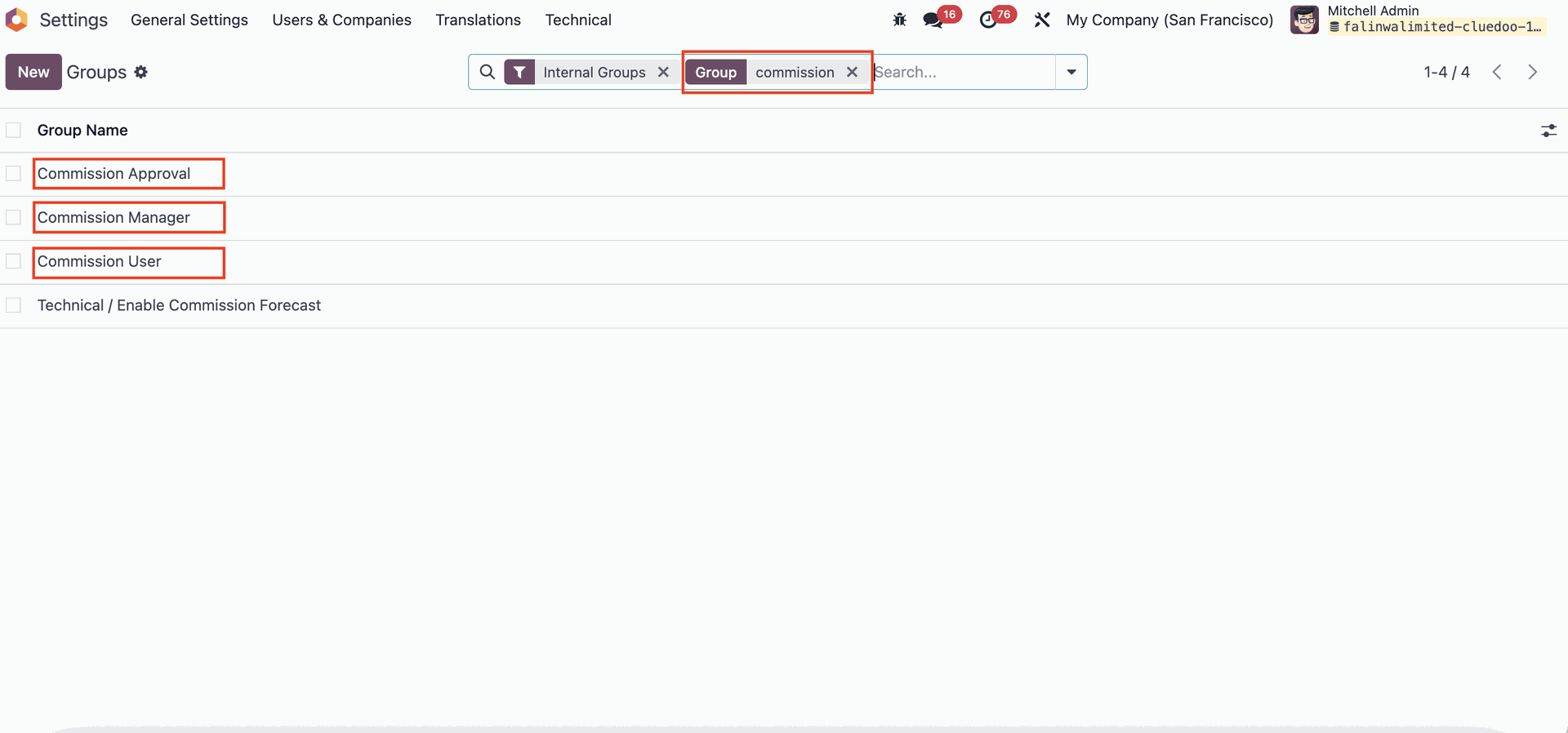 |
To add users to the User Group, click 'Add a line', then select the users you want to assign access rights. | 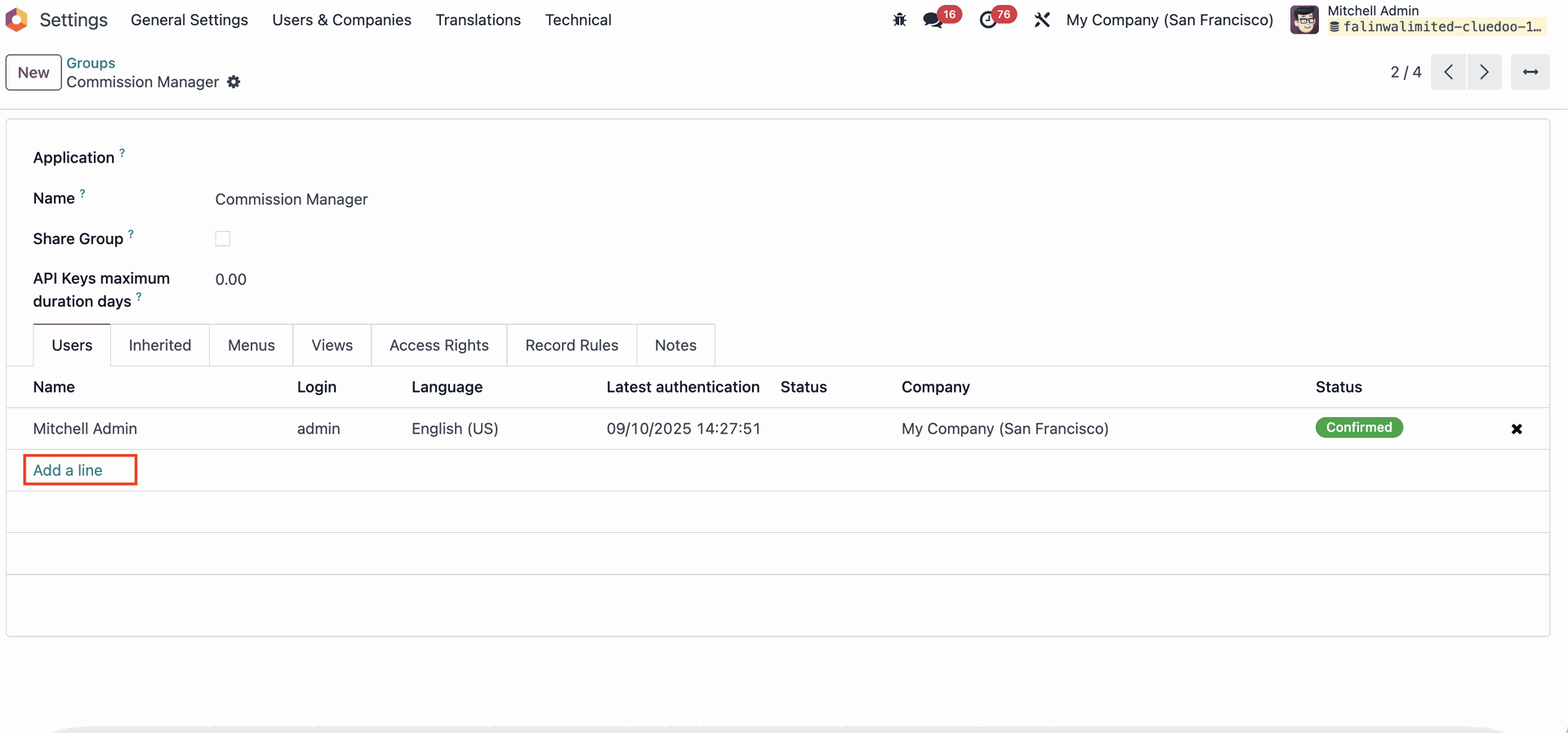 |
Go to 'Commission' Module. | 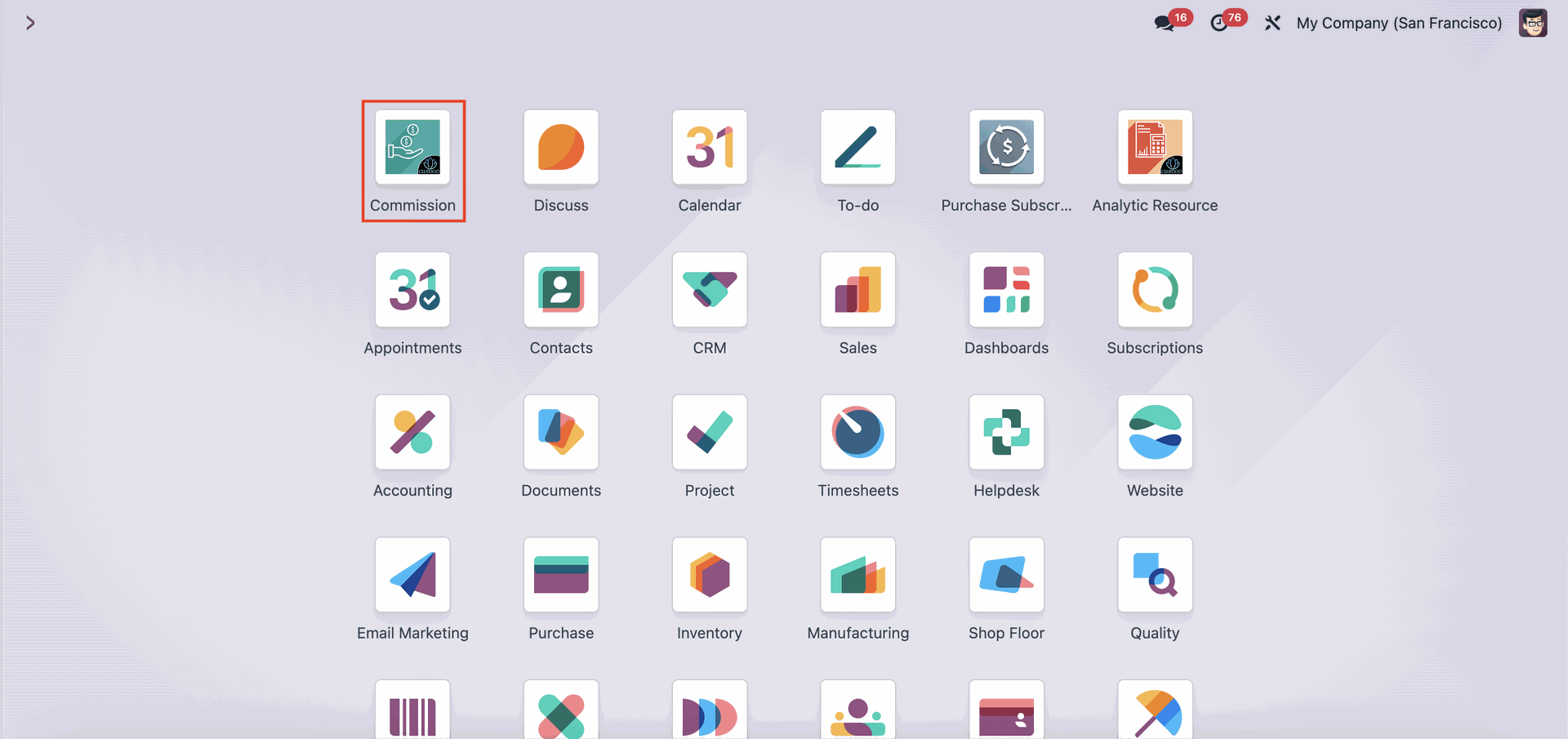 |
You need to create the commission rules first. Click on the 'Configuration' menu on the upper side of the screen, then chose 'Commission Rules'. Please note that only users that has 'Commission Manager' access right can access this menu. |  |
On the Commission Rules page, click 'New' to create new rules. |  |
Create the rules by choosing the rule type, either Percentage or Custom Rule (using Python code). You can then filter payments by users, members, or both, set the target amount, decide whether to exclude tax, define the percentage, and specify the currency to be applied. After you're done setting the rules, click on the 'Save' button. | 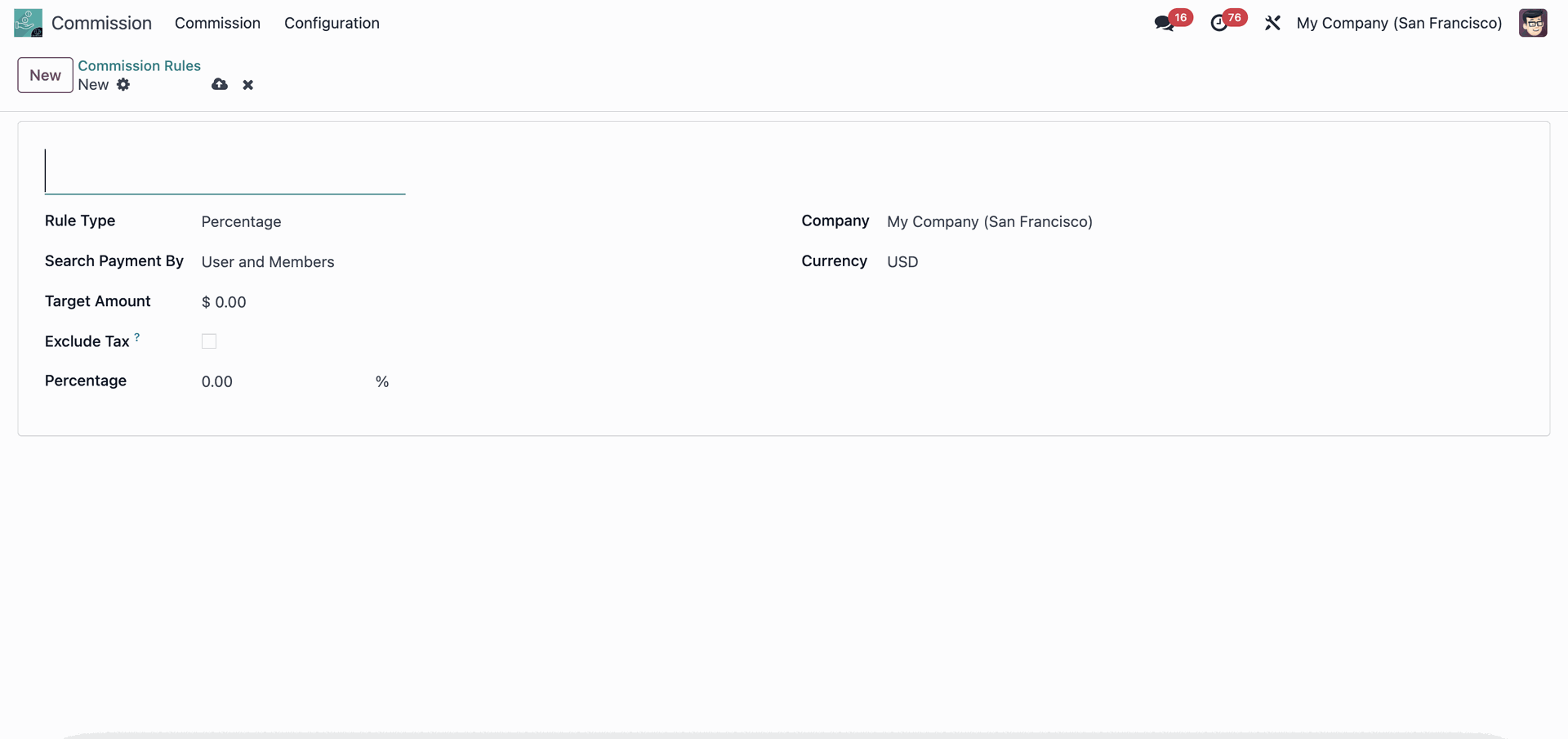 |
After the rule's set, go back to the Commissions menu and click on the 'New' button to create a commission. Keep in mind that the only users that can create commissions are Approvers and Managers. |  |
Fill on the Commission Rule field that has been made before. You can adjust the Commission Period and even Search Payment by Users, Members, or Both (but this is unnecessary, since this has been configured in the rule). Then click on the 'Compute' button. Please note that commissions can only be created for yourself, even if you have Manager access rights. Additionally, to select the 'Commission Rule' field, Approver User must have dual access rights, both Approver and User. | 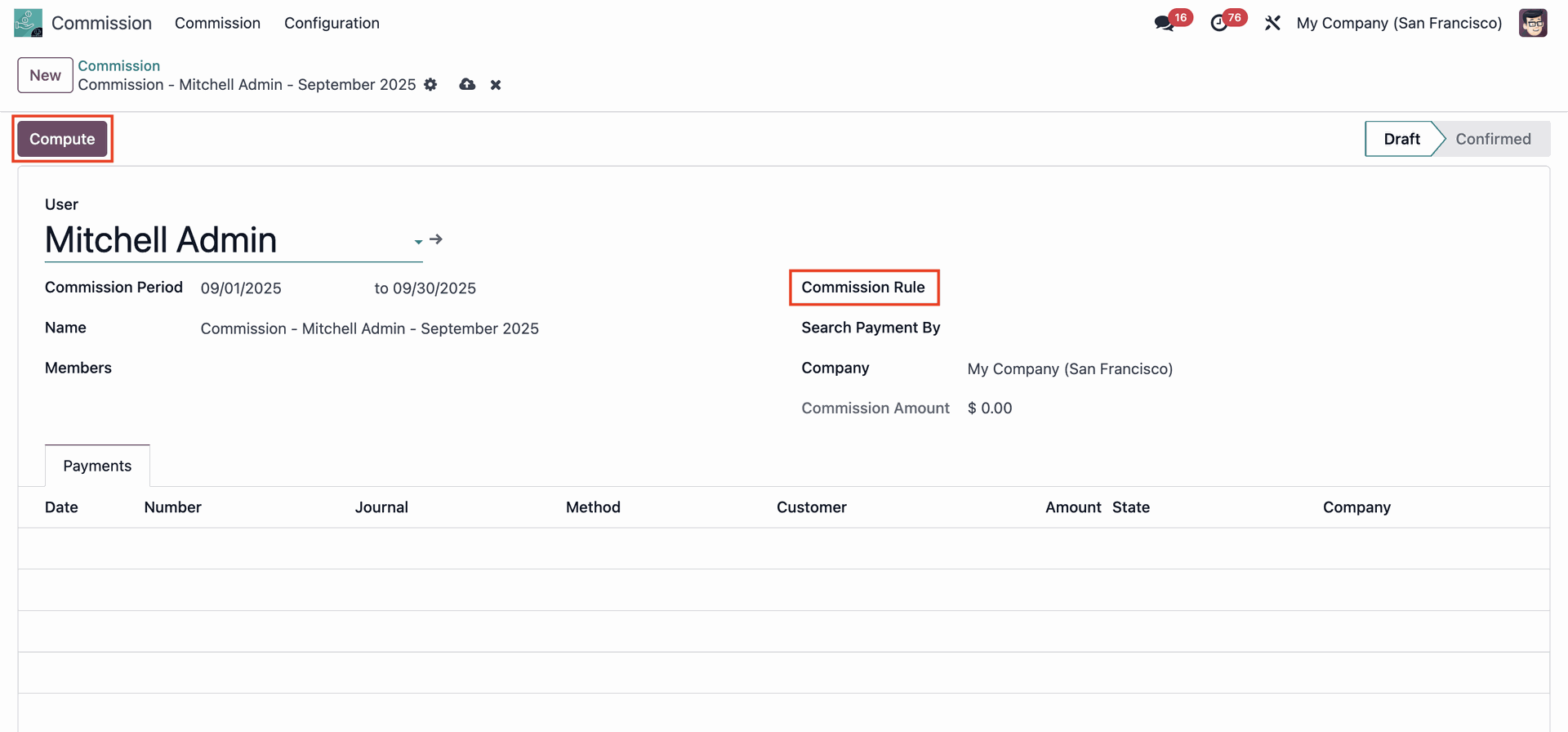 |
The commission amount will show on the 'Commission Amount' field. | 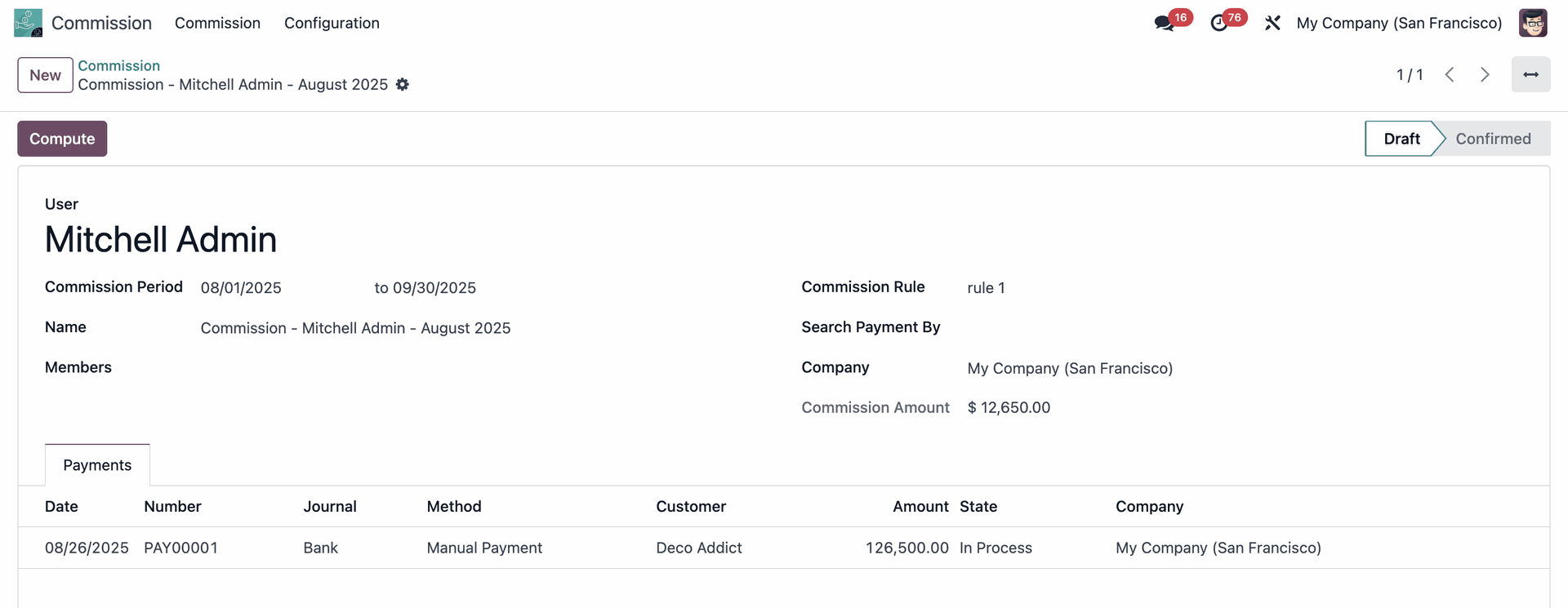 |