


ODOO'S FUNCTION
Odoo proposes a field Internal reference on product templates and product variants which is manual. Basic, and so quickly limited for an advanced product database.
CLUEDOO'S FUNCTION
Cluedoo proposes automation of the product internal reference with 2 principles:
- The Product Template's Internal Reference will be computed based on a configured sequence in a specific product category
- The Internal Reference of Product Variants can be computed based on their product template. Besides, it can be a combination of the product template's reference and attribute values
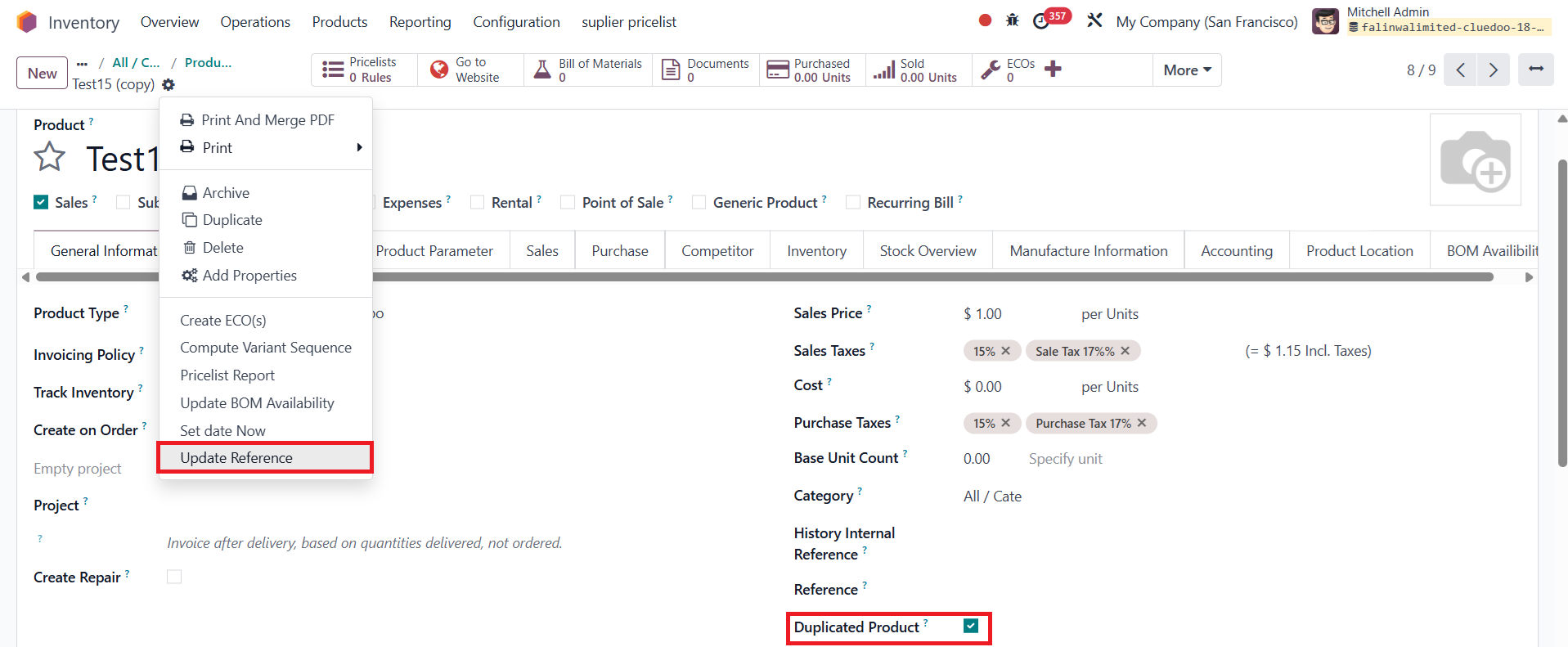
- It provides the ability to update the reference for duplicated products
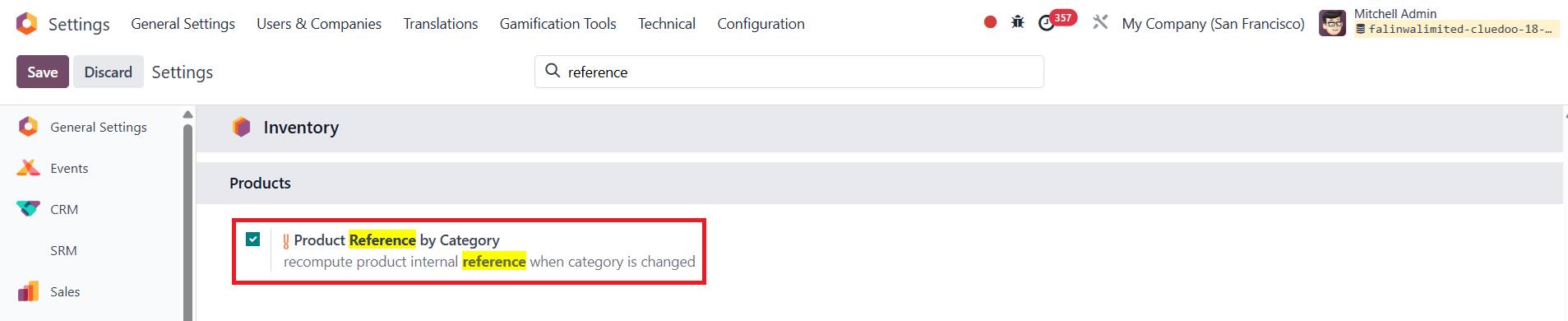
- It also supports the ability to either update or retain the reference whenever the product category is changed
This approach ensures a clean and automatic internal reference system for all your products.
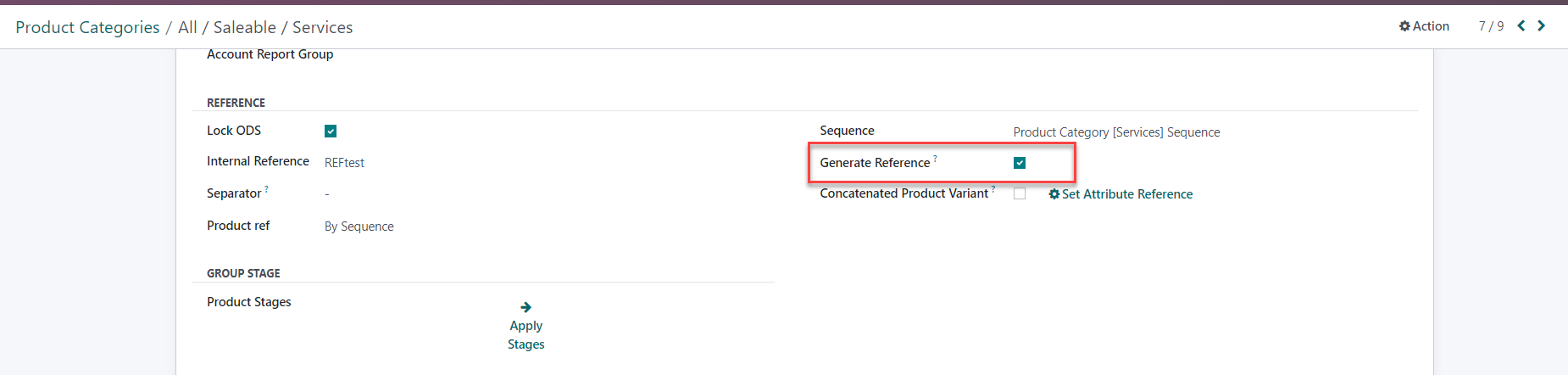
- Open a Product Category. - Check the Lock ODS checkbox. - Product ref: By sequence: formulate sequence by fill in the Internal Reference and choose the Separator. Python code: formulate sequence by Python code and choose Separator - Click Create Sequence to create a new sequence template from combination above - Action/ Compute Sequence to compute sequence all the existing products of the product category. Result: Sequences are generated | 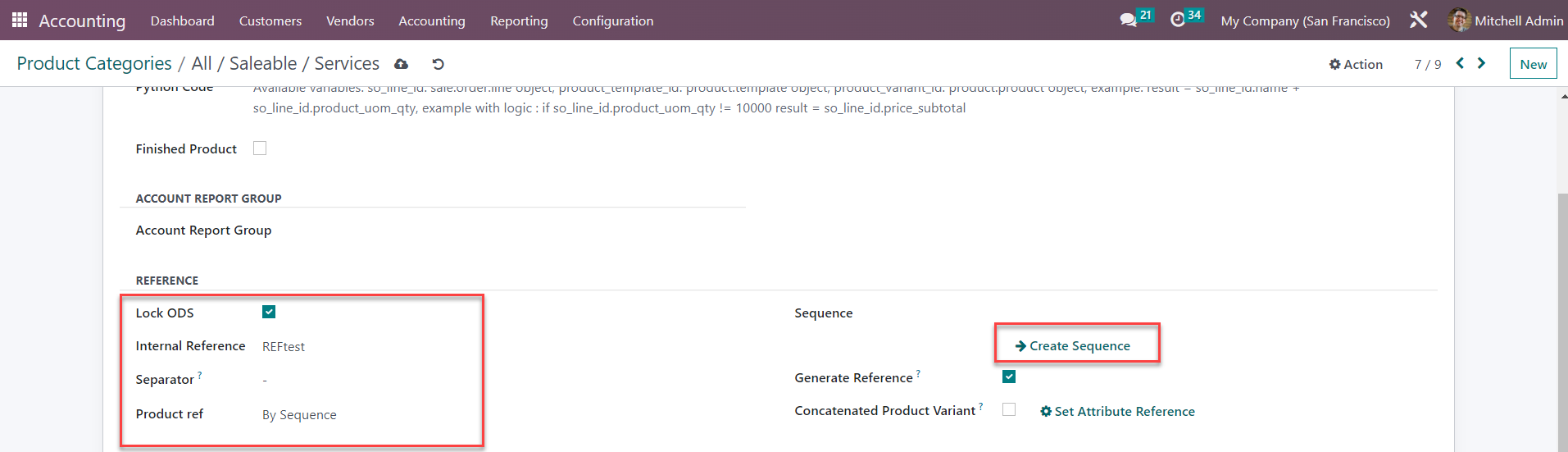 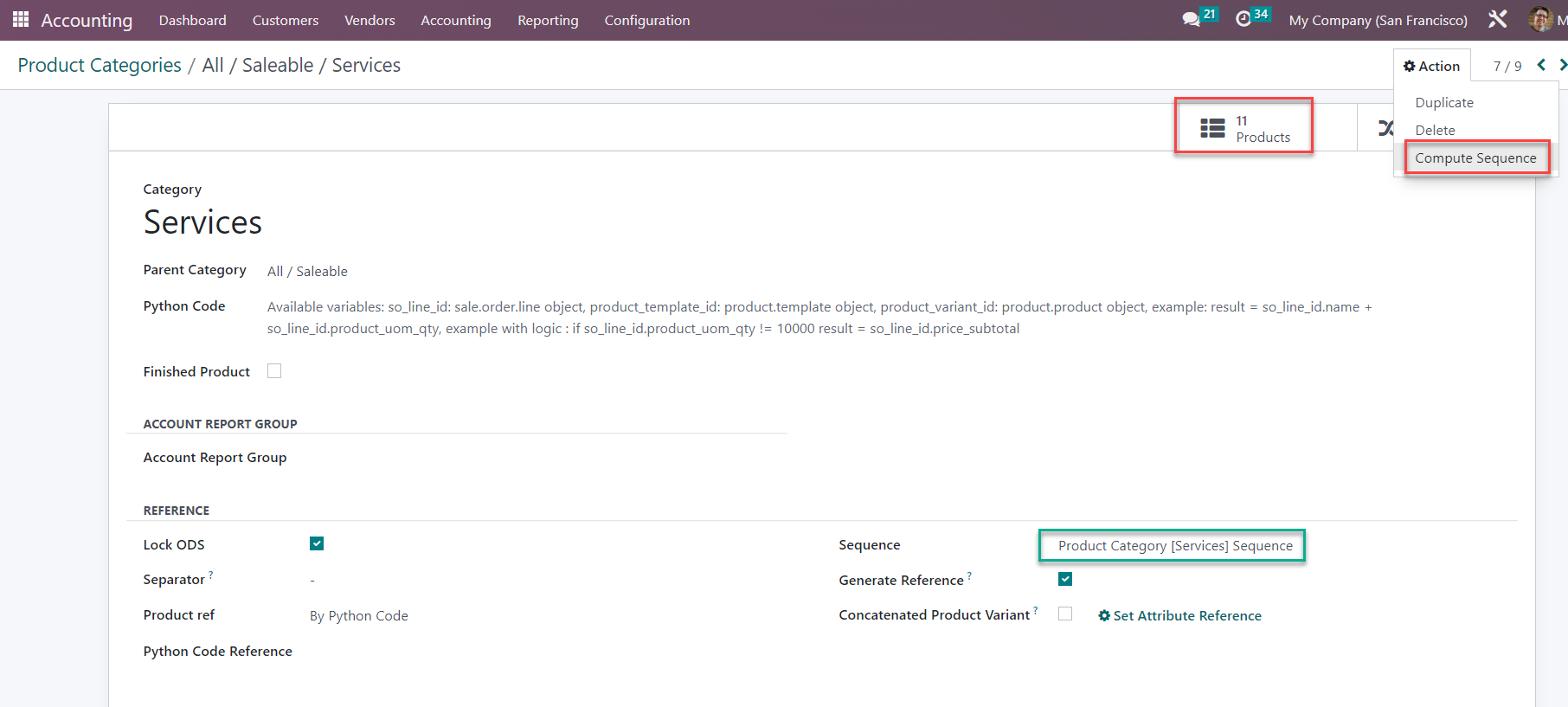 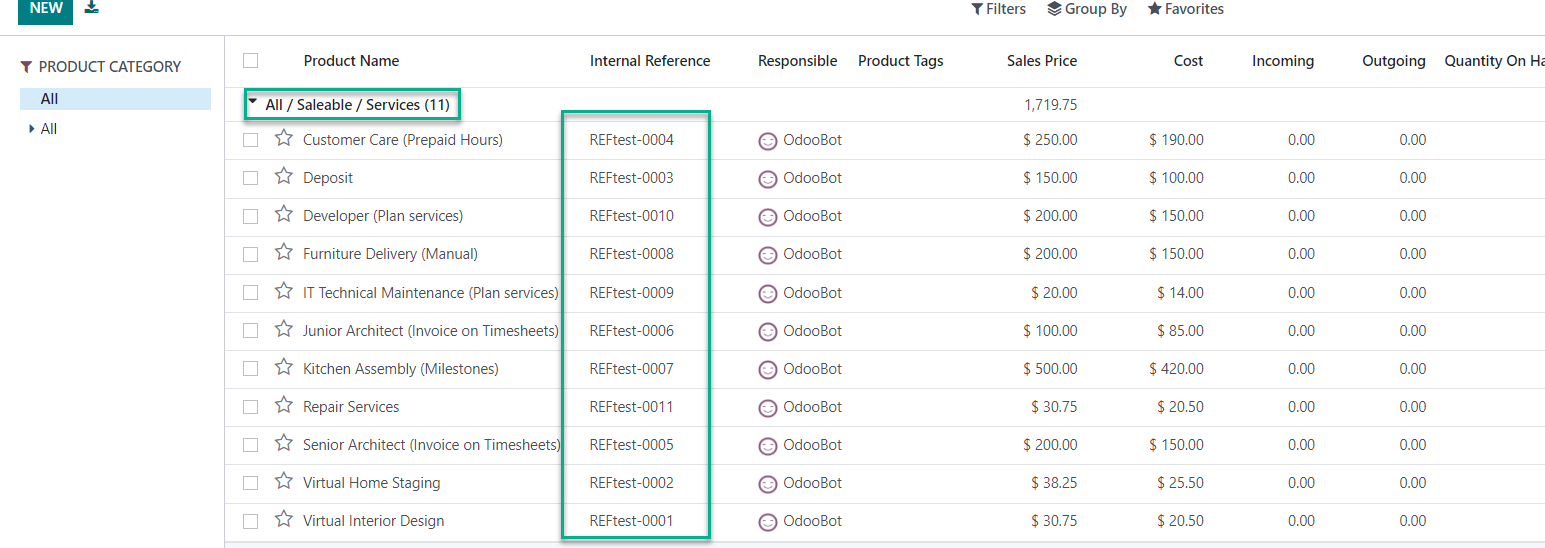 |
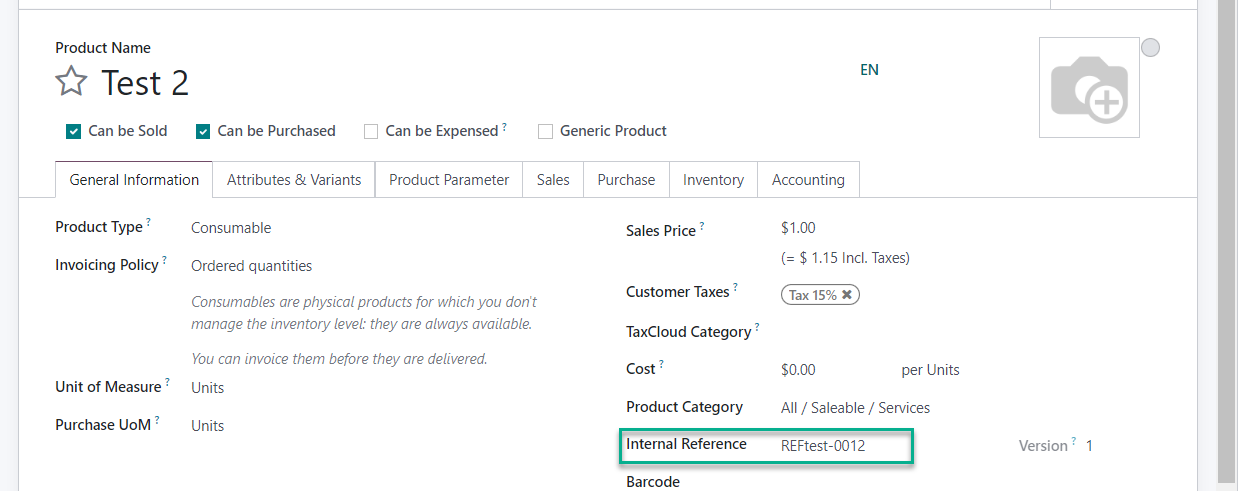
2 Check Generate Reference then when you create a new product for that product category, the reference will be automatically created |
|
3 Concatenate Product Variant Reference - On product category check the Concatenated Product Variant checkbox - Go to Inventory/ Products/ Product Variants - Select product variants of the category above - Click Action/ Concatenate Product Variant Result: Sequences are created for the product variants with attribute values | 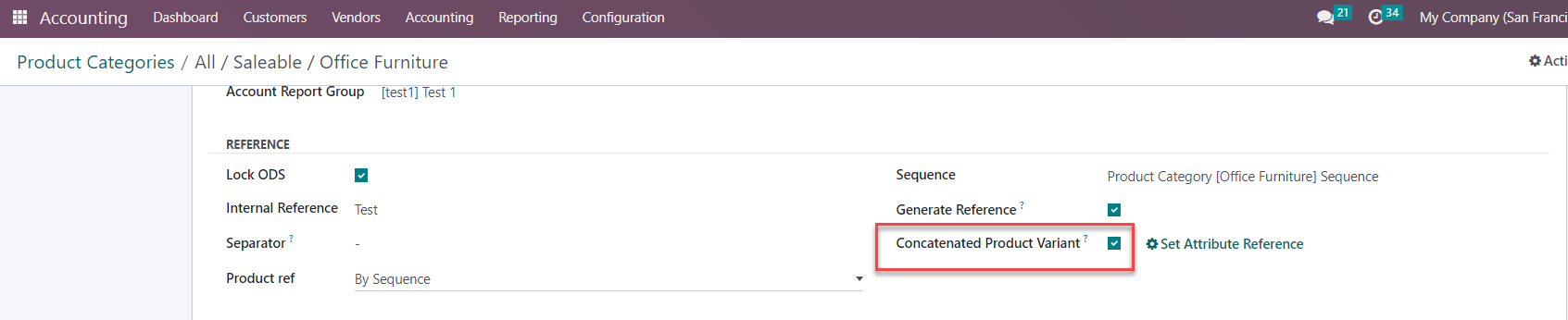 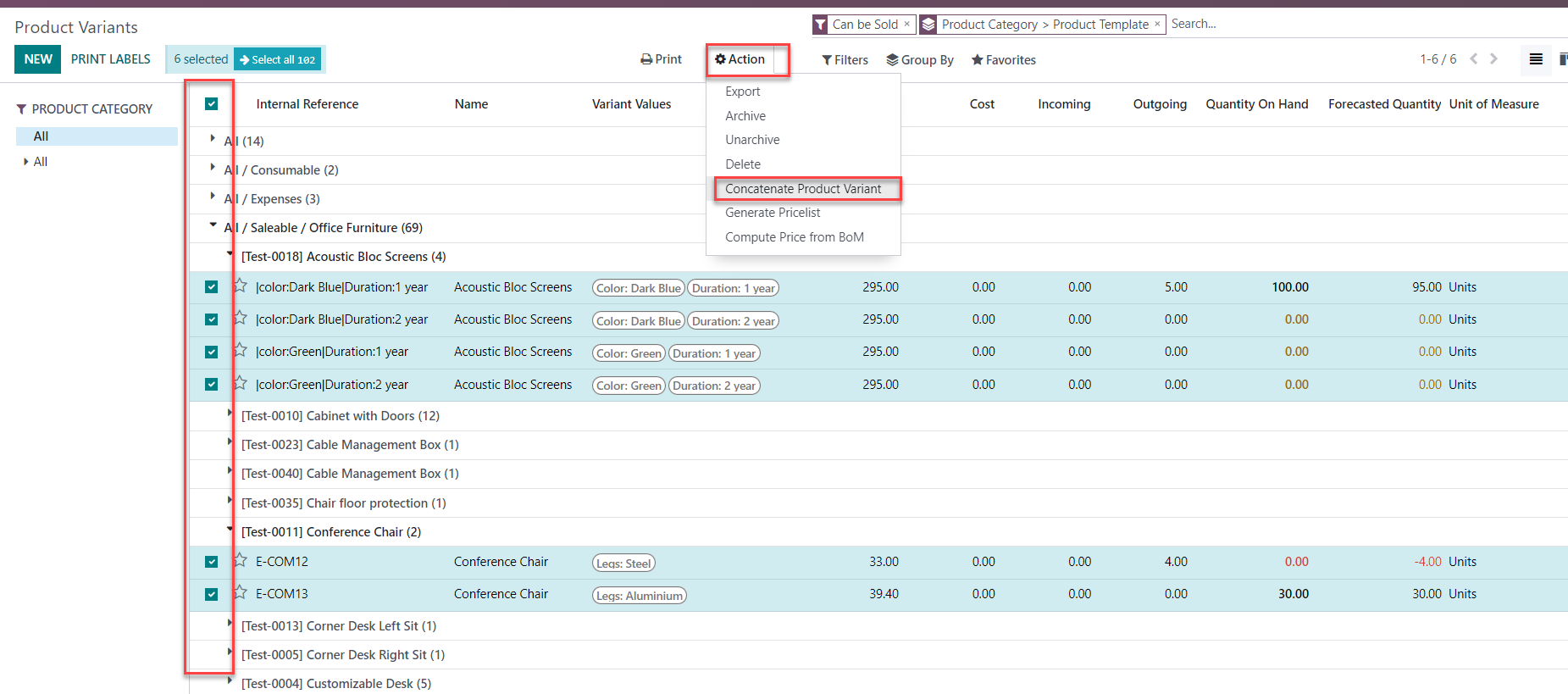 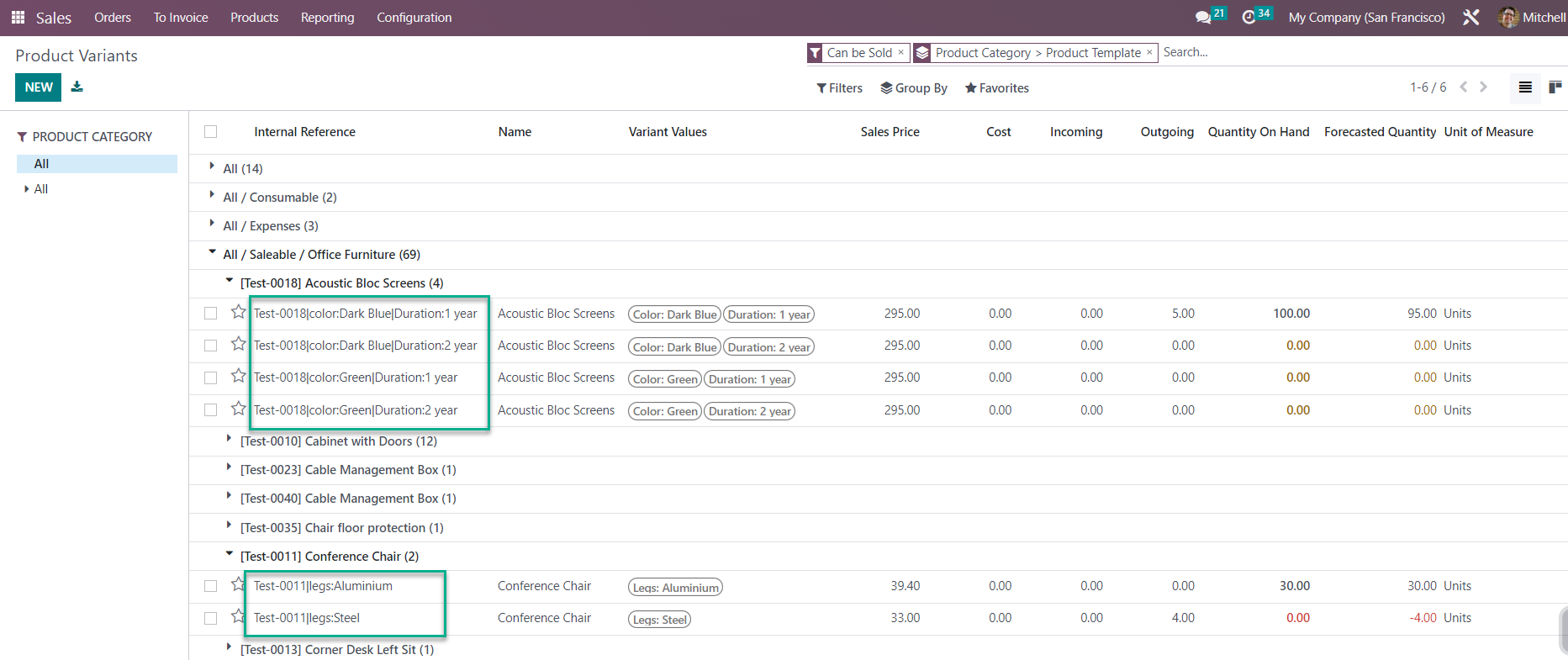 |
Update v18 Compute sequences based on the configured Python Code 1 Select By Python Code in the Product Reference field > Click on the Compute Sequence button Ex: result = product_template_id.name + "_" + product_template_id.type | 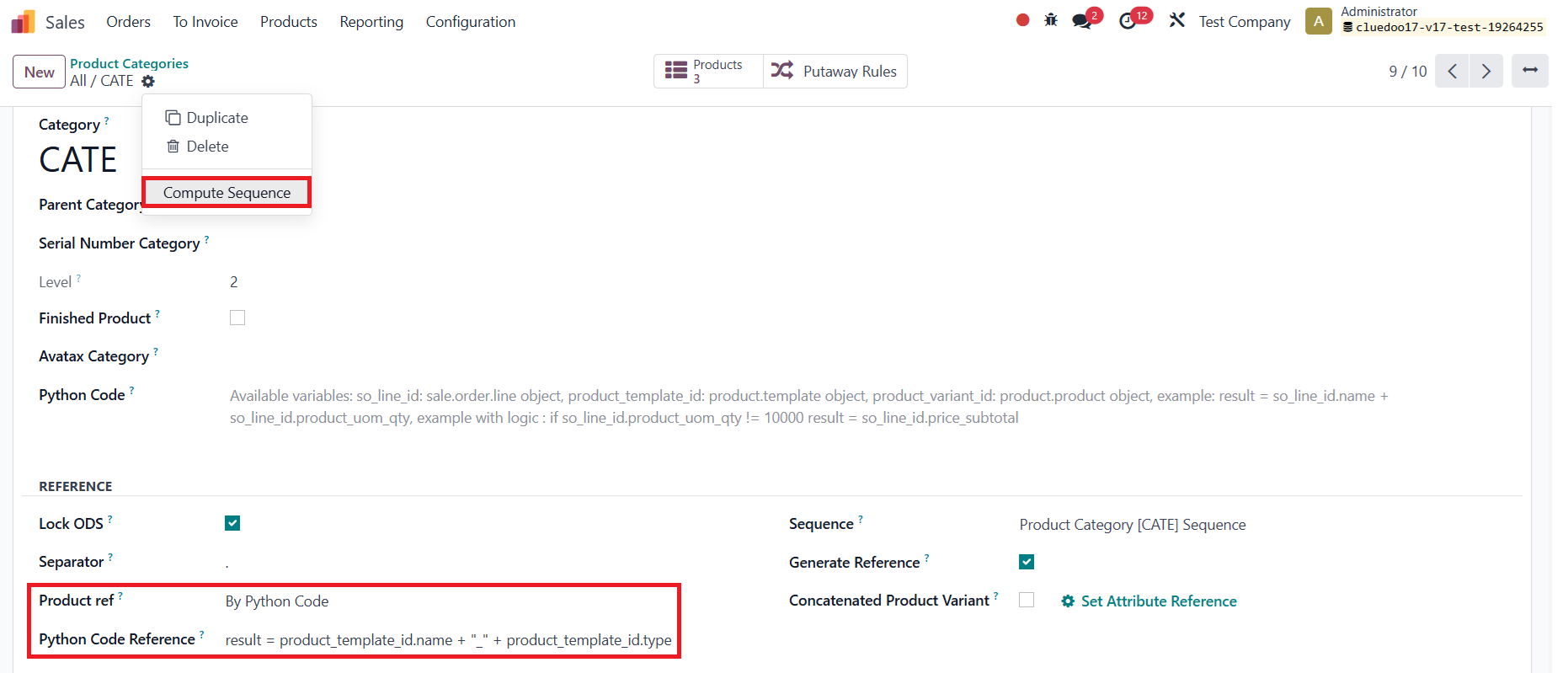 |
Access products inside this product category > Can see that all references of product templates and their variants are computed based on the configured Python code | 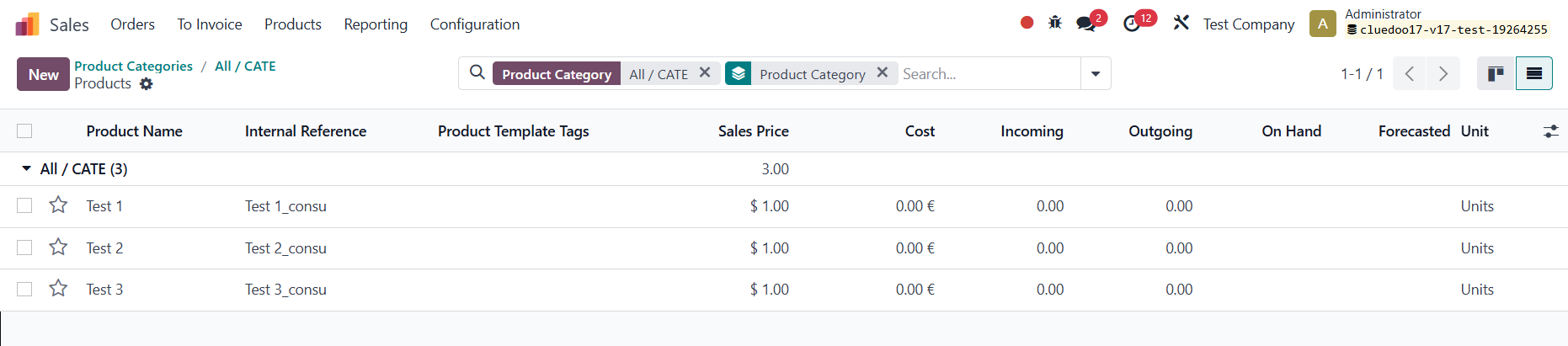  |
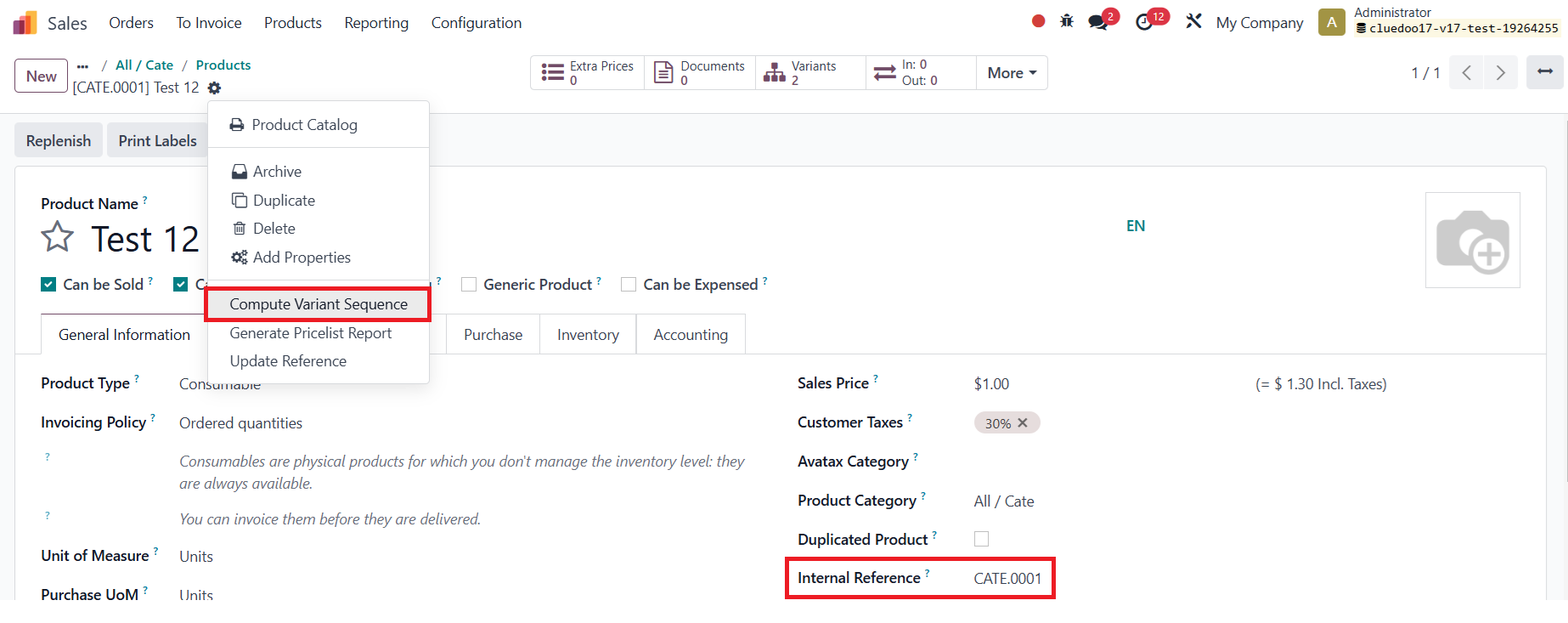
Compute variant sequences in a particular product template After clicking the Compute Variant Sequence button for a product with variants, the internal reference of all variants is automatically computed based on that of the product template Note 1: If we manually modify the internal reference of a product template and want that of its variants to change accordingly, we should use this button because it won't affect the internal reference of the other products in the same product category Note 2: If the internal reference of product template is available and then you add variants > The internal reference of variants created automatically will be the same as that of product template |
|
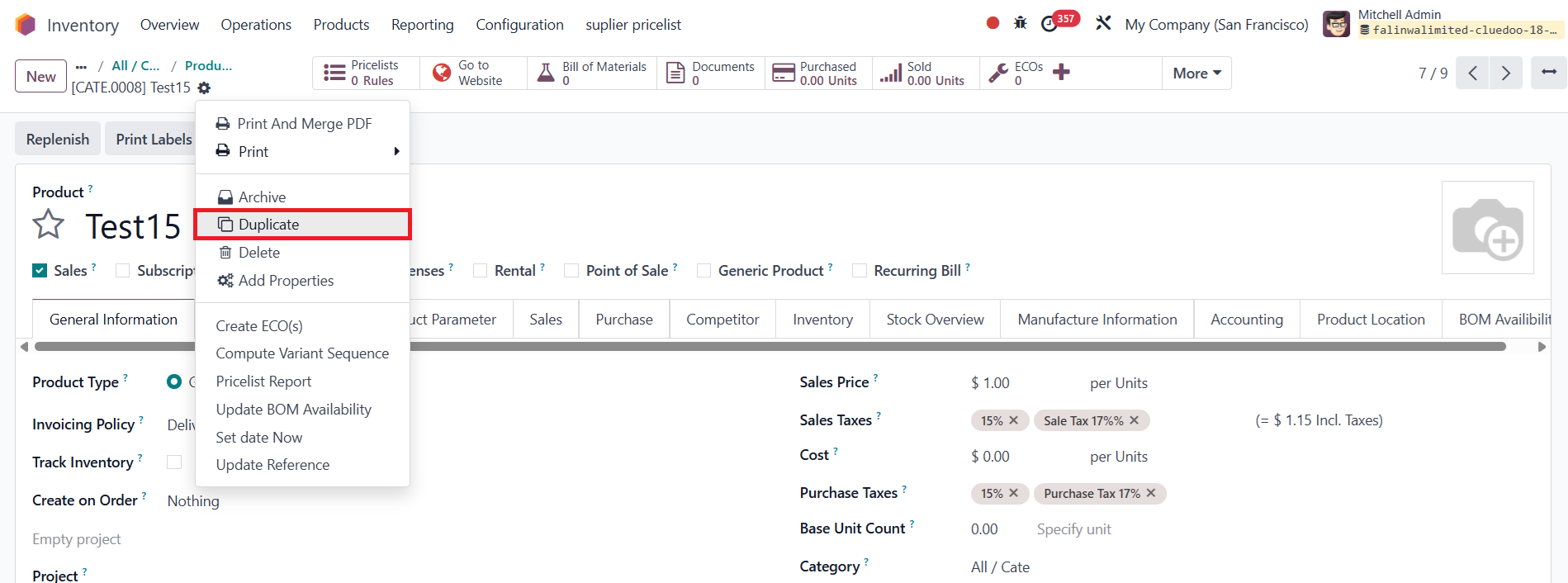
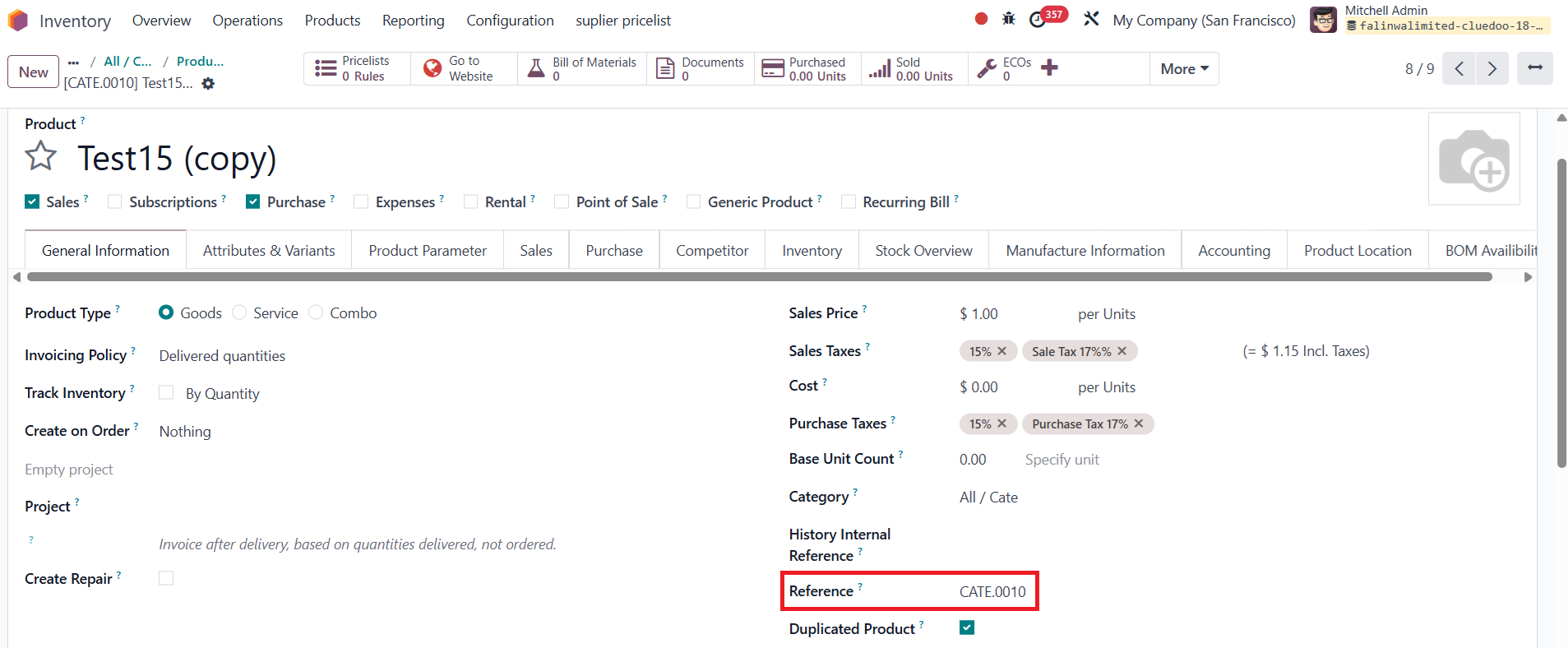
Update the reference of a duplicated product Duplicate an existing product > Can see that the Duplicated Product checkbox is automatically checked in the duplicated product form > Click on Update Reference > Can see that the Reference is automatically generated |
 |
Allow recomputing the reference of a product when changing to another product category 1 Go to Settings > Search for Product Reference by Category > Check it |
|
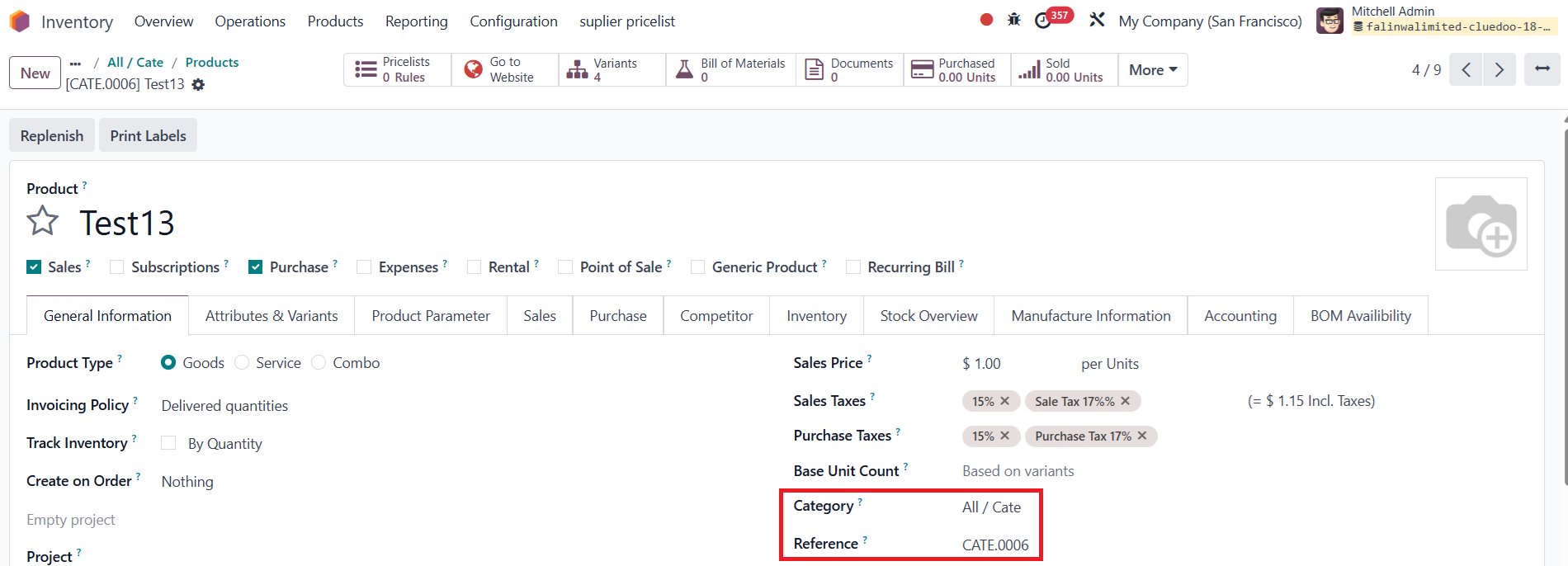
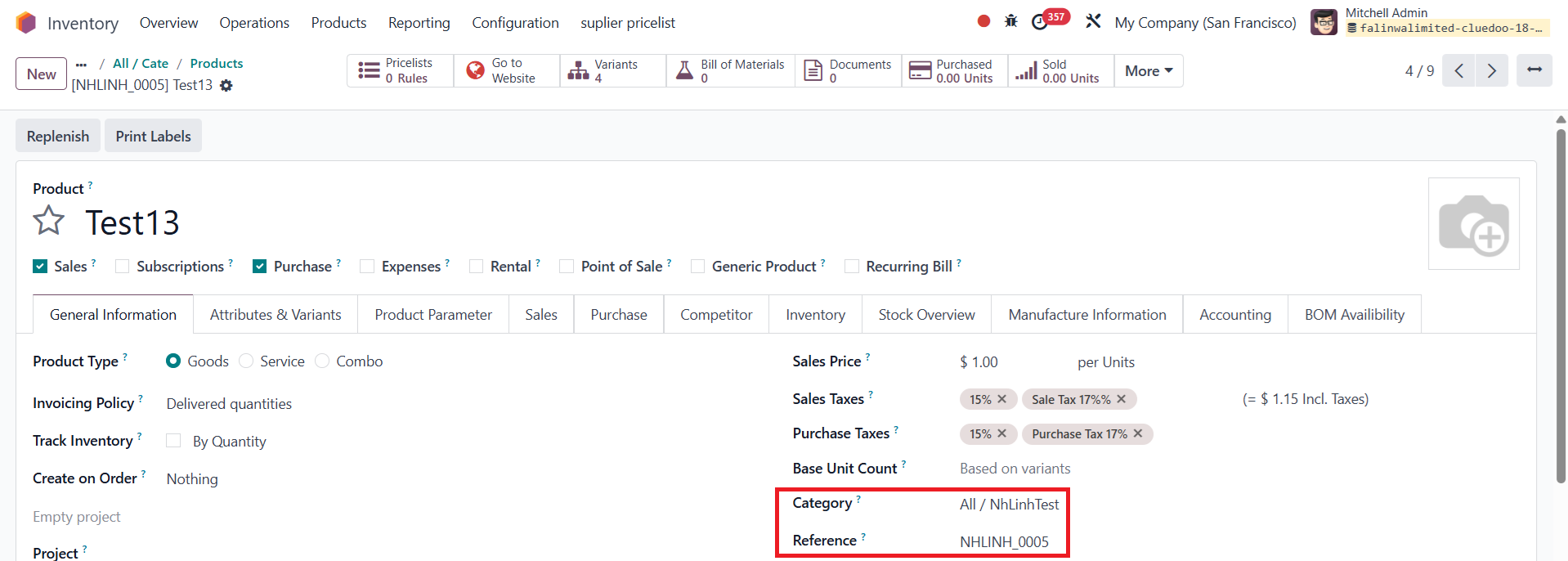
2 Go to Product Categories > Open a product category > Access an existing product with an available reference > Change to another product category > Save > Can see that the reference is automatically updated based on the sequence configuration of the new category Note 1: If you want the product reference to remain stable whenever changing to a different product category, you need to uncheck the Product Reference by Category checkbox |
|
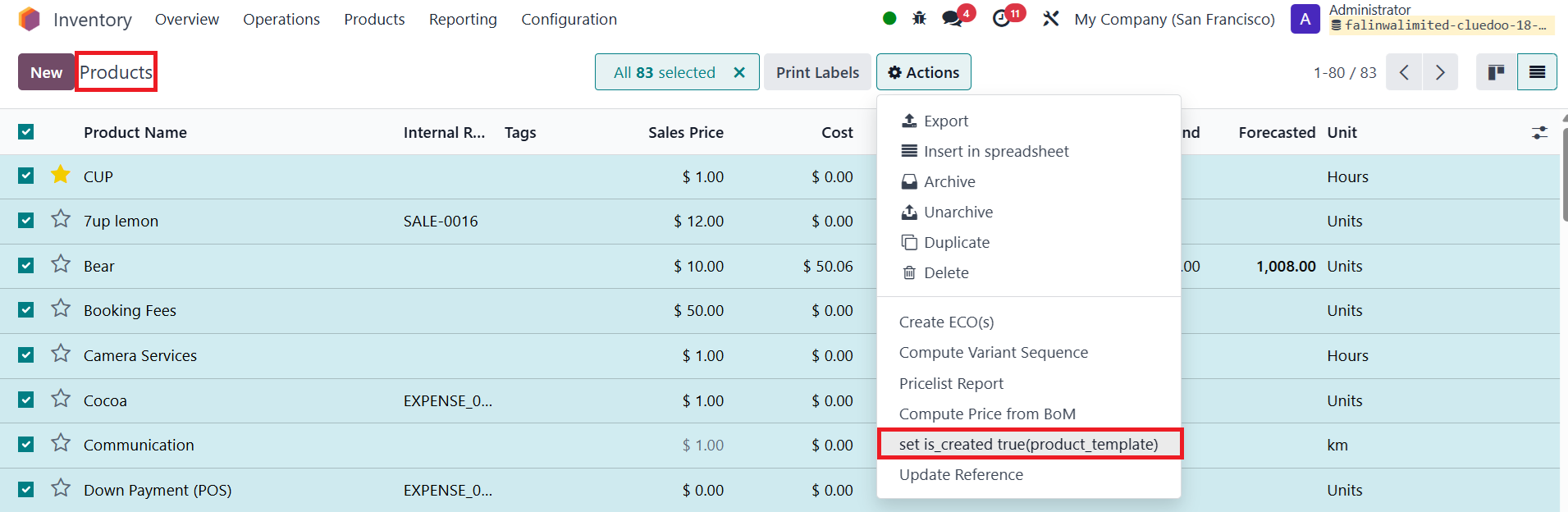
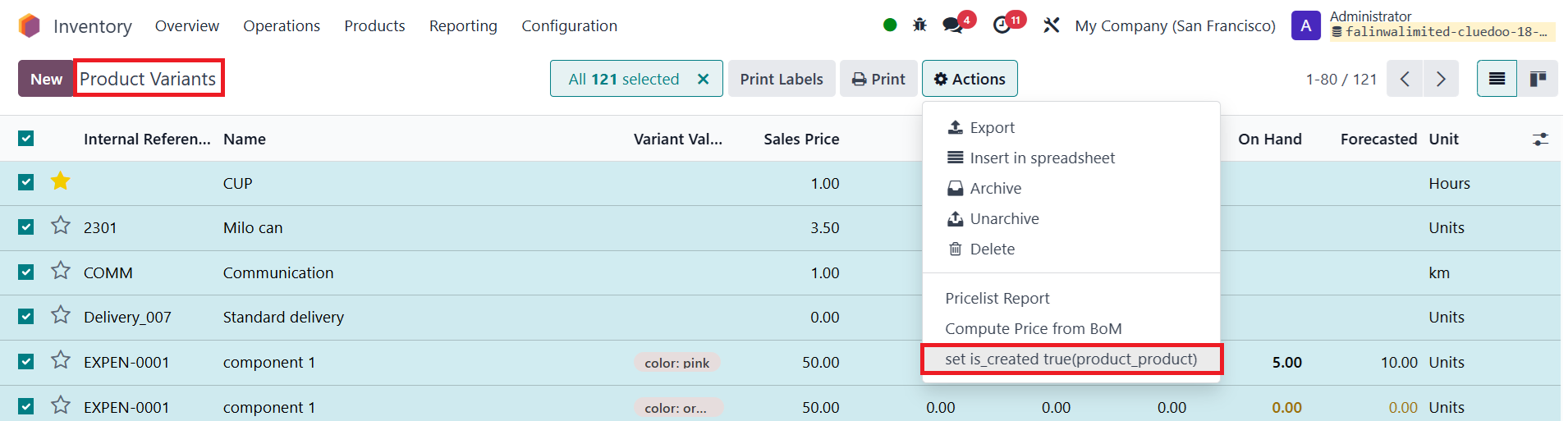
Note 2: If you install the module for the first time or update it and want to ensure that the reference of products which is created before the module installation remain unchanged, please follow these steps: Access products > Select all products > Click on set is_created true(product_template) button Access product variants > Select all products > Click on set is_created true(product_product) button > You only need to do this step once after installing the module |
|