



ODOO'S FUNCTION
In Odoo, developers can use Server Actions to create automated actions for all modules through code execution. For example, in the standard Odoo process (Quotation -> Sales Order -> Project and Task), the project and task are created automatically at the quotation confirmation.
CLUEDOO'S FUNCTION
CLuedoo extends this Server Action functionality by allowing the use of JSON in the code. This helps developers easily use JSON in their coding, leading to a more convenient development process. It is highly recommended to install this template on 100% of your databases.
CONFIGURATION | |
1. Setup Action & Code Editor
| 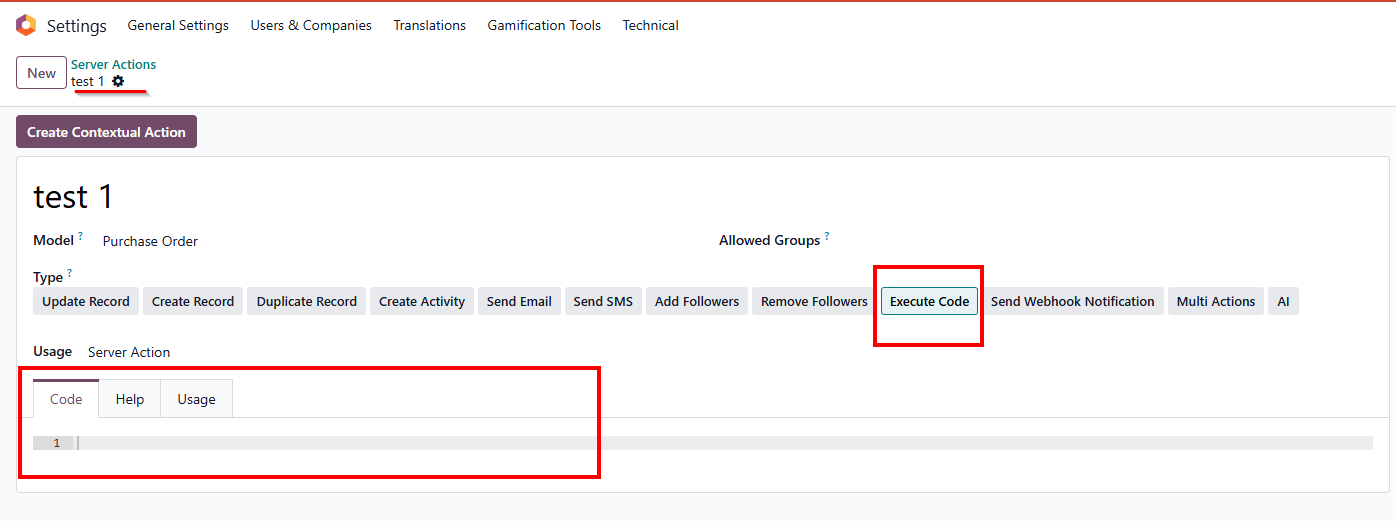 |
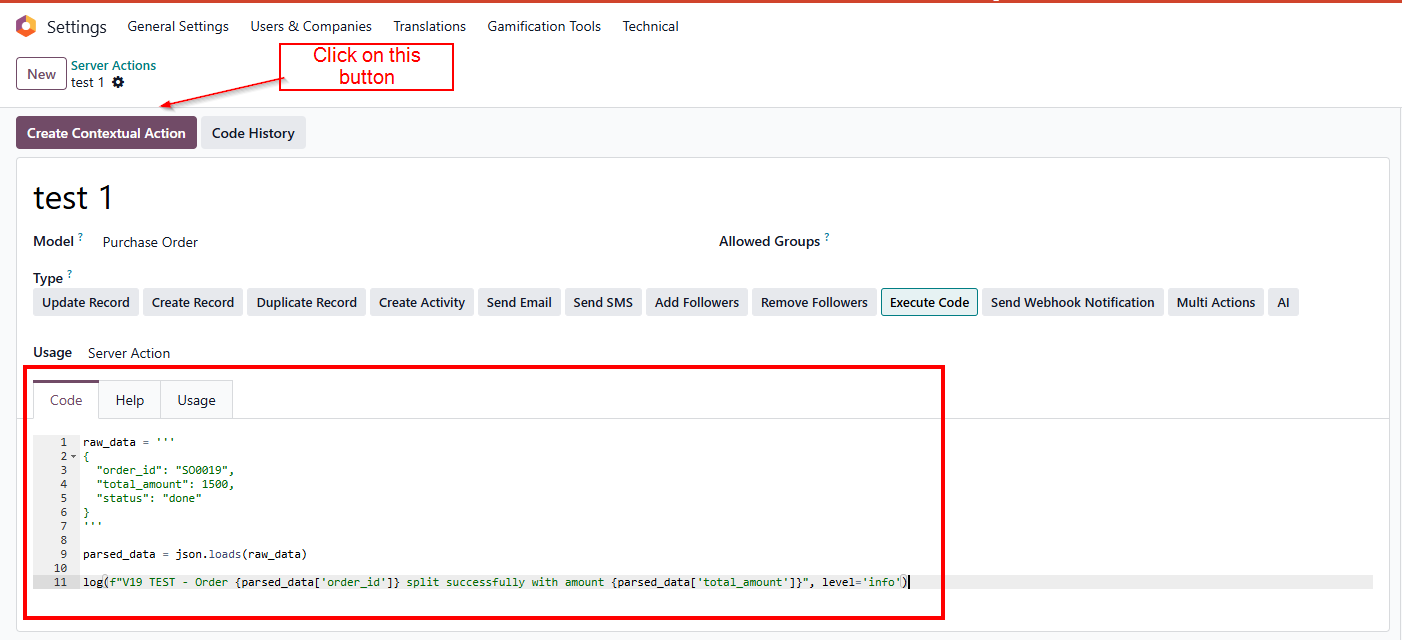
2. Insert Python Code & Data
raw_data = ''' |
|
USAGE | |
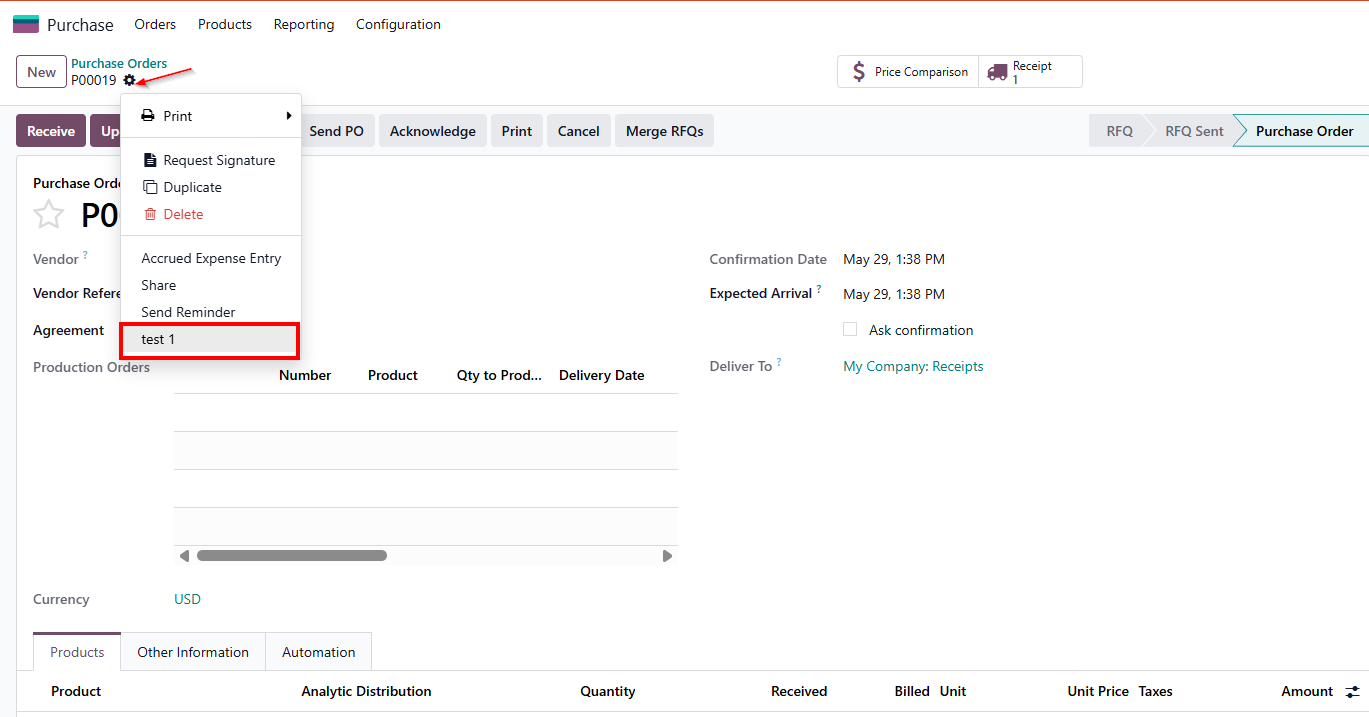
1. Trigger the Action
|
|
2. Verify the System Log
|
|

STORY BEHIND THE FEATURES
ODOO BEHAVIOUR
In Odoo, you can create Server Actions in order to create actions for all modules through code execution.
So, the project and task are created automatically at the quotation confirmation.
CLUEDOO BEHAVIOUR
Cluedoo extends this function by allowing the use of JSON in code.
MODULE +
This module helps developers to use JSON in their code, leading to a more convenient development module.
CLUEDOO RECOMMENDATION
Install this template on 100% of your databases.
HOW TO USE THE MODULE
HOW TO USE THE MODULE
Step 1. Go to Settings > Technical > Server Actions > New | 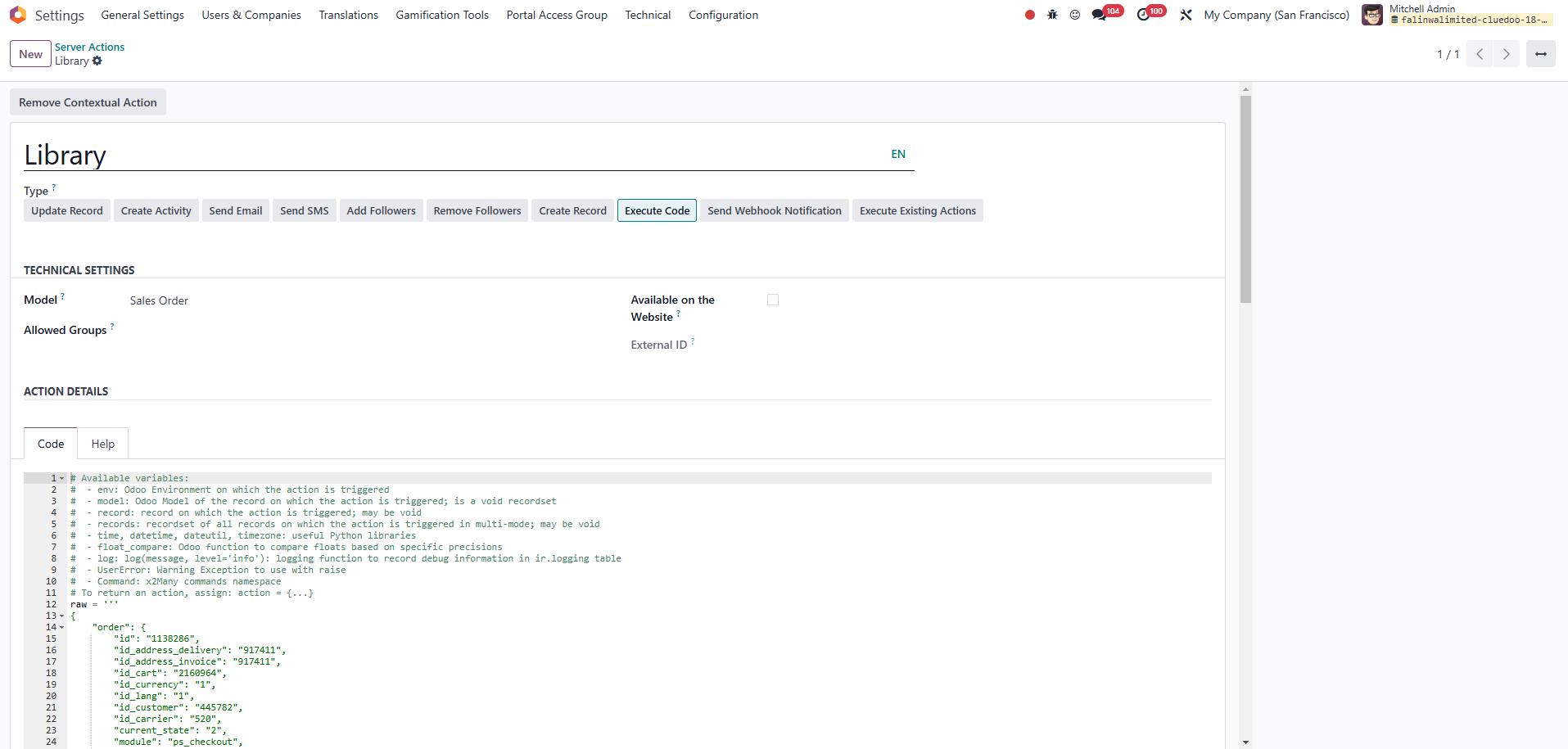 |
Step 2.
| 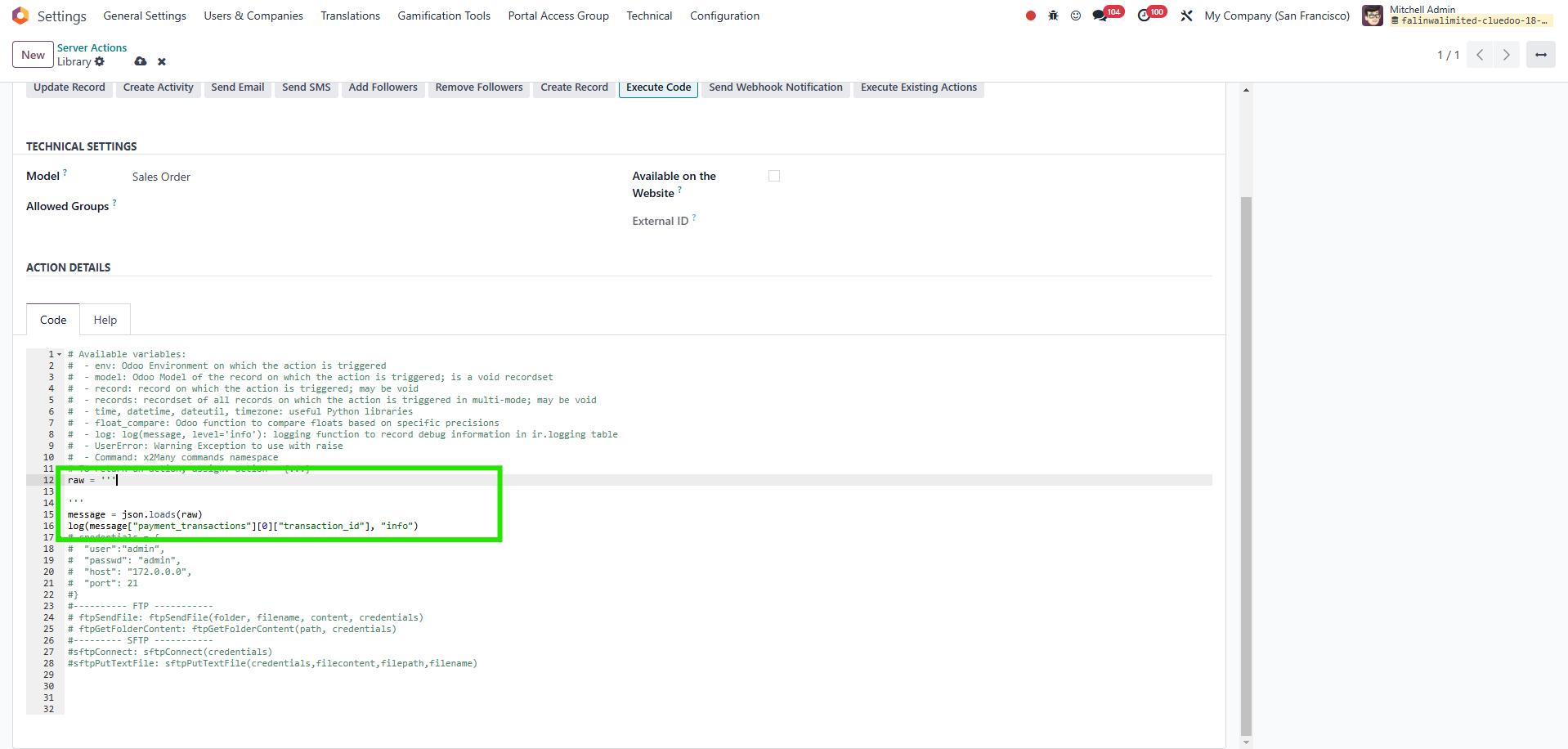 |
Step 3. Go to a random project > e-commerce integration > External Order Data > Choose a random "record" > Raw data | 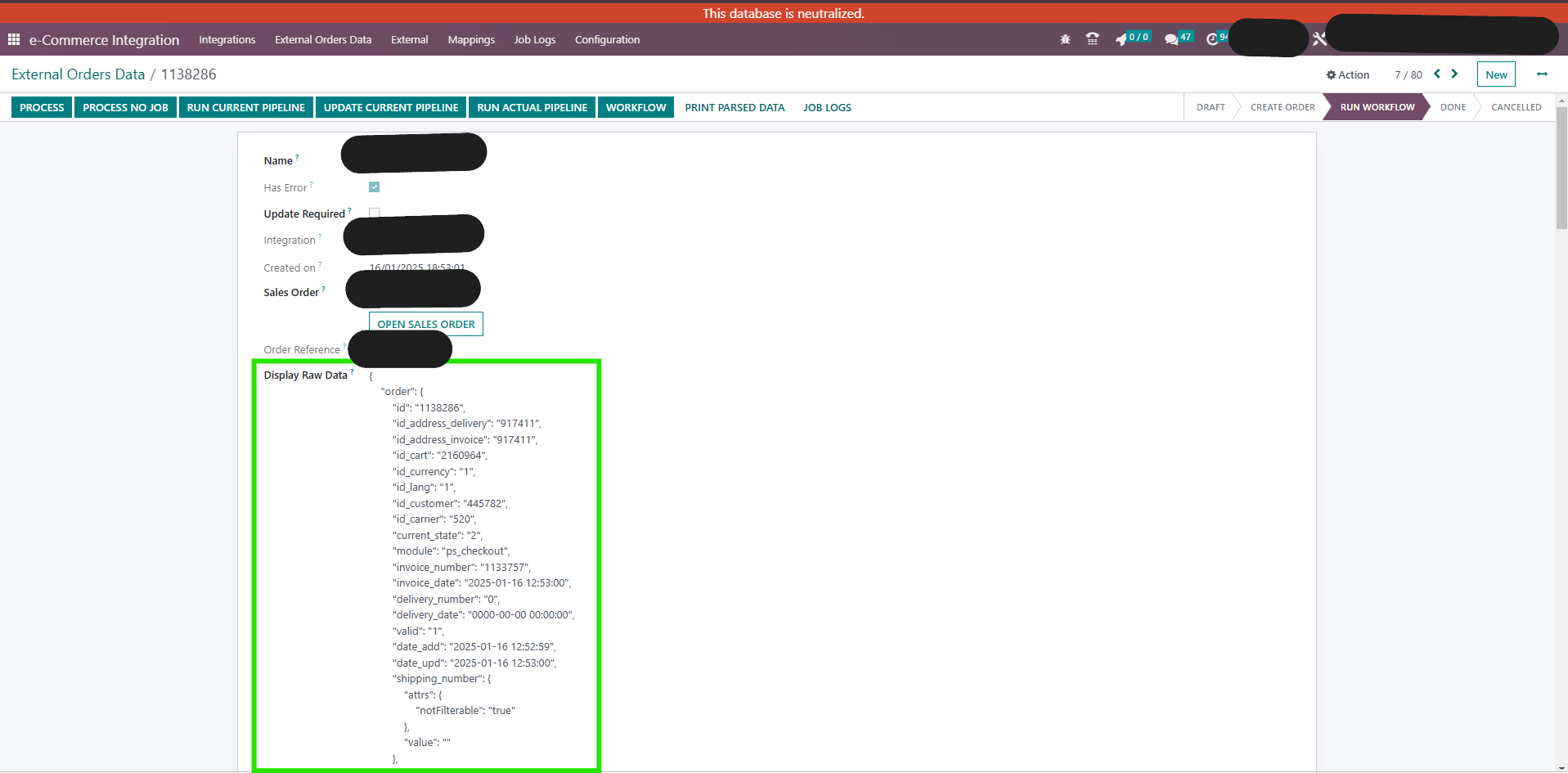 |
Step 4. Copy and paste to raw data in Server Action | 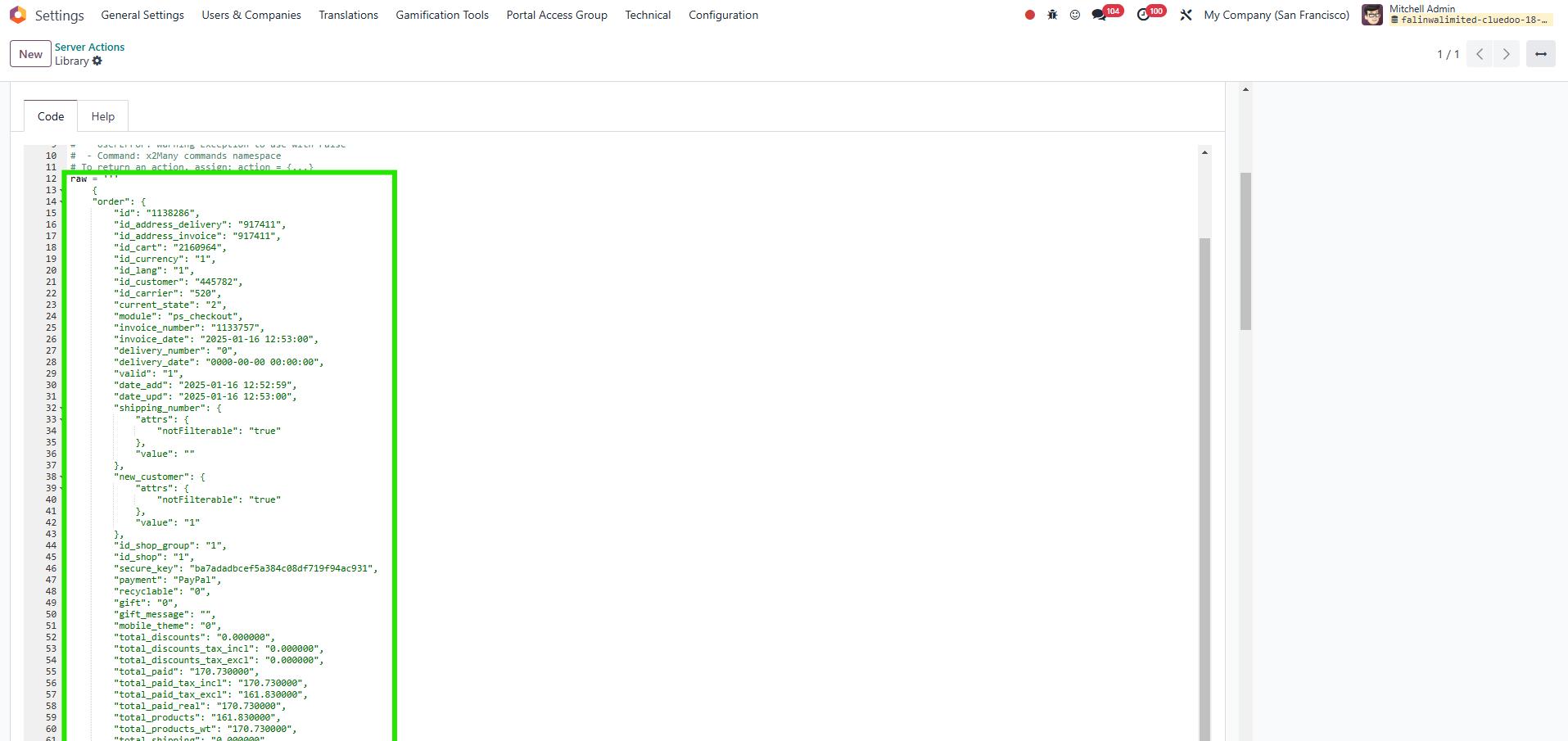 |
Step 5. Run server action. Go to Settings > Technical > Database Structure > Logging. If successful, you will see a line like the one shown beside |  |