
ODOO'S FUNCTION
In Odoo, products - whether finished goods or components in a Bill of Materials - do not include manufacturer information. This limitation makes it difficult to trace the origin of products, manage relationships with specific manufacturers, or analyze production and sales performance by brand or supplier source.
CLUEDOO'S FUNCTION
CLuedoo introduces a Manufacture Information feature that:
1️⃣ Adds a dedicated Manufacture Information tab in products.
2️⃣ Enables easy linking of brand details to both finished products and BoM components.
3️⃣ Automatically updates the Manufacture field in BoMs for improved supplier tracking and cost visibility.
4️⃣ Enhances BoM overview and reporting for more accurate cost and manufacturer analysis.
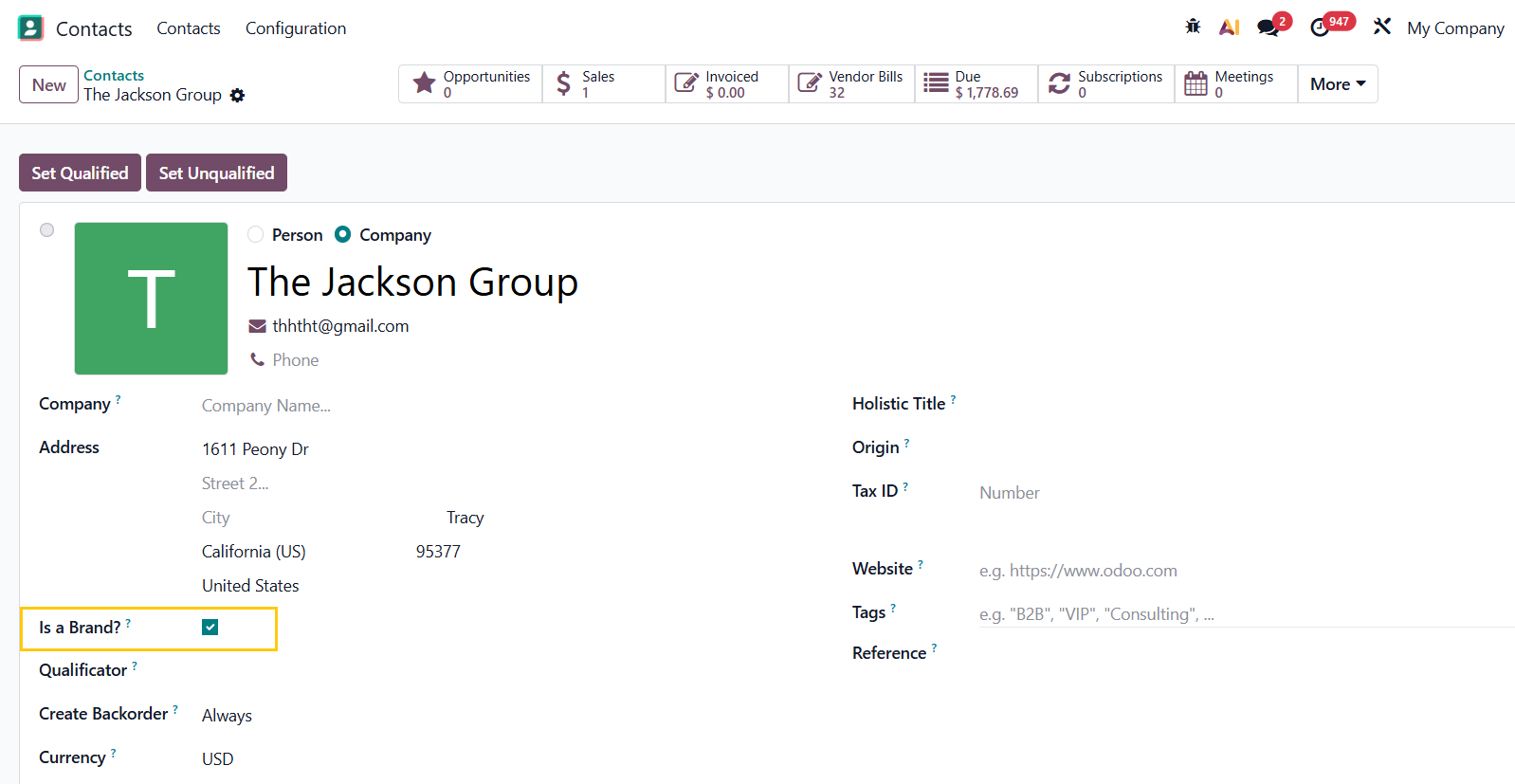
1. Go to Products > create a new product or choose an existing one > fill in the necessary information in the Manufacture Information tab There are 4 fields: Manufacturer/Brand, Manufacturer/Brand Product Code, Manufacturer/Brand Product Name, Note | 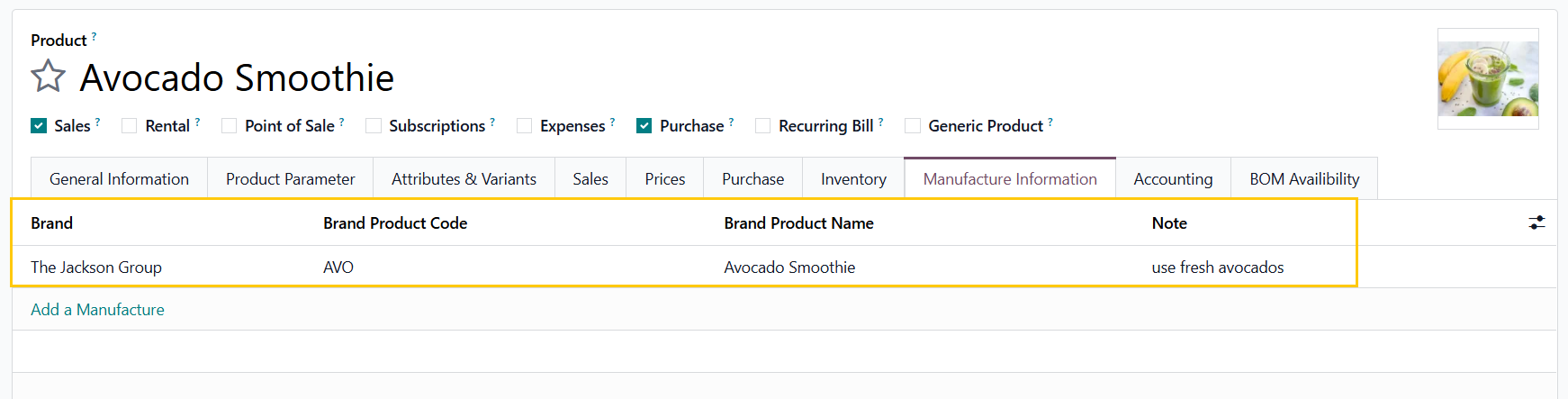 |
NOTES:
|  |
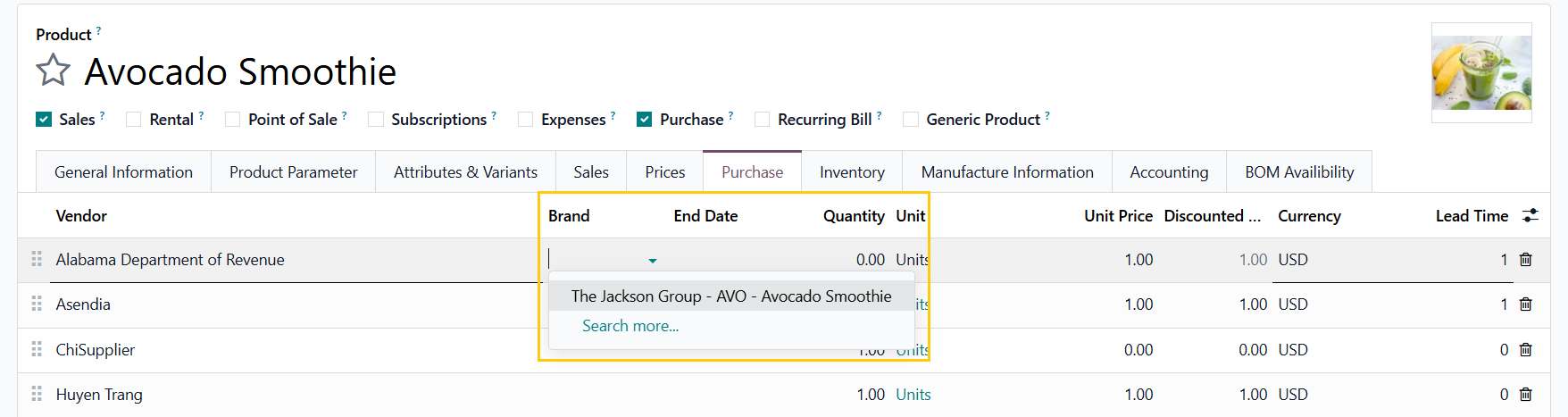
This field is only necessary if you have the module Editable vendor pricelist in BOM Overview installed.
|  |
2. Access its BoM > Add the component(s) and fill in the manufacture information as well | 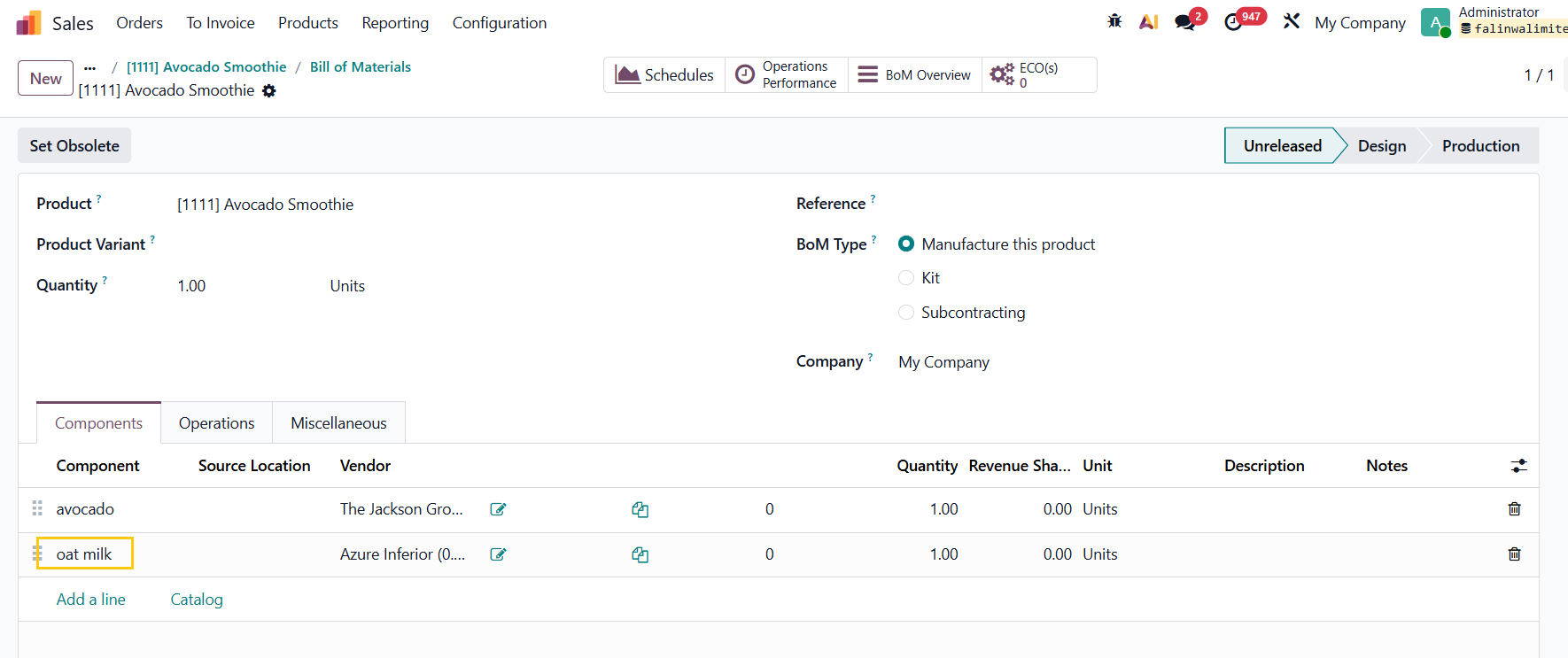 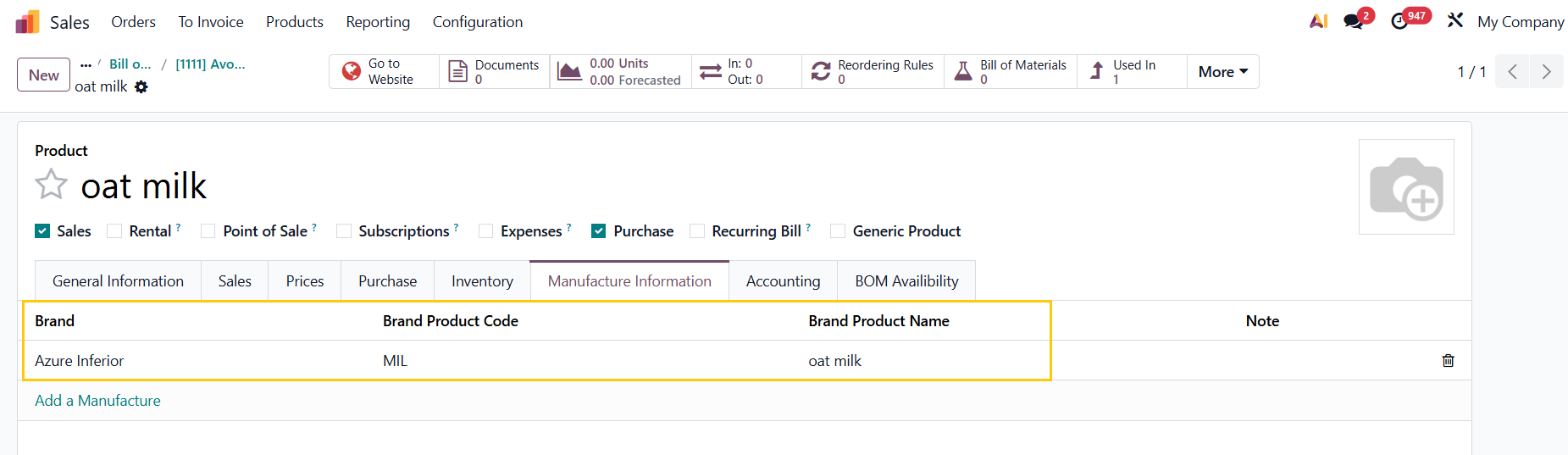 |
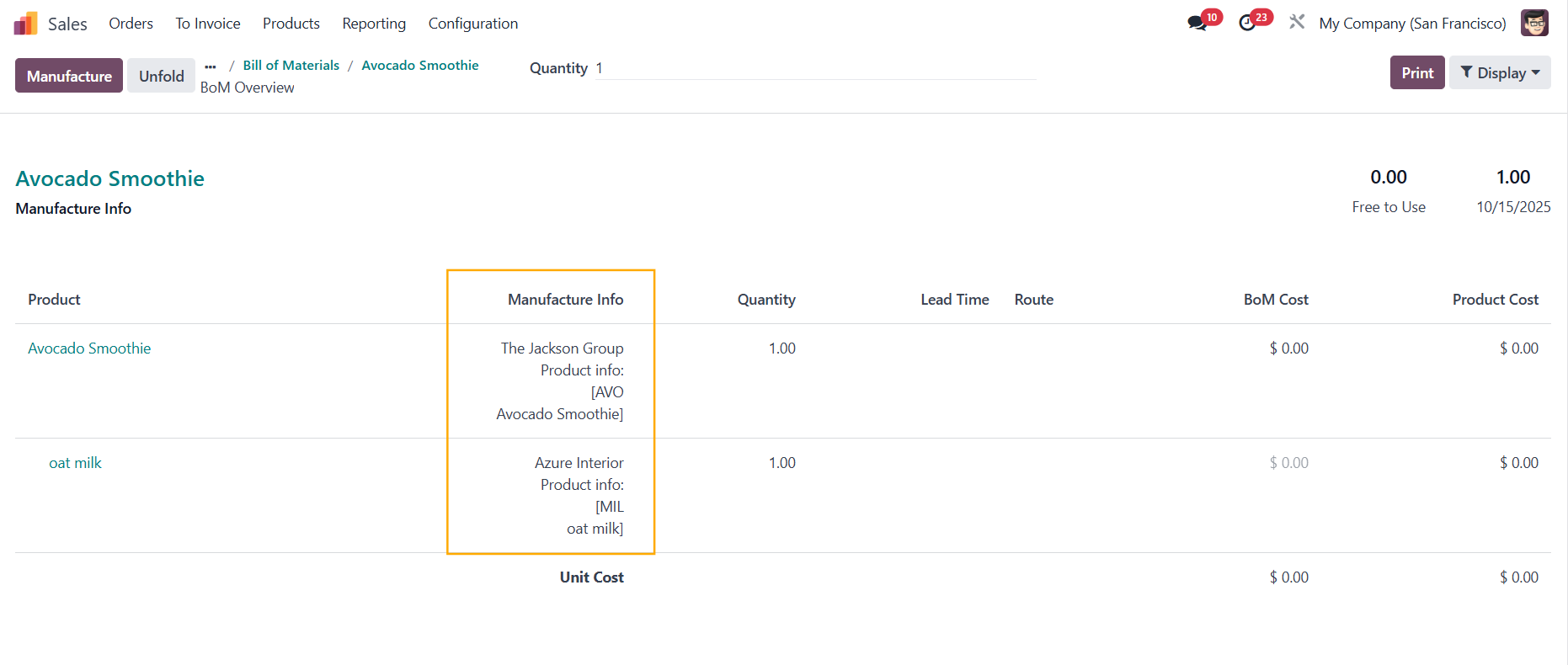
3. Head back to the finished product's BoM > Click the BoM Overview smart button > We have an addional display option - Manufacture Info to show the information about the manufacturers of the product and its component(s). |
|
Note: From v19, you have to turn on the Manufacturing Info switch on the top right corner to see the information. |  |
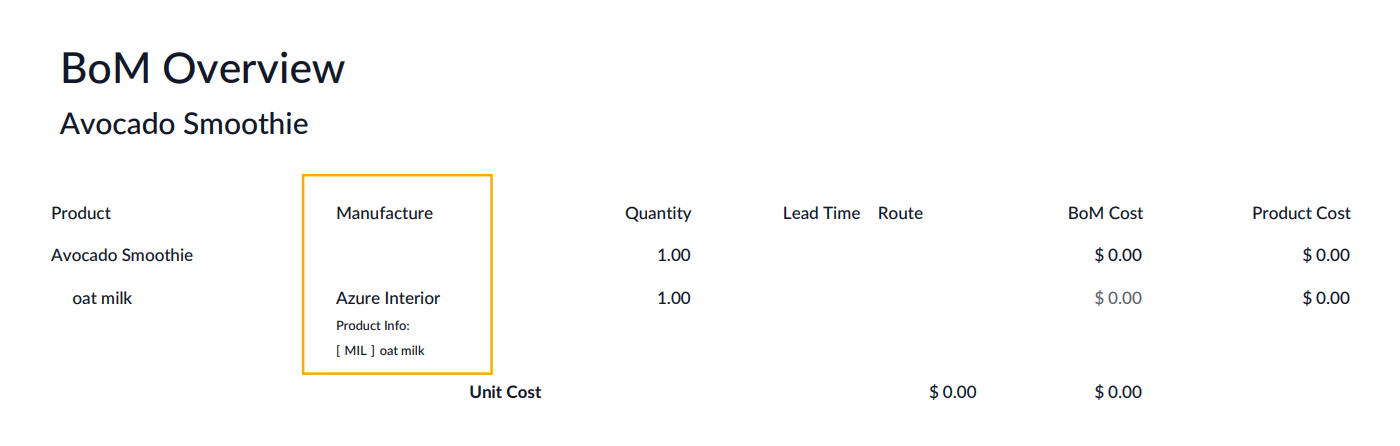
Print > On the BoM Overview report, only the component(s)'s manufacturer information is shown. Note: since v18, the finished product's manufacturer information is shown as well. |
|
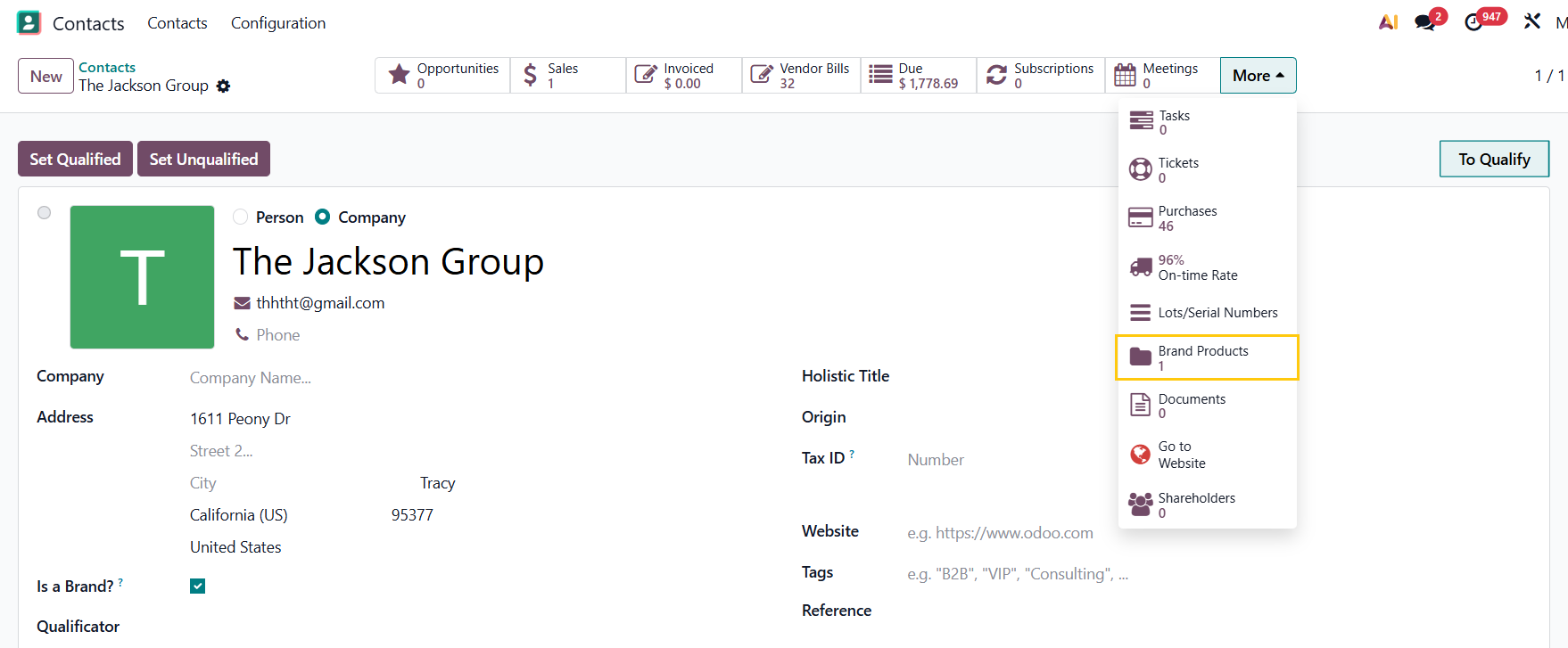
4. Go to Contacts > choose one of the contact > there is a new Brand Products smart button that links to all products for which this contact is set as the Brand |
|
You can create a new product that is made by this Brand from here as well |
|